
Pi Bot is a desktop app where a team of named Bots works on your own computer: private chats, group chats, routines, and the folders you point them at. Chat history, settings and keys stay on this computer. Conversation content only leaves it when you use an online model, and then it goes to the provider you chose.
System requirements
| System | Package | Notes |
|---|---|---|
| macOS | .dmg (one for Apple silicon, one for Intel) |
In-app updates need Pi Bot in the Applications folder |
| Windows | .exe installer |
64-bit Windows |
| Linux | .AppImage |
Command isolation needs bubblewrap and socat; only the AppImage updates in-app |
You also need a model: an API key for an online provider, a ChatGPT plan, or a model running on your computer (such as Ollama). See 9 · Models and keys.
Install
Download the package for your system from download and installation page.
macOS
- Open the
.dmgand drag Pi Bot into the Applications folder. - Open Pi Bot from Applications or Launchpad.
- Pi Bot v0.0.1 has not been notarized by Apple. If macOS says it can't verify Pi Bot, first check that you downloaded it from this site. If you choose to continue, try opening it and then find Pi Bot under System Settings › Privacy & Security and click Open Anyway. See the Apple Support instructions.
Pi Bot normally has no Dock icon. After you close the window you find it in the menu bar (see Tray and background).
Windows
- Run the installer. The wizard is available in English and Chinese.
- Choose to install for yourself or for all users; you can change the folder. Desktop and Start menu shortcuts are created by default.
- The last page can start Pi Bot right away.
- If Windows SmartScreen stops the installer, click More info › Run anyway.
Uninstalling keeps your data (chats and keys live in the data folder, see 12 · Updates and data); deleting it is up to you.
Linux
- Make the AppImage executable:
chmod +x PiBot-*.AppImage, then run it. - Install the command isolation tools (used when Bots run commands):
- Debian / Ubuntu:
sudo apt install bubblewrap socat - Fedora:
sudo dnf install bubblewrap socat
- Debian / Ubuntu:
- Run it as a regular user: not with
sudoor as root, and without--no-sandbox.
Ubuntu 24.04 and later restrict unprivileged user namespaces by default. If Pi Bot can't start safely, it shows a page with the AppArmor profile to add; follow it, then open Pi Bot again.
First launch: the welcome flow
The first launch walks you through five steps. Back returns to the previous step at any time.
1. Meet Pi Bot
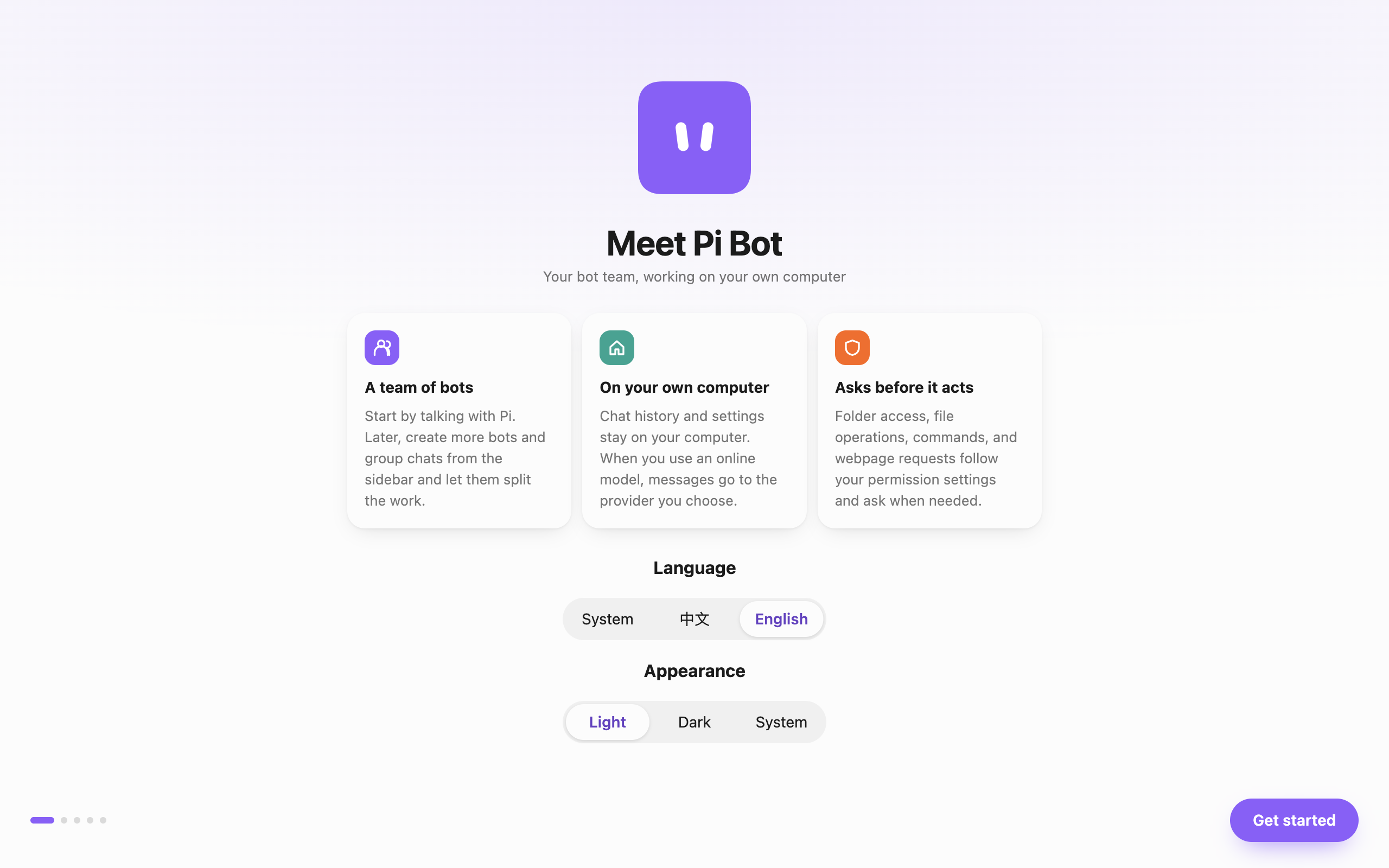 Welcome · Captured in a separate macOS v0.0.1 test profile.
This page covers three things: a team of Bots, your data stays on your computer, and Bots ask before they act. Pick the Language (System / 中文 / English) and Appearance (Light / Dark / System); both can be changed later in Settings. Click Get started.
2. Choose a model
"Which model should Pi use?" has four options:
-
OpenRouter (Recommended): one key for many models, with a low-cost model that handles tools already picked. Messages go to OpenRouter, then to the model's vendor. Paste your key and click Save & test.
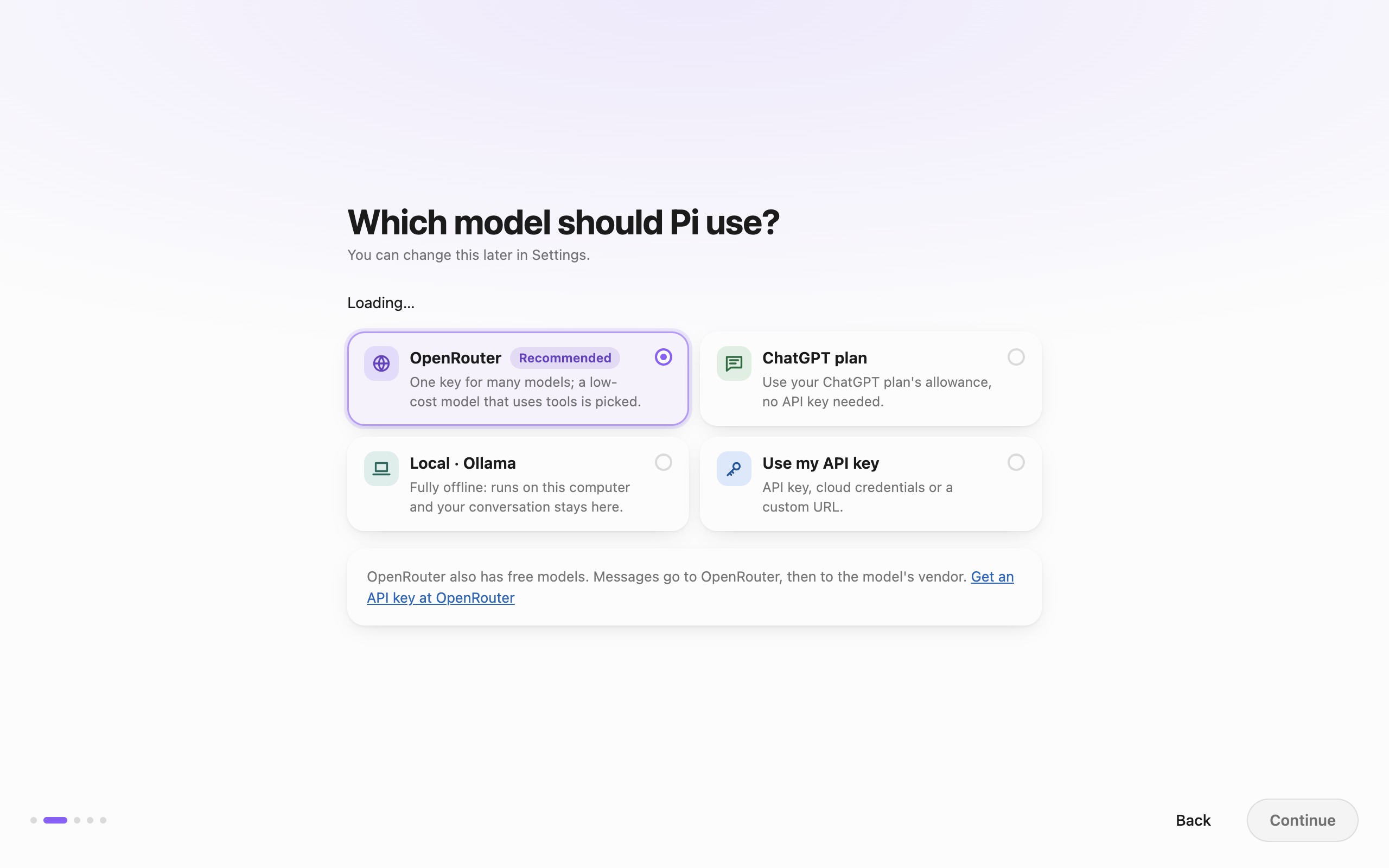 OpenRouter · Captured in a separate macOS v0.0.1 test profile.
-
ChatGPT plan: Select ChatGPT plan in the welcome flow, then choose Continue with ChatGPT. Sign in in your browser and return to Pi Bot to pick a model.
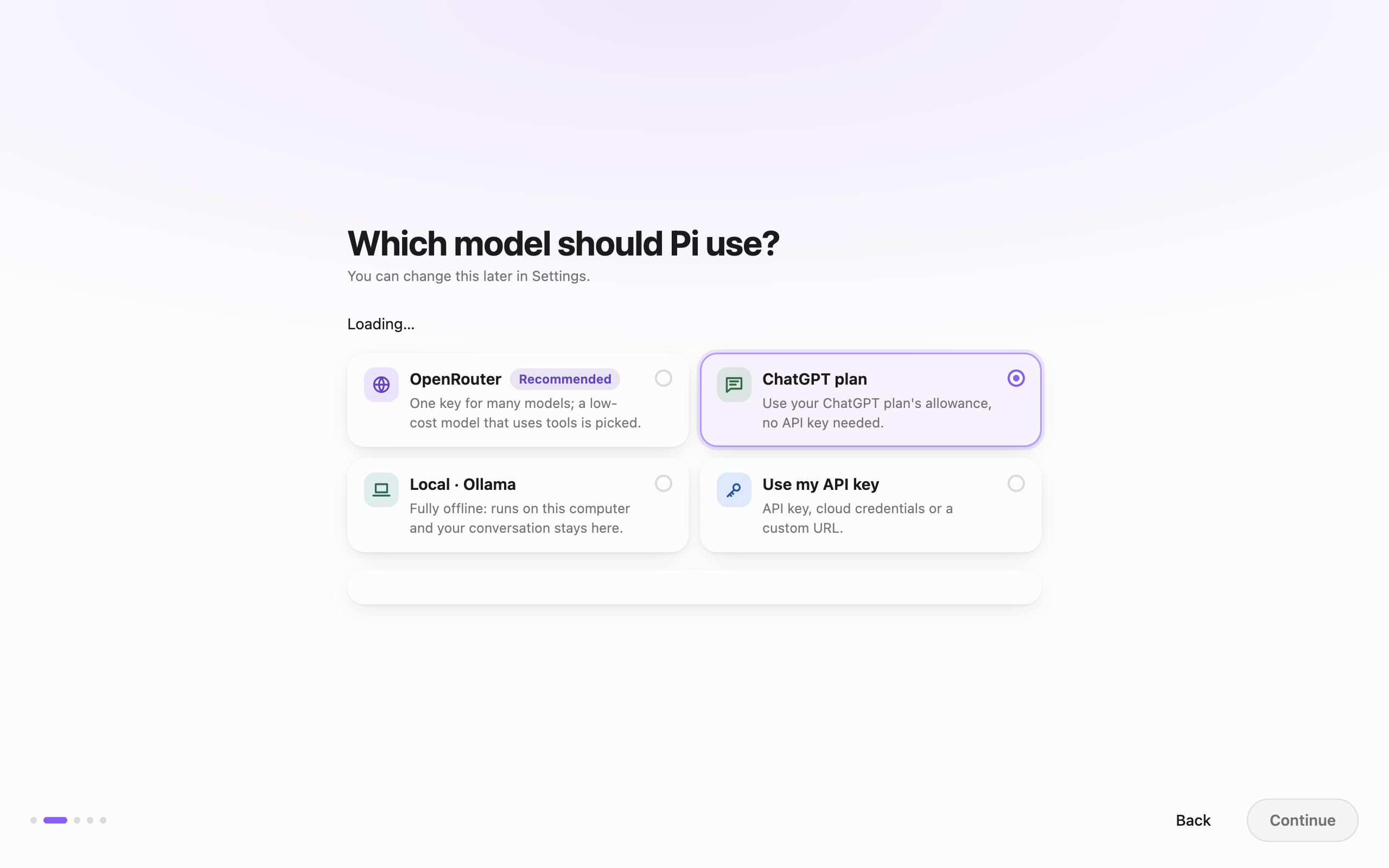 ChatGPT plan in the welcome flow · Captured in a separate macOS v0.0.1 test profile.
-
Local · Ollama: fully offline; the model runs on this computer and your conversation stays here. Install Ollama first; if it isn't detected you get a link to the installation instructions and a Check again button.
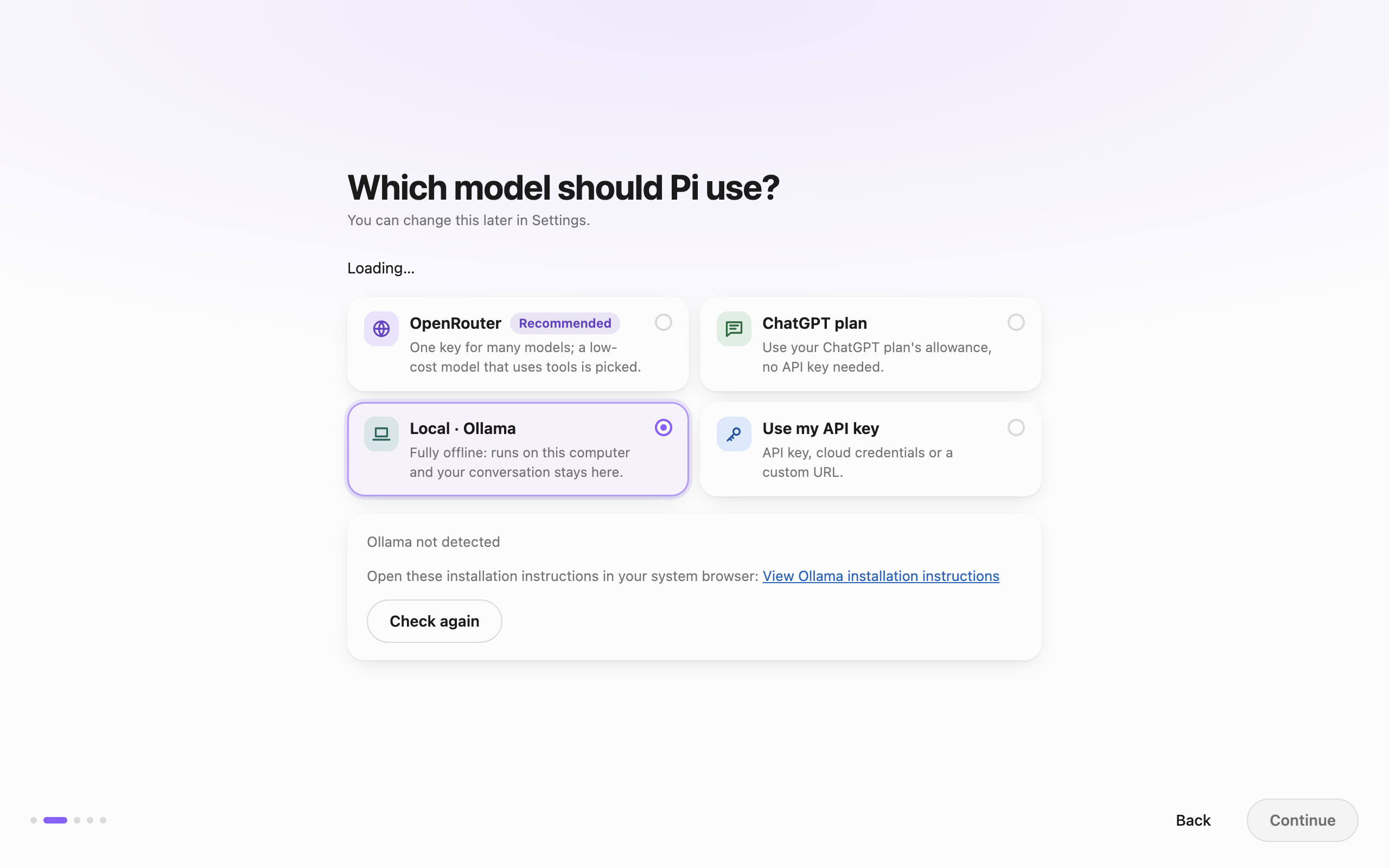 Local Ollama · Captured in a separate macOS v0.0.1 test profile.
-
Use my API key: connect with an API key, cloud credentials or a custom URL. Choose a provider, paste the key, click Save & test, then pick a default model.
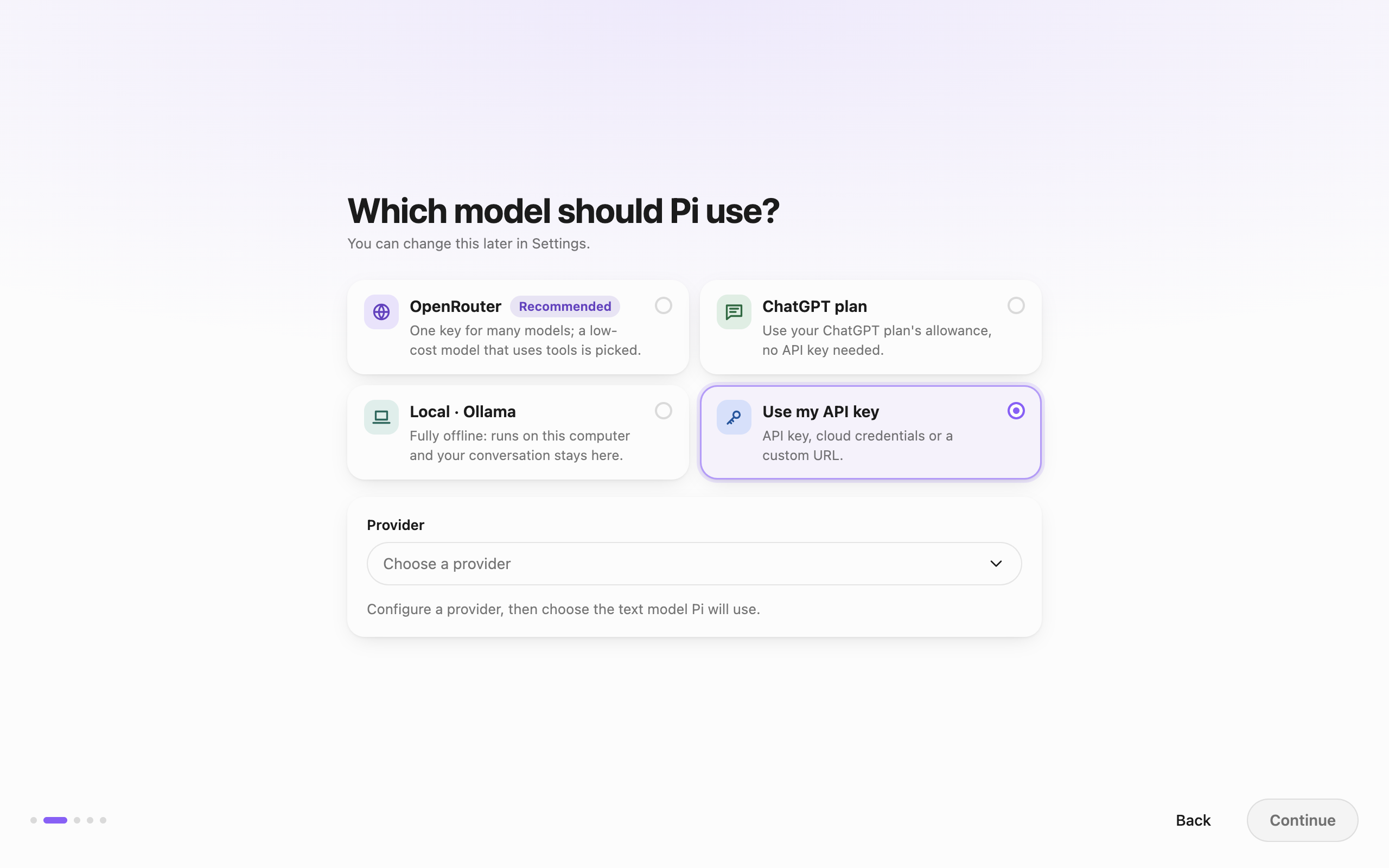 Use my API key · Captured in a separate macOS v0.0.1 test profile.
The provider list is grouped into Popular, Aggregators & gateways, Cloud providers, Fast inference, Local & custom and Other, and you can type to search:
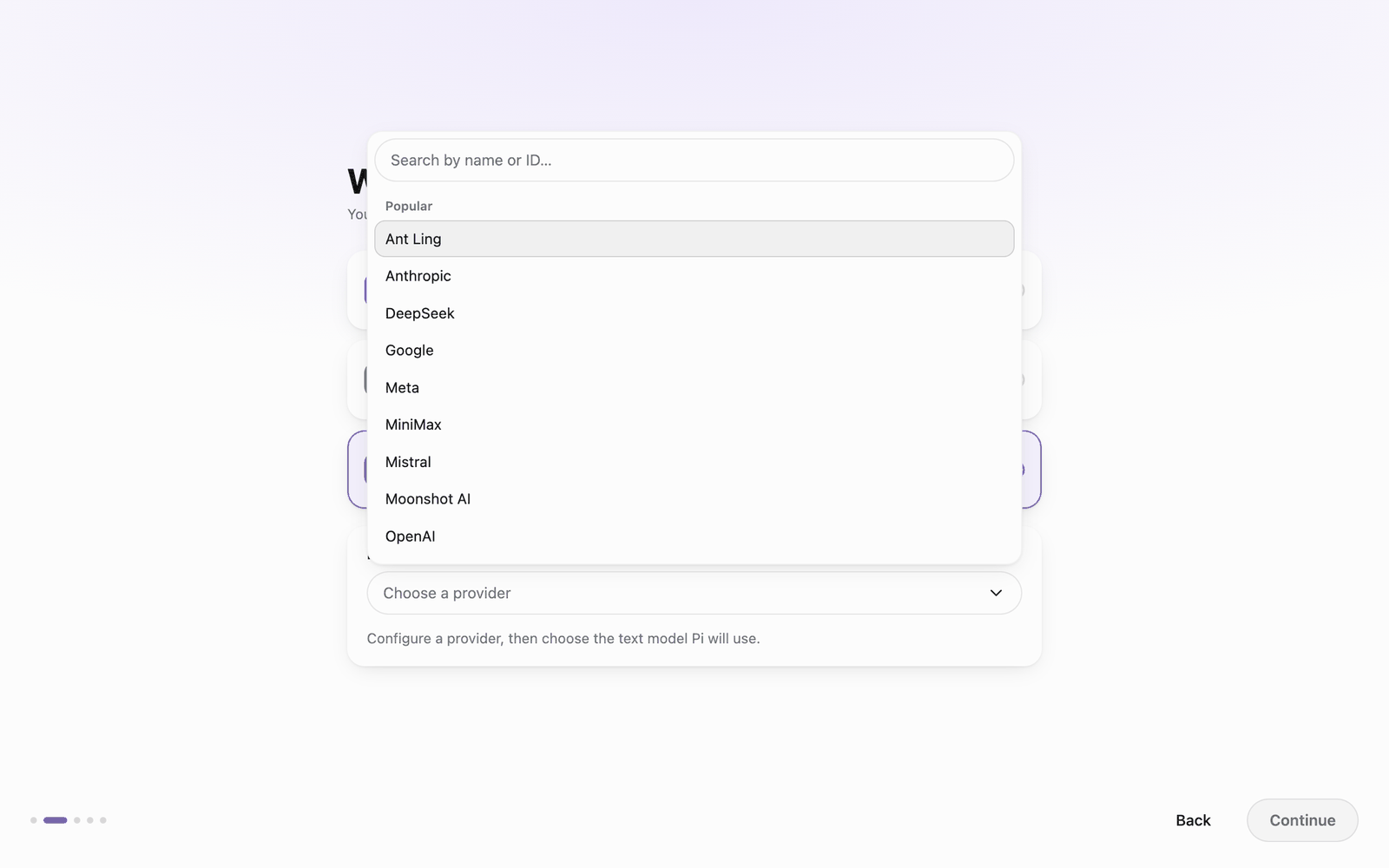 Provider list
Keys are encrypted with this computer's system secret store and never shown again. If the matching environment variable is already set (for example OPENROUTER_API_KEY), the page says it was detected and offers Import.
You can also connect a ChatGPT plan later in Settings → Models & API keys.
3. Pick a Bot to start with
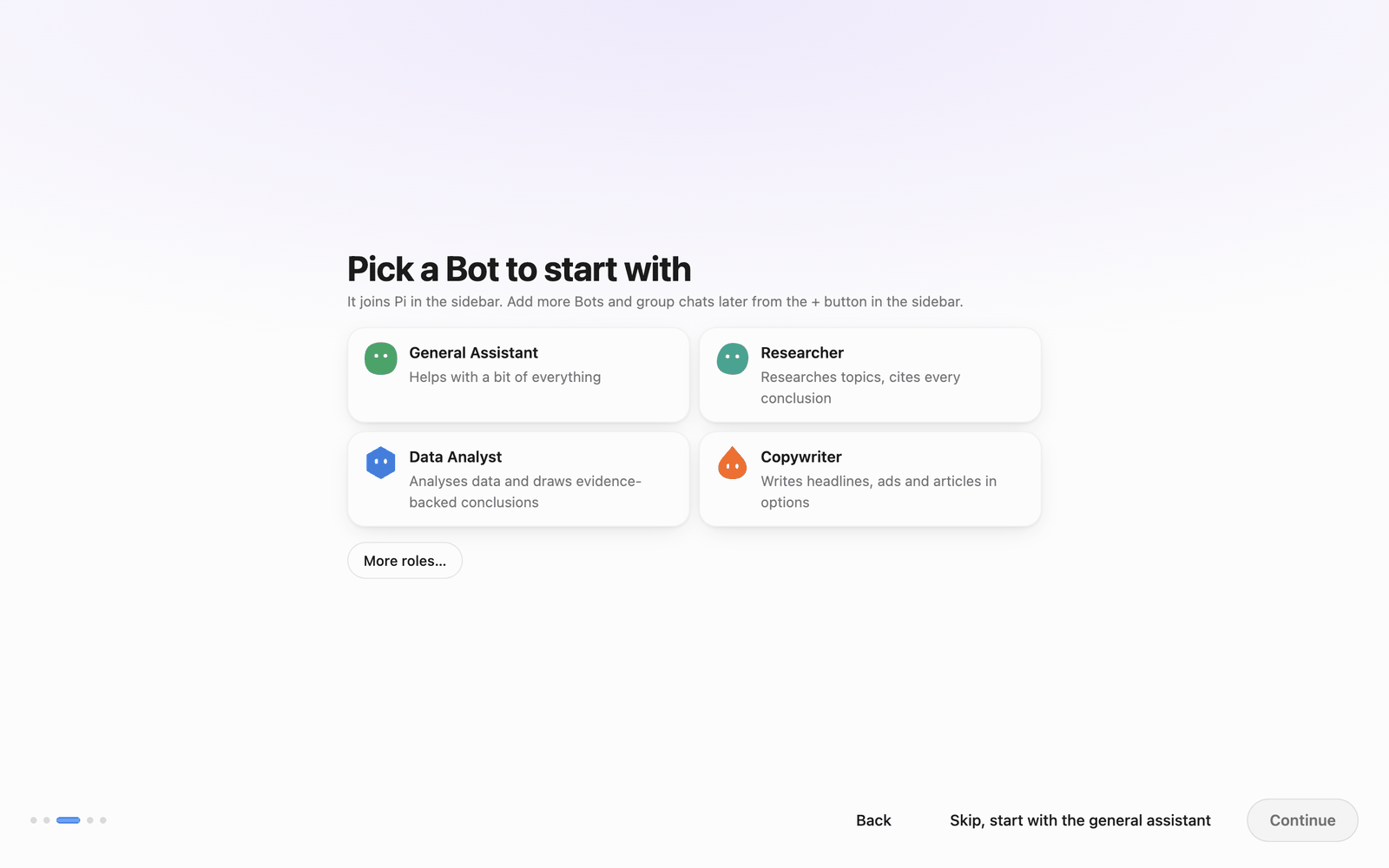 Pick a Bot
Pick a role; that Bot joins Pi in the sidebar. More roles… shows every built-in role (Engineering, Product & design, Data & research, Content & marketing, Office & operations, General). To skip, click Skip, start with the general assistant.
4. System permissions (macOS)
If you want Bots to operate apps on this computer (press buttons, take screenshots), turn these on here:
- Accessibility: press buttons and fill in fields; moves the mouse for screenshot clicks
- Screen Recording: screenshots, cropped to the apps you allow
- Automation: lets Bots script System Events and Finder
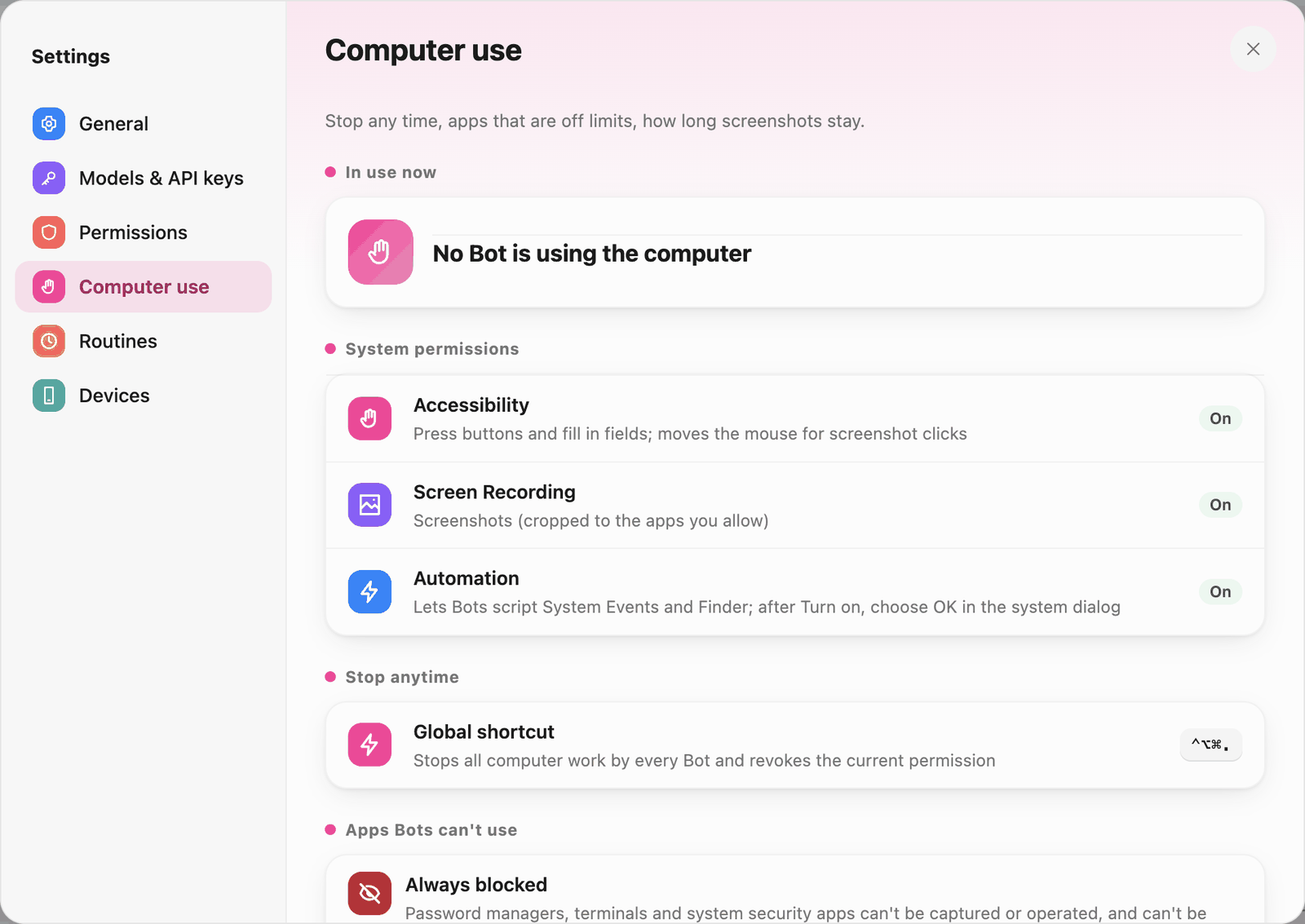 Skip during setup if needed, then check system permissions under Computer use
If Screen Recording hasn't taken effect after you enable it, click Restart Pi Bot. If you don't need computer use, click Not now; you can turn it on later in Settings › Computer use. Windows needs no extra permission; Linux needs none on X11, and on Wayland screenshots are confirmed once per session.
5. Meet your main bot
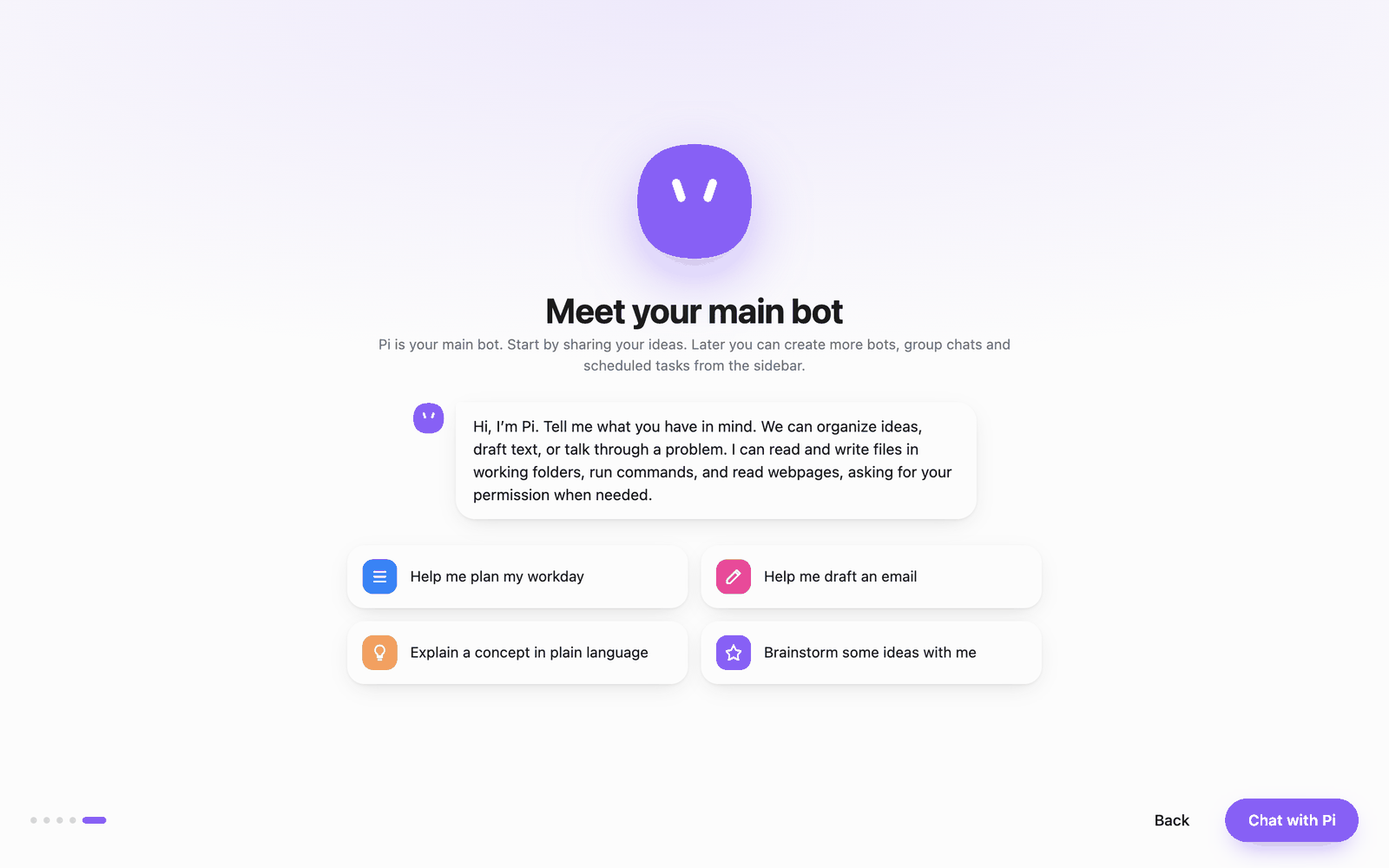 Meet Pi
Pi is your main Bot. Click a suggestion, or Chat with Pi to open the main window.
The main window
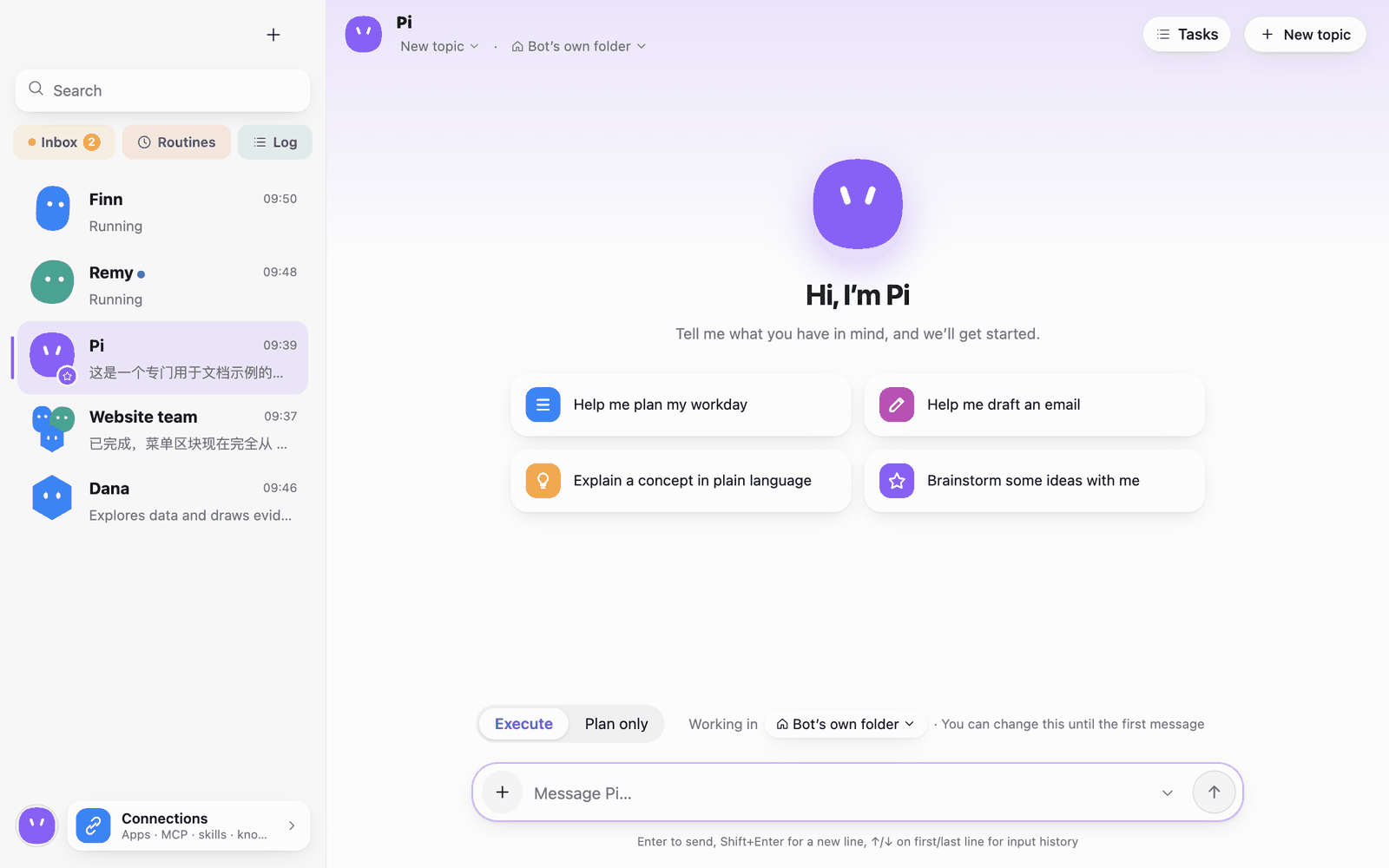 Main window
- Sidebar: the "+" at the top creates a Bot, group chat or sidebar group, or imports a file; the search box finds Bots, groups and messages; Inbox, Routines and Log sit under it, then your Bots and group chats.
- Your avatar (bottom left): the profile and app menu (language, appearance, Settings, About you, Report a problem, Check for updates).
- Connections: apps, MCP, skills and knowledge.
- Chat area: the Bot's name, current topic and working folder at the top, with Tasks, Changes, Browser, "…" and New topic on the right. Execute / Plan only and the message box are at the bottom.
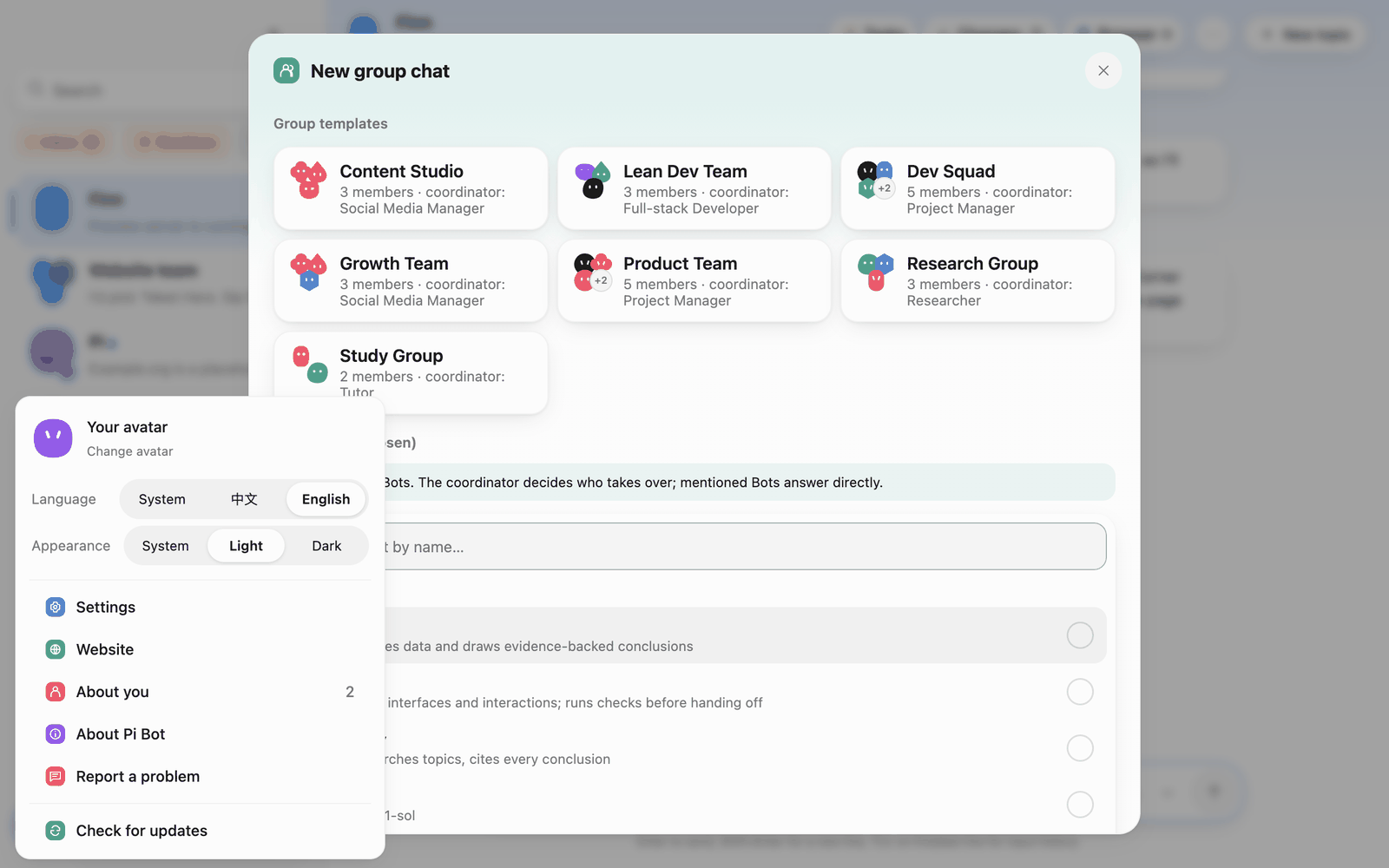 Profile and app menu
The avatar menu switches language and appearance (Light / Dark / System) directly. Dark appearance examples:
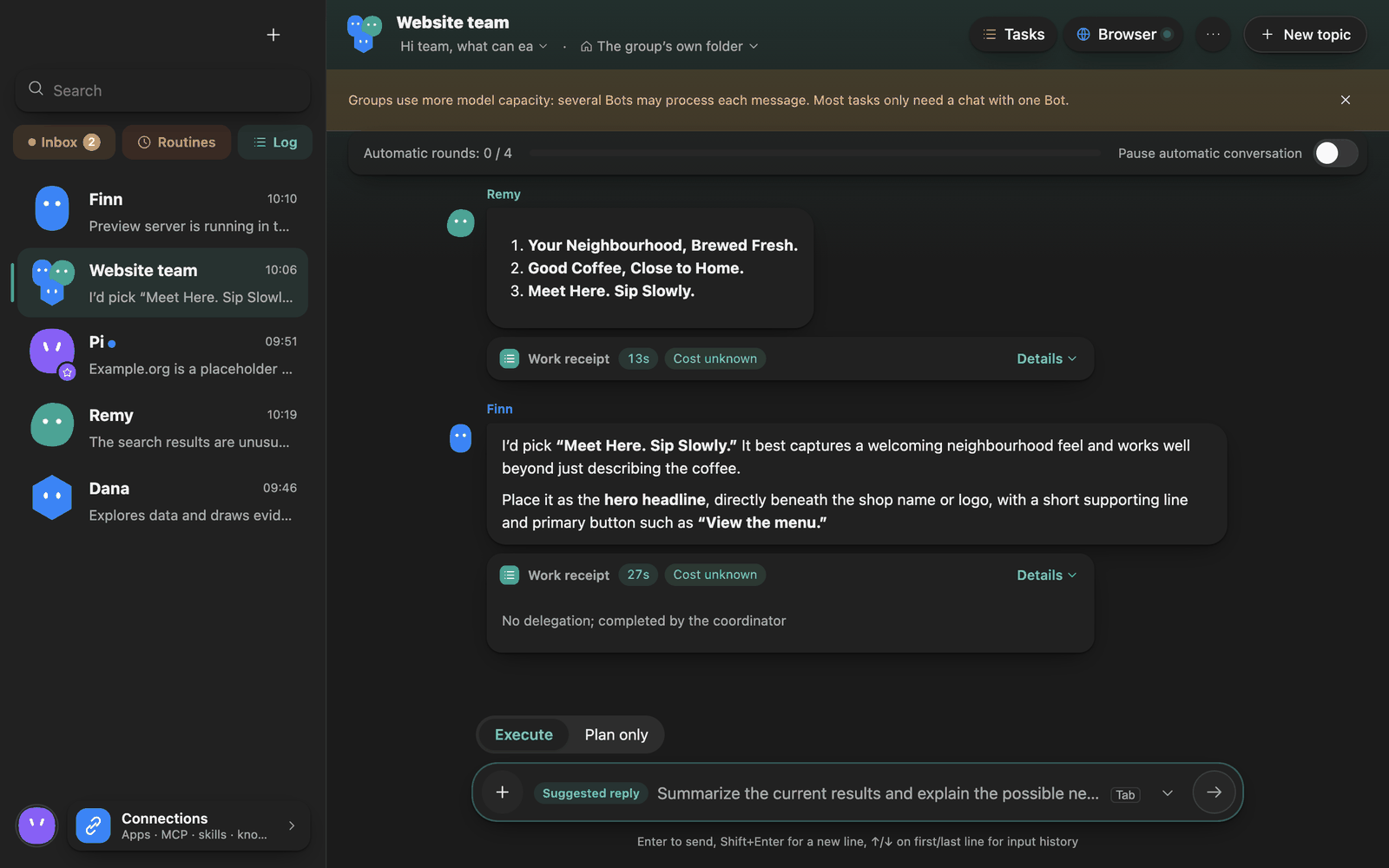 Dark appearance: group chat
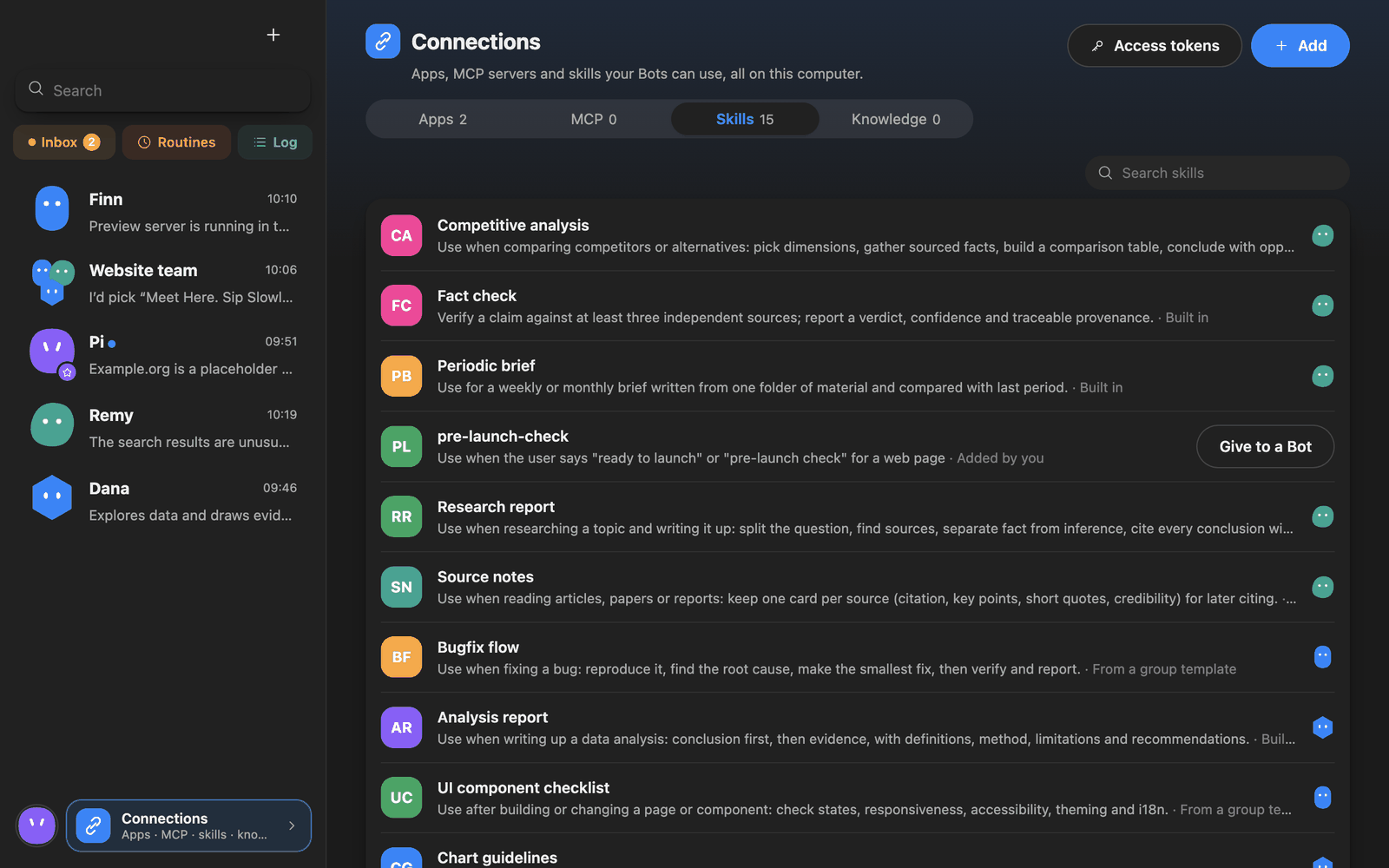 Dark appearance: Connections · Skills
Tray and background
When you close the window, Pi Bot keeps running in the background (routines keep running), and you can reopen it from the tray (Windows / Linux) or menu bar (macOS). To quit completely, use Quit completely (routines stop too) in the tray menu. In Settings › General › Startup you choose what happens when you sign in to the computer (Don't start / Open window / Background only) and whether to show the tray icon.
Next steps
- Create more Bots: 2 · Bots and roles
- Start chatting and give Bots work: 3 · Chatting
- Let Bots work in your project: 4 · Working folders and changes