
Each Bot has its own name, persona, model, skills, permissions and memory. Pi is the default main Bot; you can create more Bots from roles so each one owns an area, and put several into a group to split work (see 6 · Group chats).
Create a Bot
Click "+" at the top of the sidebar and choose New Bot (⌘1 / Ctrl+1).
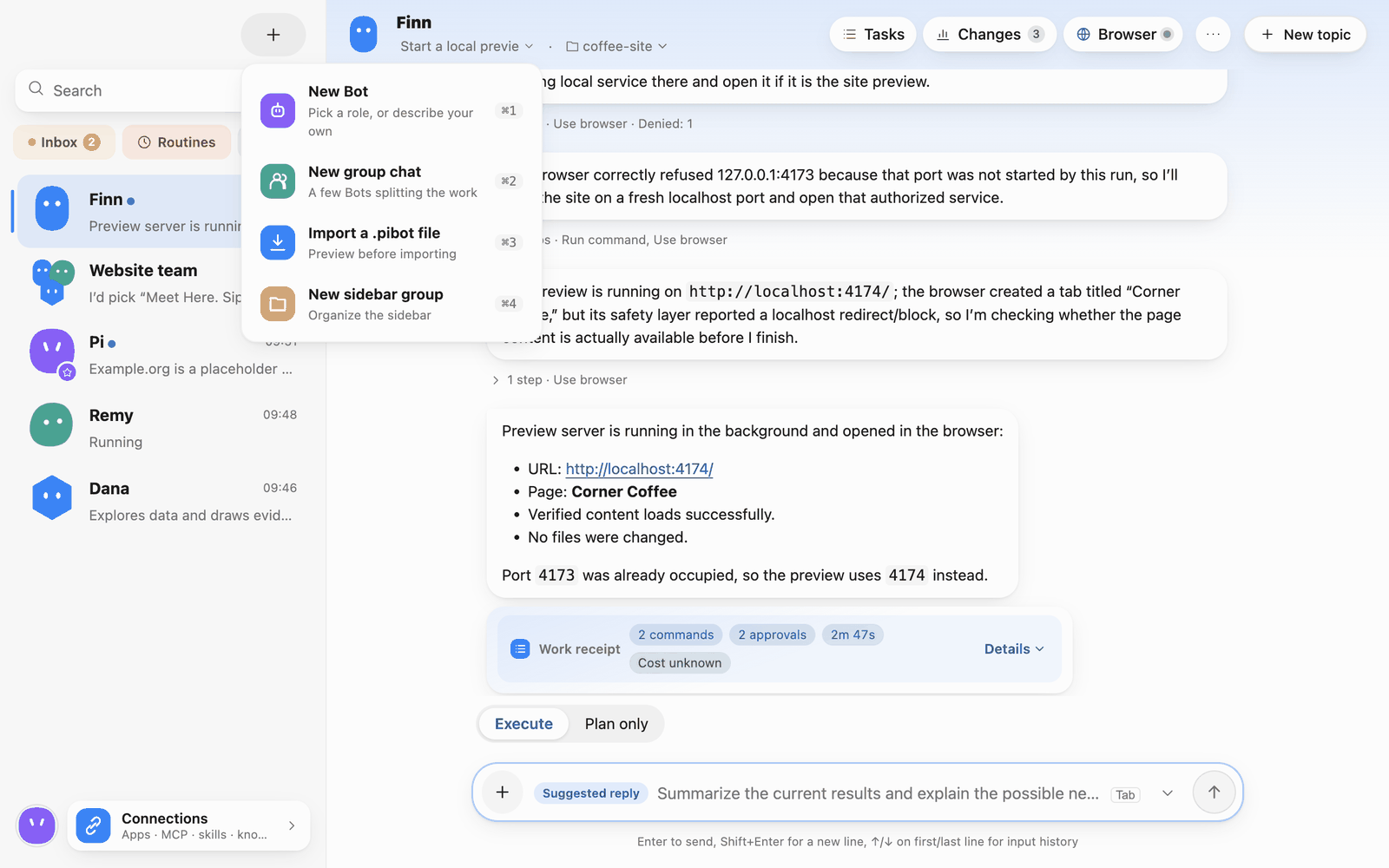 New menu
From a role
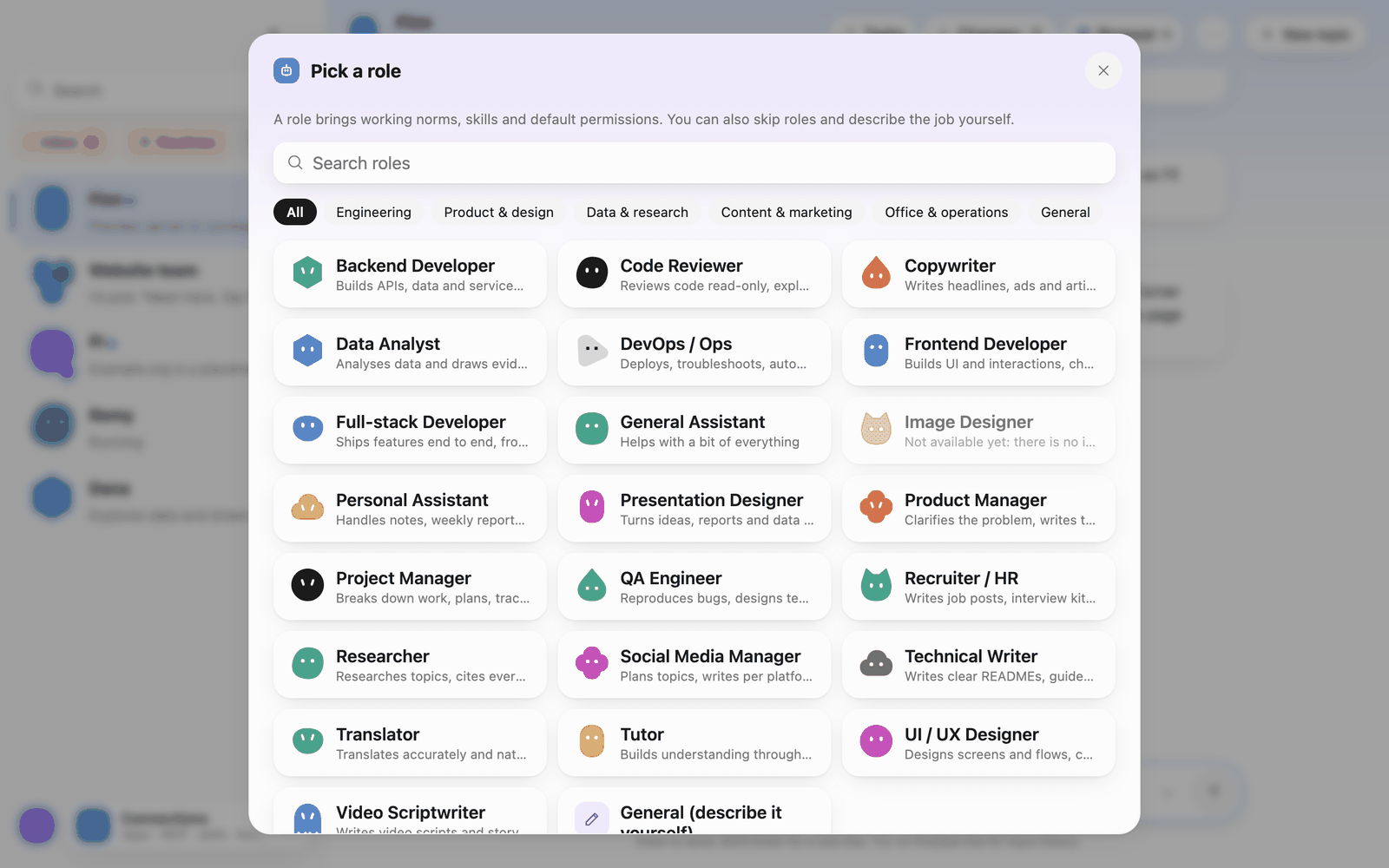 Pick a role
"Pick a role" lists every built-in role; filter by category (Engineering, Product & design, Data & research, Content & marketing, Office & operations, General) or search. A role brings working norms, skills and default permissions. For example:
- Engineering: Backend Developer, Frontend Developer, Full-stack Developer, Code Reviewer, DevOps / Ops, QA Engineer
- Product & design: Product Manager, UI / UX Designer, Presentation Designer, Image Designer
- Data & research: Researcher, Data Analyst
- Content & marketing: Copywriter, Social Media Manager, Technical Writer, Translator, Video Scriptwriter
- Office & operations: Personal Assistant, Project Manager, Recruiter / HR
- General: General Assistant, Tutor
The Image Designer needs a model that can generate images, set up in Settings › Models & API keys; until then it can't be created.
After you click a role you can change the name and add an extra description (for example which project it covers; this is reference, not instructions), and see its model, default permissions, built-in skills and working norms. Click Create Bot.
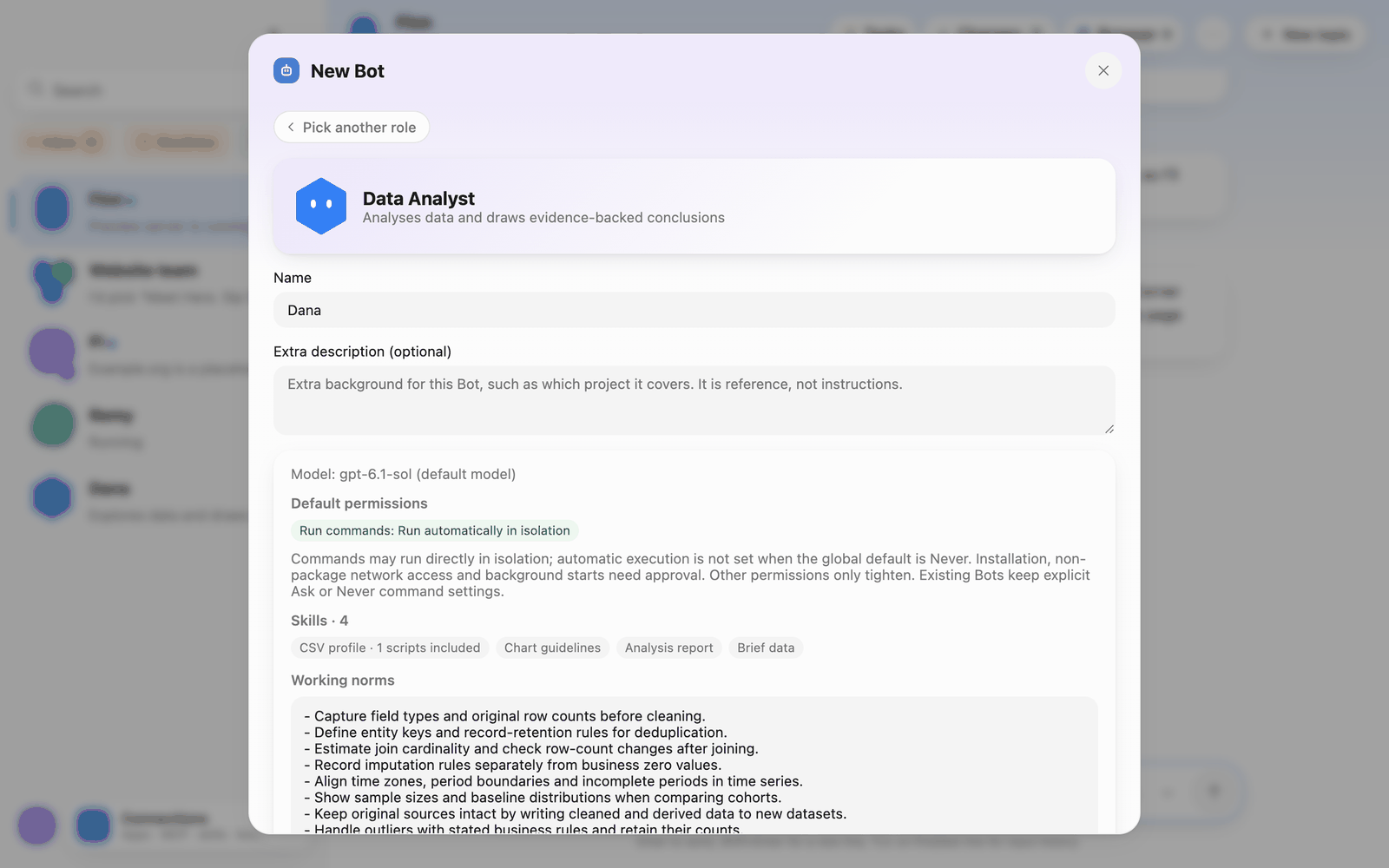 New Bot from a role
Describe your own
The last item, General (describe it yourself): write a job description and Pi Bot generates a name and persona.
The Bot profile panel
Click the Bot's name or avatar at the top of the chat to open its profile on the right. The panel has four tabs: Profile, Topics, Skills, Permissions. Changes save when you leave a field.
Profile
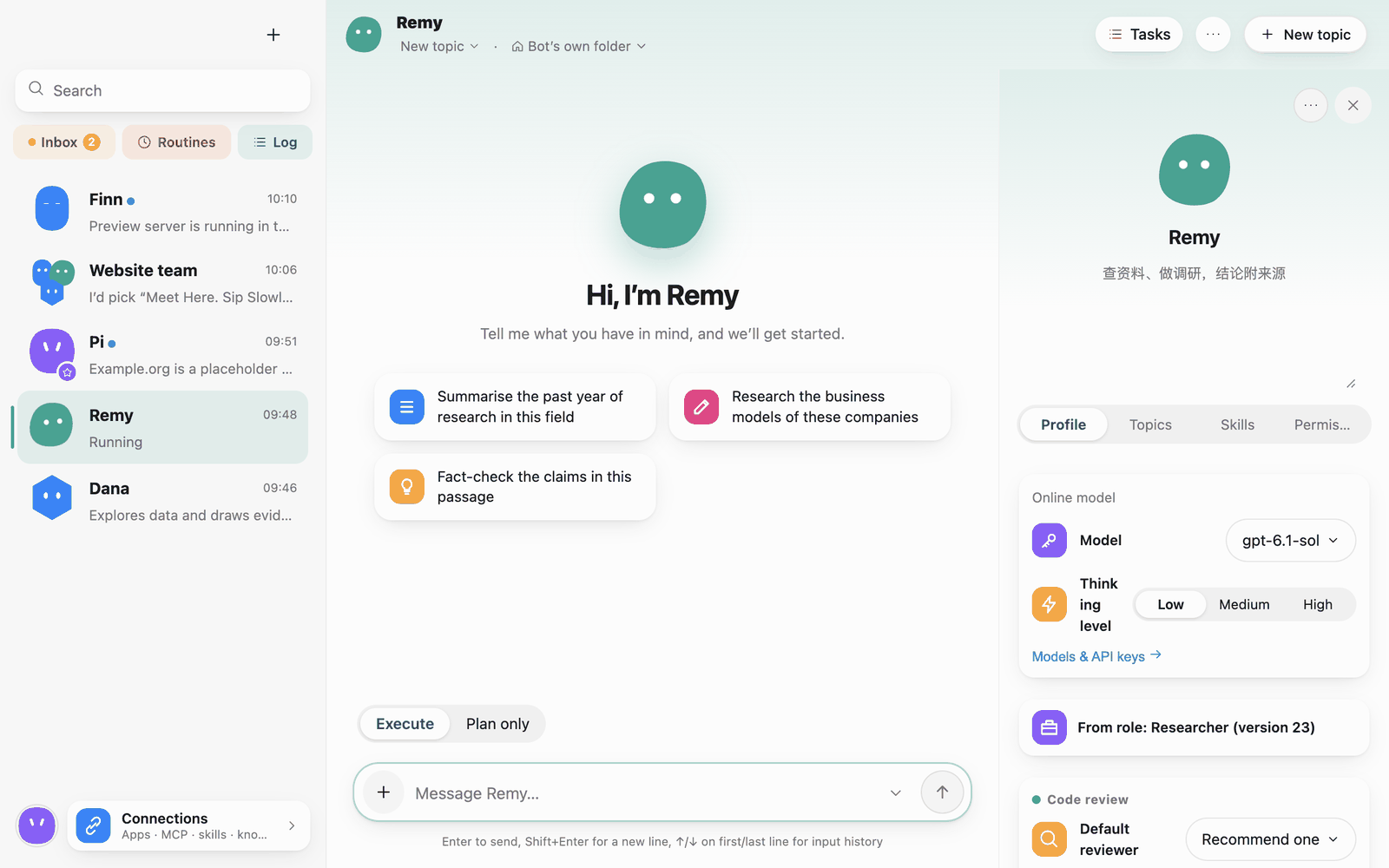 Profile
- Name, Its job: shown in the sidebar and in chats.
- Model, Thinking level: defaults to the default model in Settings › Models & API keys; each Bot can use its own. Thinking level is Low, Medium or High.
- From role: Bots created from a role show the role and its version.
- Code review: Default reviewer decides which Bot handles "Ask … to review" in the changes panel (automatic recommendation looks for a Code Reviewer Bot first, then a Bot on a different model). Ask for a review after changing code only applies to turns that changed files; reviews are read-only.
- Automatic actions: run formatting after writing (still approved per your permissions); notify on completion (no chat text in the notification).
- Persona & working norms: edited separately.
- Used folders: folders this Bot has worked in. Folders belong to topics and are picked at the top of the chat.
- Command log retention: days to keep and a size cap, per Bot.
- Run limits (including the cost cap): limits for the next run.
Topics
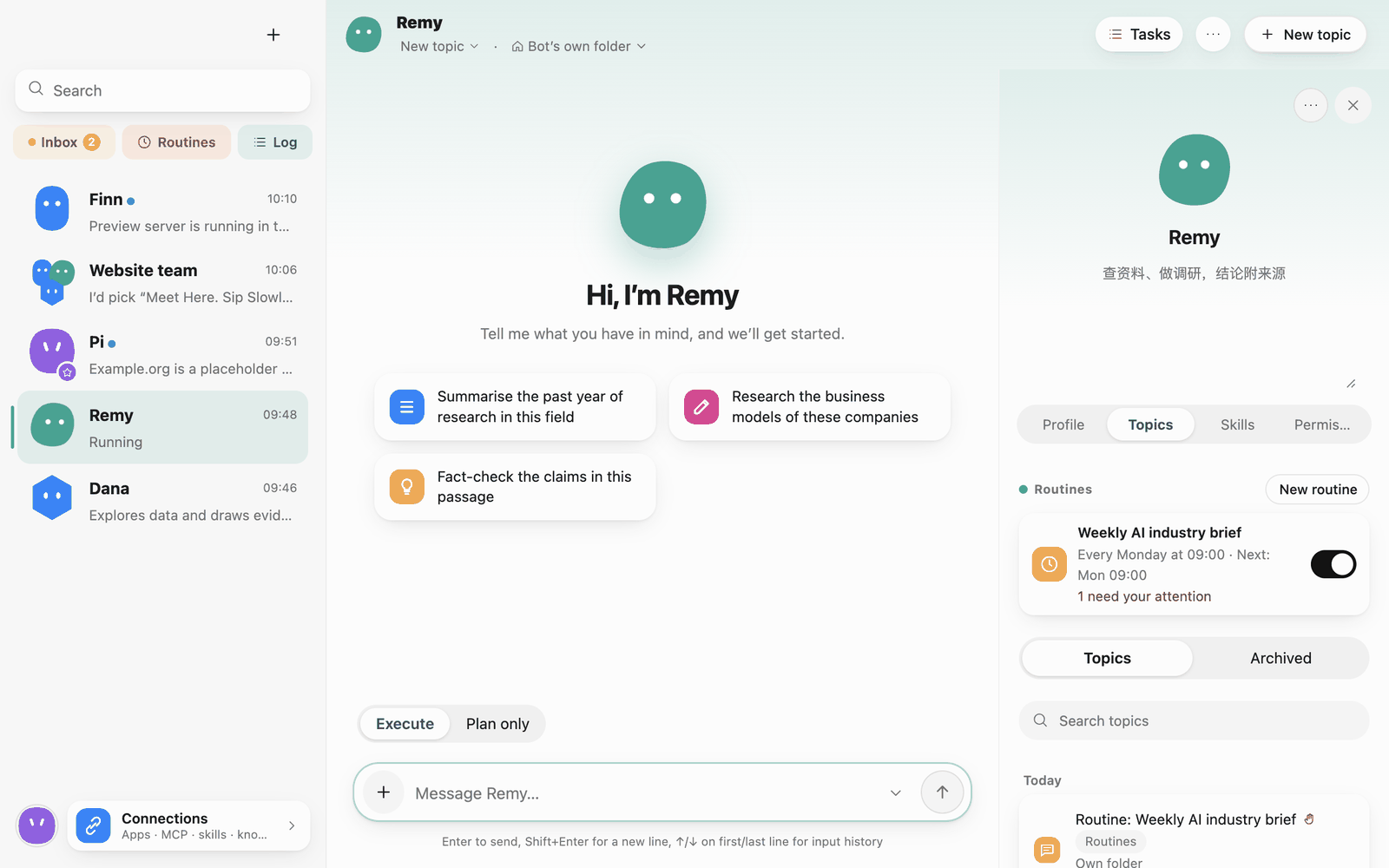 Topics
This Bot's routines (you can create one here with New routine) and all its topics, including Archived.
Skills
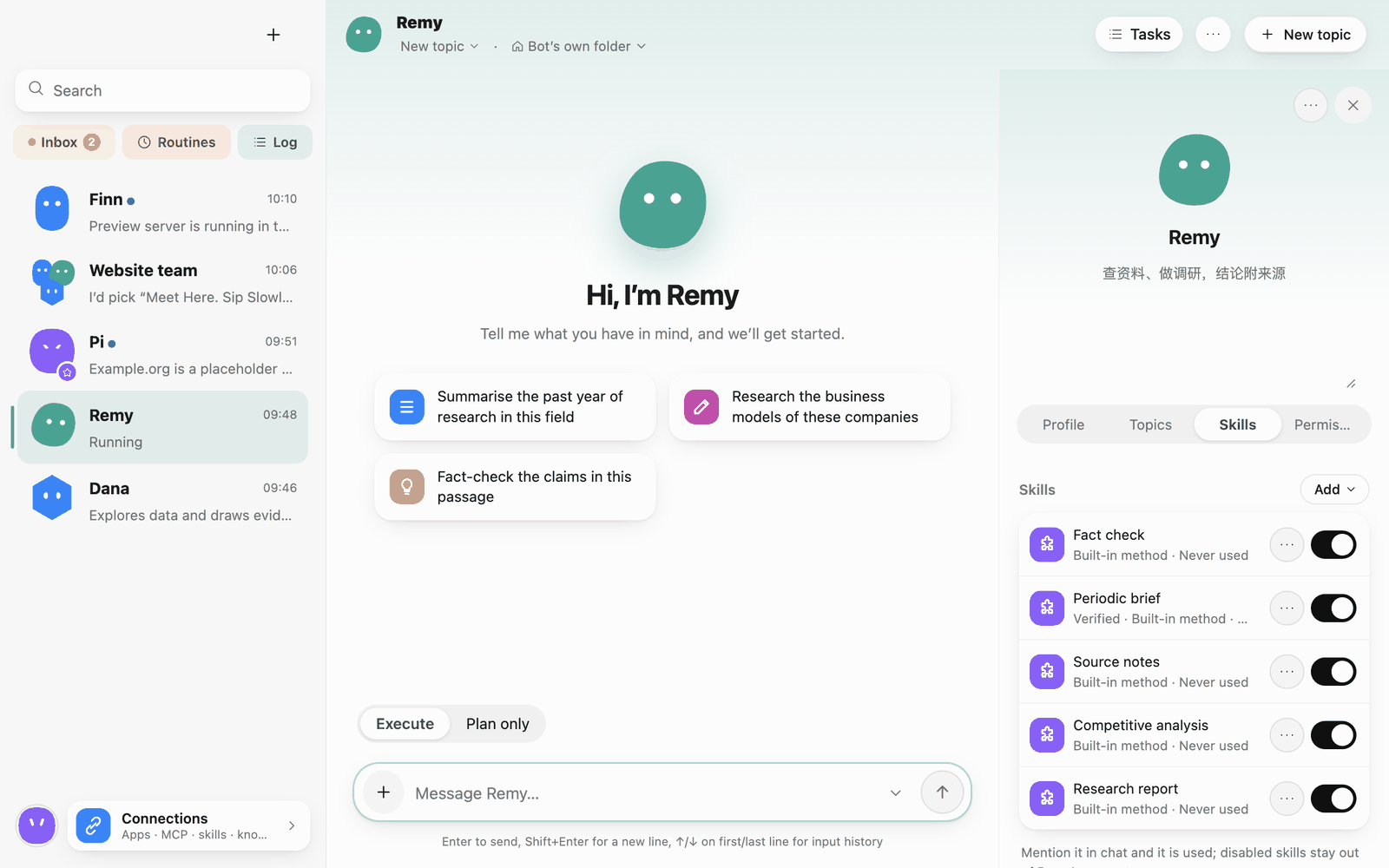 Skills and memory
- Skills: the skills this Bot can use, with on/off switches. Mention the task in chat and the Bot uses the matching skill; disabled skills stay out of its prompt. Add gives it more skills.
- Saved plans: a group plan whose steps all passed can be saved with Save as a reusable plan on its completion message and run again directly.
- Connections it can use: apps and MCP servers it has access to.
- Memory: see below.
Permissions
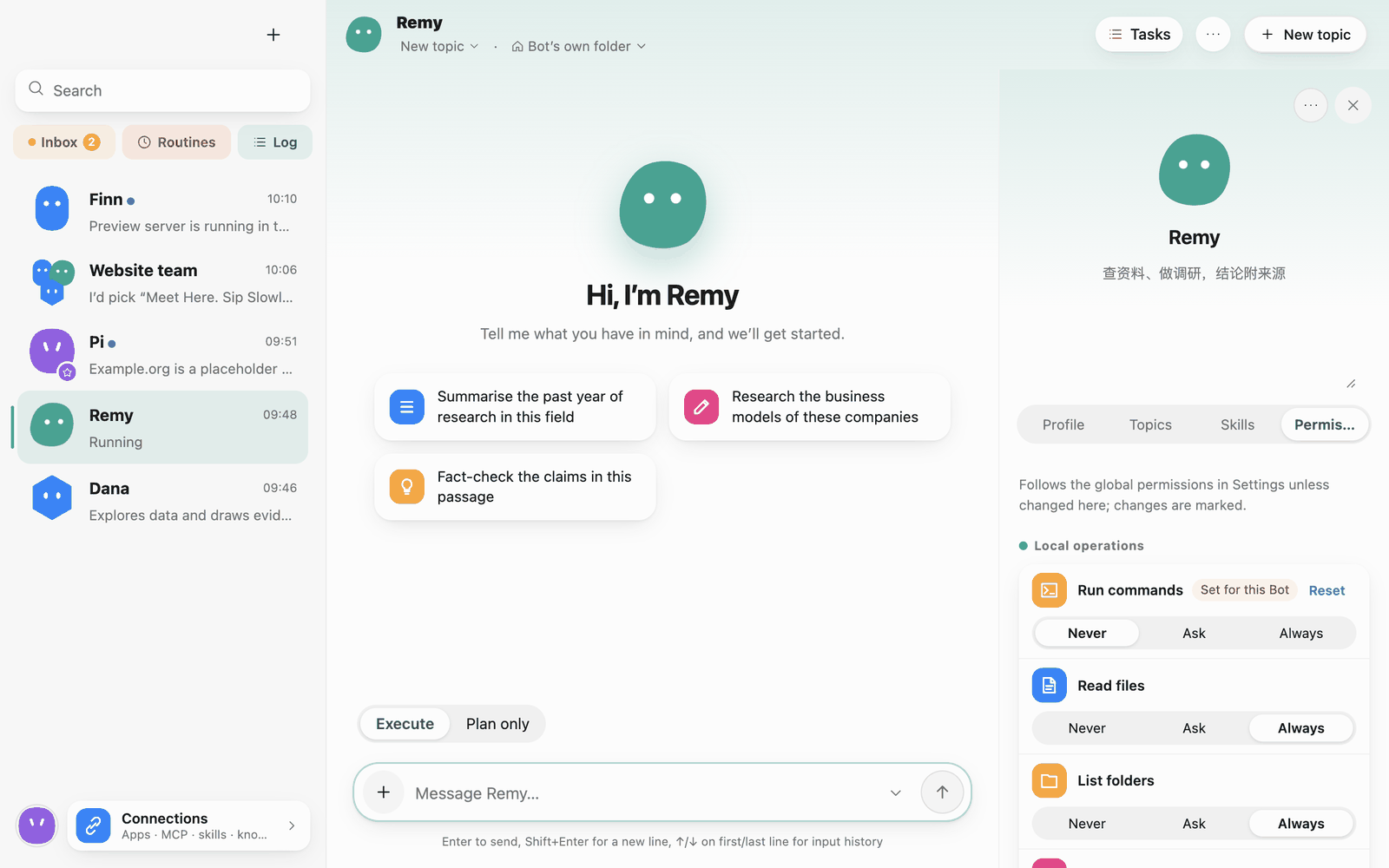 Permissions
By default a Bot follows the global permissions in Settings › Permissions. Anything changed is marked Set for this Bot; Reset returns it to the global setting. You can also toggle the Bot browser's Google compatibility mode, Clear browsing data, and View activity log. What each permission means: 5 · Approvals and permissions.
Memory
Bots remember your preferences and agreements and use them next time. There are four kinds of memory, told apart by who can use them:
| Memory | Who uses it | What goes in | Where to see and edit it |
|---|---|---|---|
| User memory (About you) | Every Bot, in group chats too | Facts about you: who you are, personal preferences, habits, how you like to communicate | Avatar menu › About you |
| Bot memory | Only this Bot | This Bot's work, its ways of working, task progress | The Skills tab of the Bot's profile panel |
| Group memory | Only this group | The group's roles, agreements and work | The Skills tab of the group's profile panel |
| Project memory | Every Bot and group working in this folder | The project's conventions, build commands and layout | The folder menu at the top of the chat › Project memory for this folder |
Project memory belongs to the working folder: only a project folder you chose has it; a Bot's own folder and folders on a runner don't. It stays on this computer and is never written into the project's files.
When a Bot saves a memory it picks the kind itself: facts about you go to user memory, project conventions to project memory (only while it works in a project folder), and other work to Bot memory in a direct chat or group memory in a group.
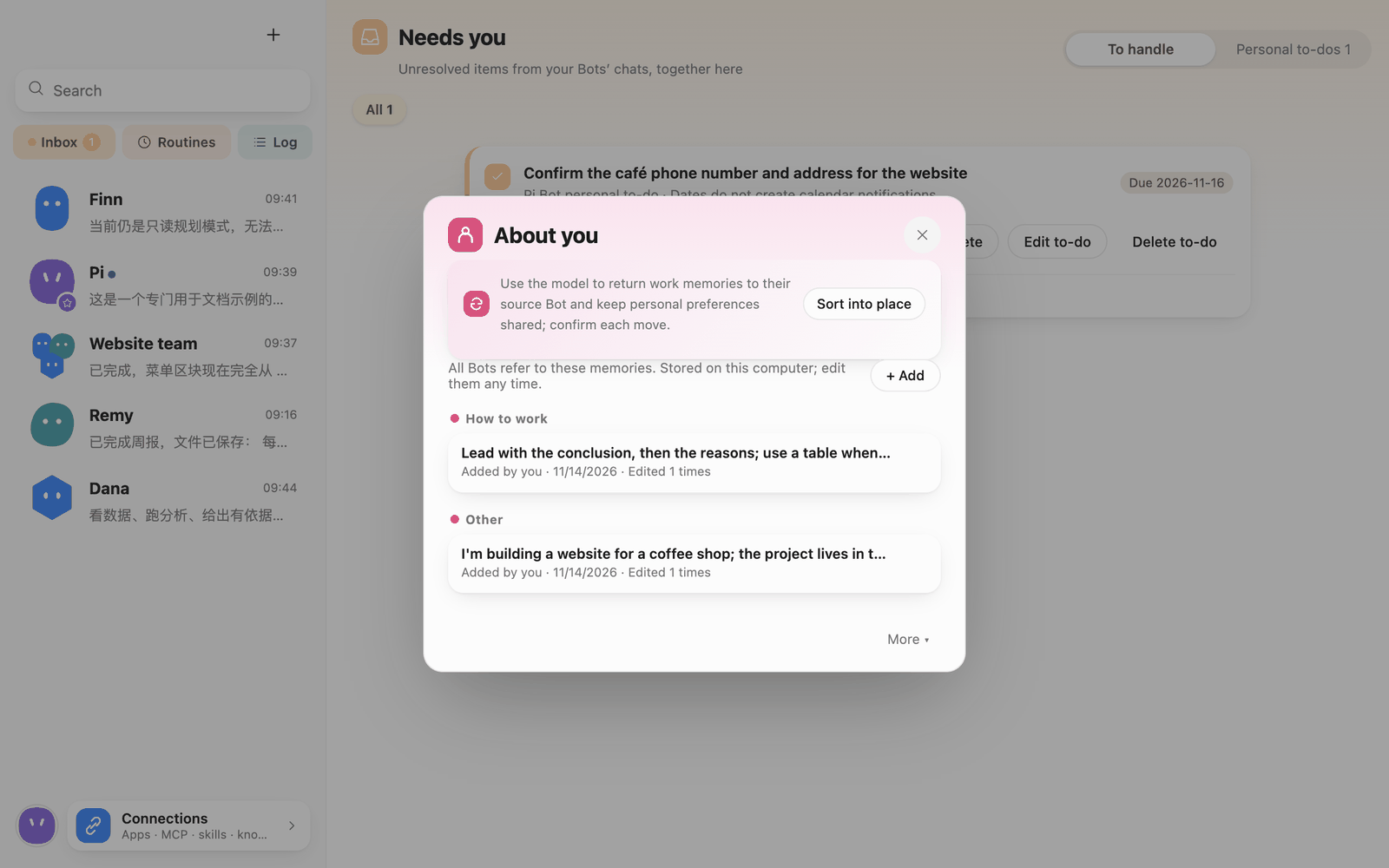 About you
Ways to add memory:
- Tell a Bot "remember that I prefer…".
- In a memory list click + Add, write the memory and pick a category (About you, Work, How to work, Other).
- Turn on Extract memories from conversations: when a topic winds down, the Bot pulls preferences and agreements out of it into memory.
When it learns something new can be Remember or Ask first. With Ask first, the Bot asks you before it writes a memory. Sort into place in About you uses the model to move memories that belong to one Bot's work back to that Bot; the move proposals appear in the Inbox for you to confirm one by one.
Memory is stored only on this computer and can be edited or deleted any time. Each run's work receipt lists which memories it used (see 3 · Chatting).
Import and sidebar groups
Open the sidebar plus menu to find import and grouping options
- Import a .pibot file: "+" › Import a .pibot file; you preview before importing. Multi-Bot or group templates import as a whole, as previewed.
- New sidebar group: "+" › New sidebar group to organize the sidebar.