
Chatting with a Bot is how you give it work. The Bot says how it plans to do the job, then reads files, runs commands and looks at web pages, stops to ask you when needed, and finally hands over the result with a work receipt.
Topics
Each Bot's chats are split into topics. A topic has its own context and working folder.
-
New topic: click + New topic at the top right. A new topic opens on a greeting page with suggestions in the interface language; click one to put it in the message box.
-
Switch topics: click the topic name under the Bot's name to open the topic list. You can search it and see Archived topics.
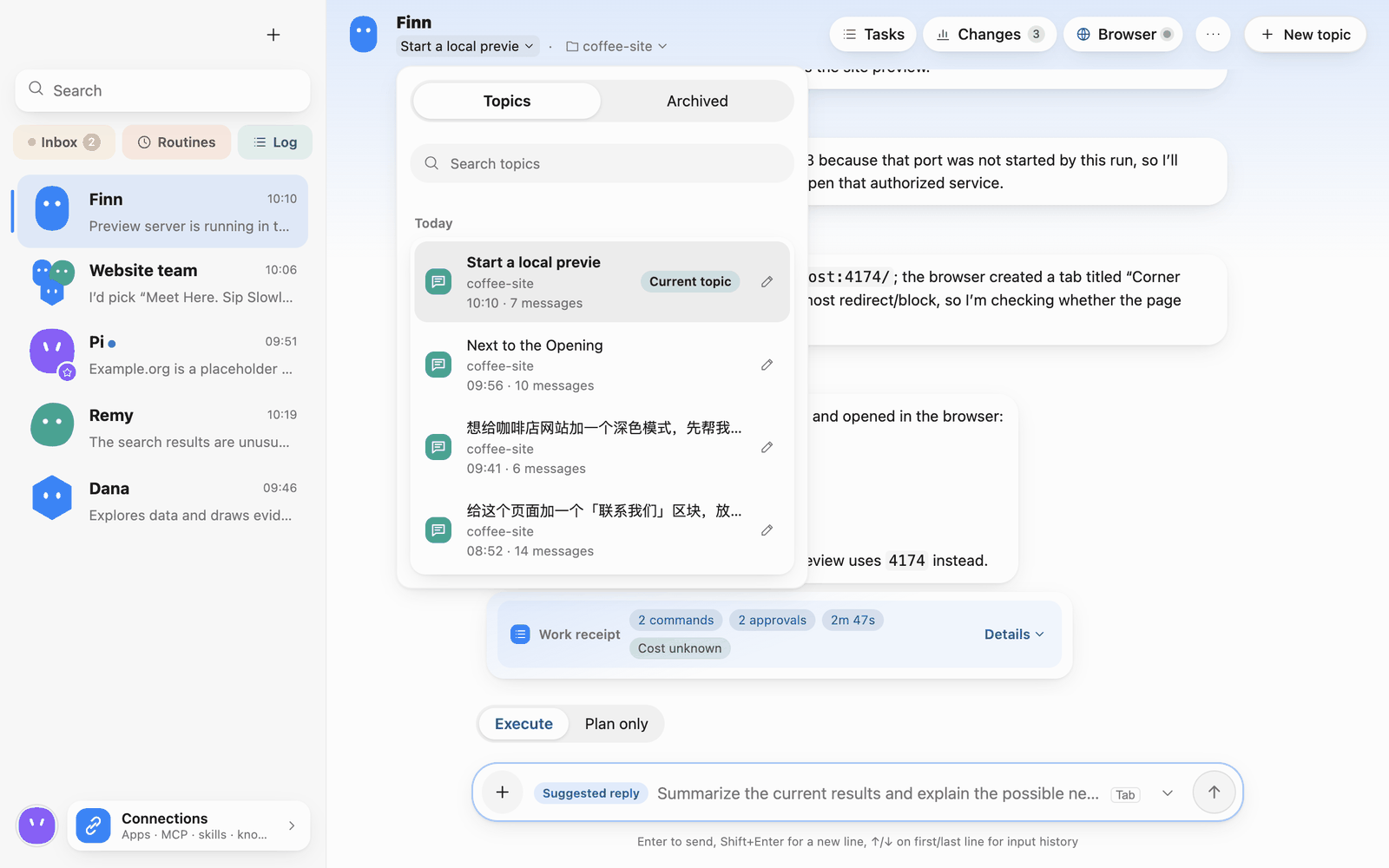 Topic list
-
Archive: "…" at the top right › Archive hides the topic and keeps its chats and attachments.
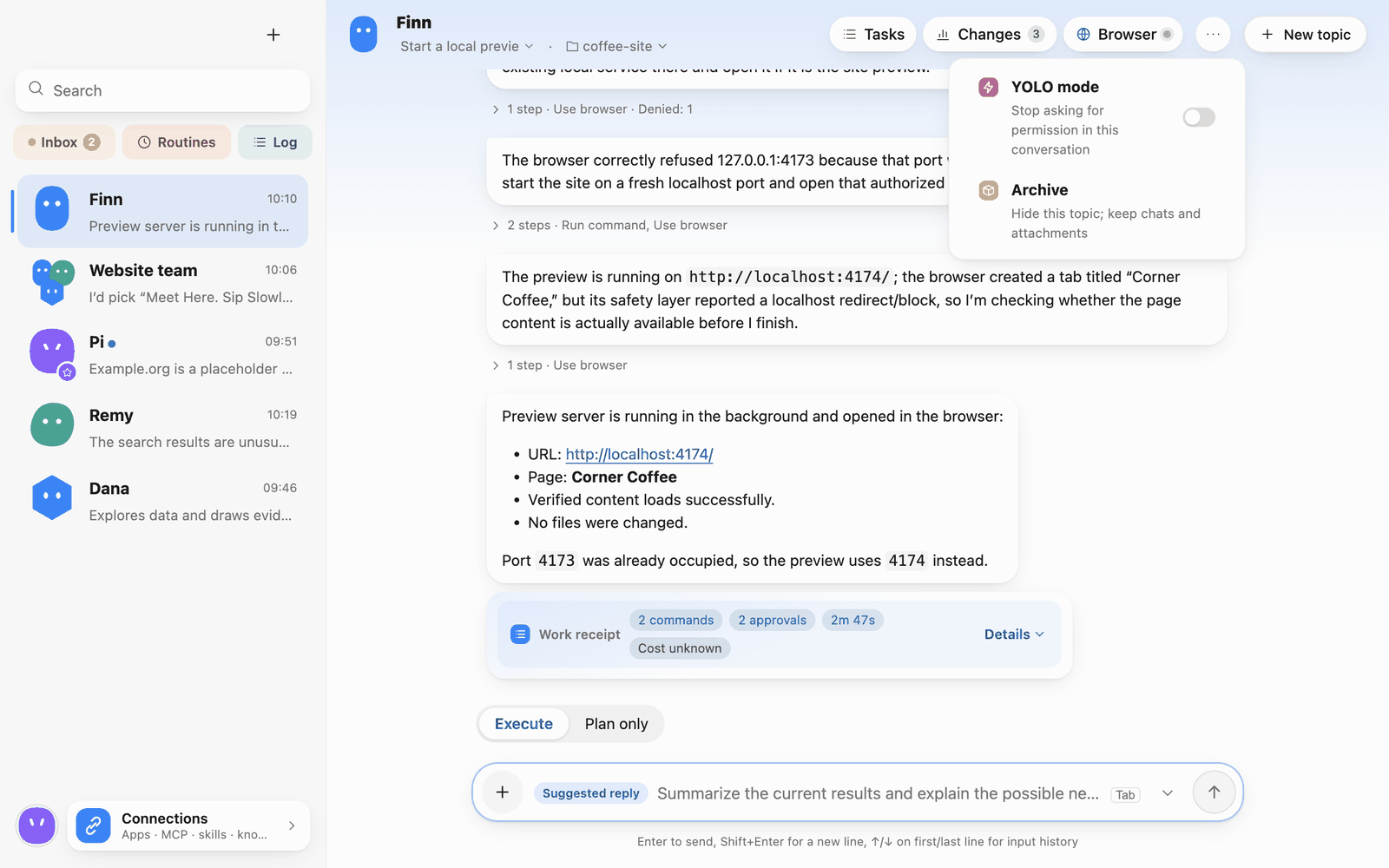 The "…" menu
Execute and Plan only
Above the message box are two modes:
- Execute: the Bot may change files and run commands, within your permissions.
- Plan only: the Bot only reads and analyses; it won't change files or run commands. Good for getting a plan first; when you like it, click Switch to execution.
Execute / Plan only shares a row with the working folder: in a new topic you can change the folder at "Working in …" until you send the first message (see 4 · Working folders and changes).
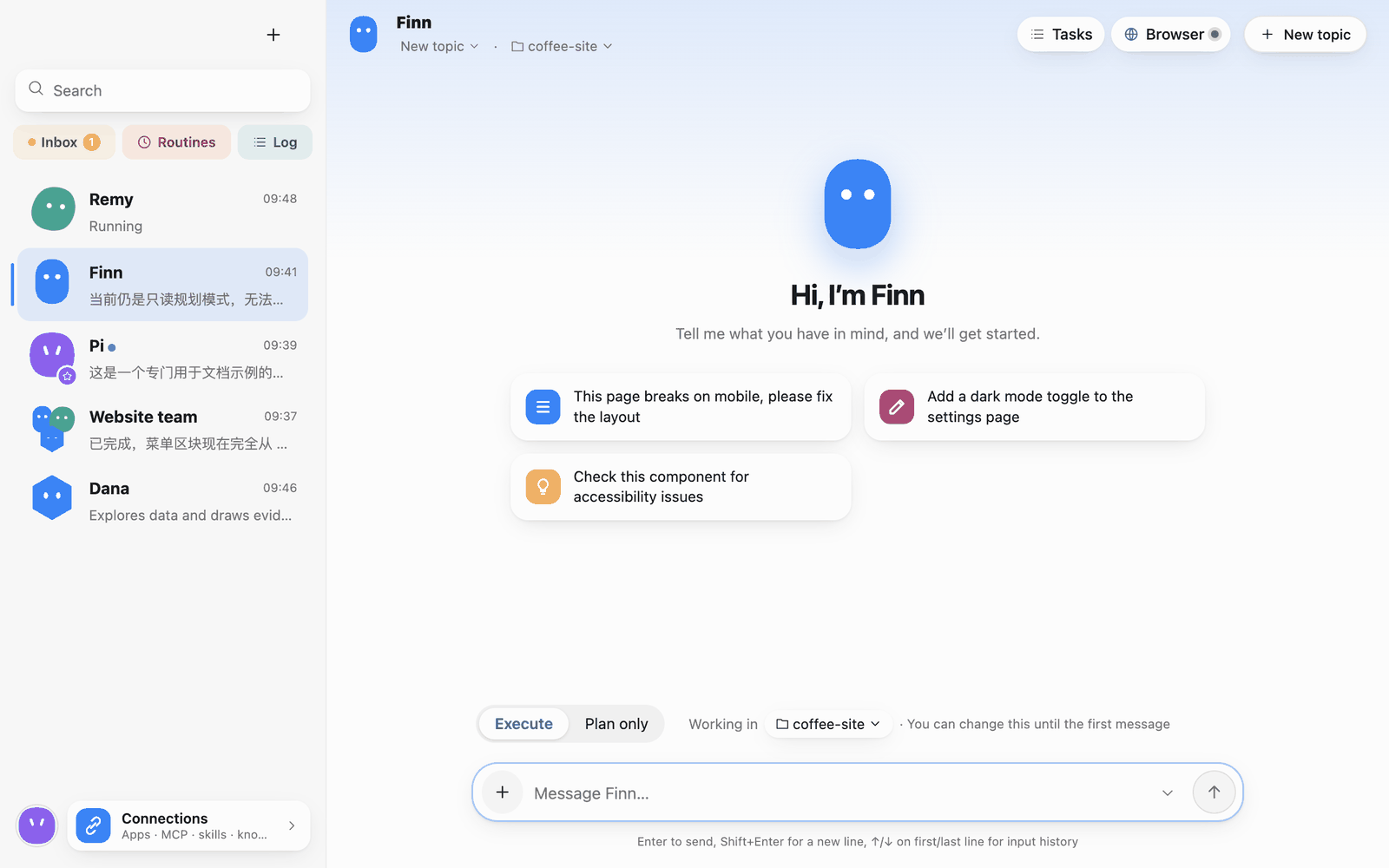 Execute and Plan only
Sending, attachments and stopping
-
Send: Enter sends, Shift+Enter adds a line. ↑ / ↓ on the first or last line brings back earlier input.
-
Attachments: click "+" at the left of the message box › Add attachment.
-
While the Bot is busy: click the arrow next to the send button and choose Add to the current task or Handle after the current task.
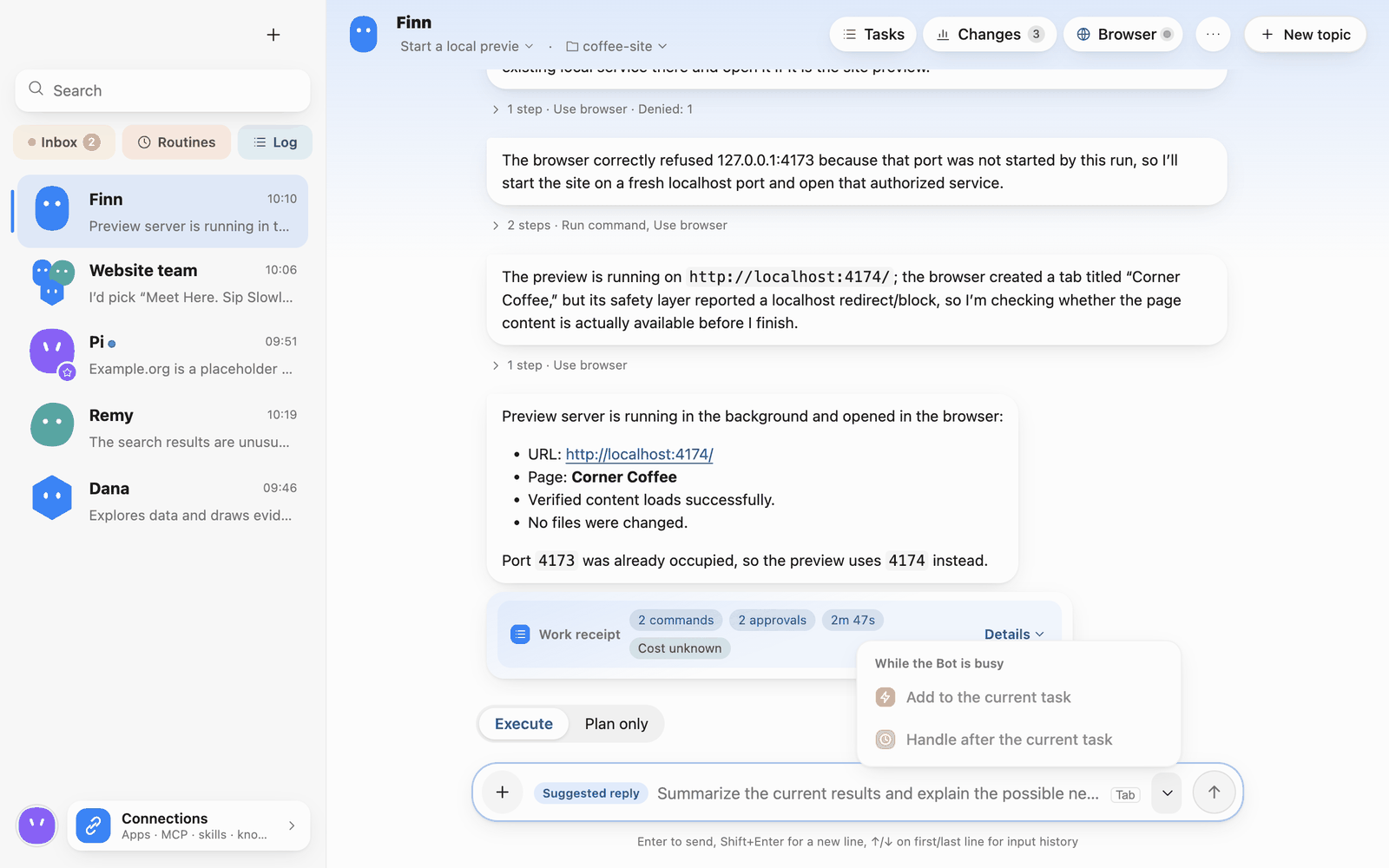 Send options
-
Stop: while a Bot runs, the send button becomes a stop button; in group chats each member also has "Stop this run by …". Text generated before stopping is kept.
-
Suggested reply: after a run, a grey suggested reply appears in the message box. Tab accepts it, Esc dismisses it; you still send it yourself.
Reading a run
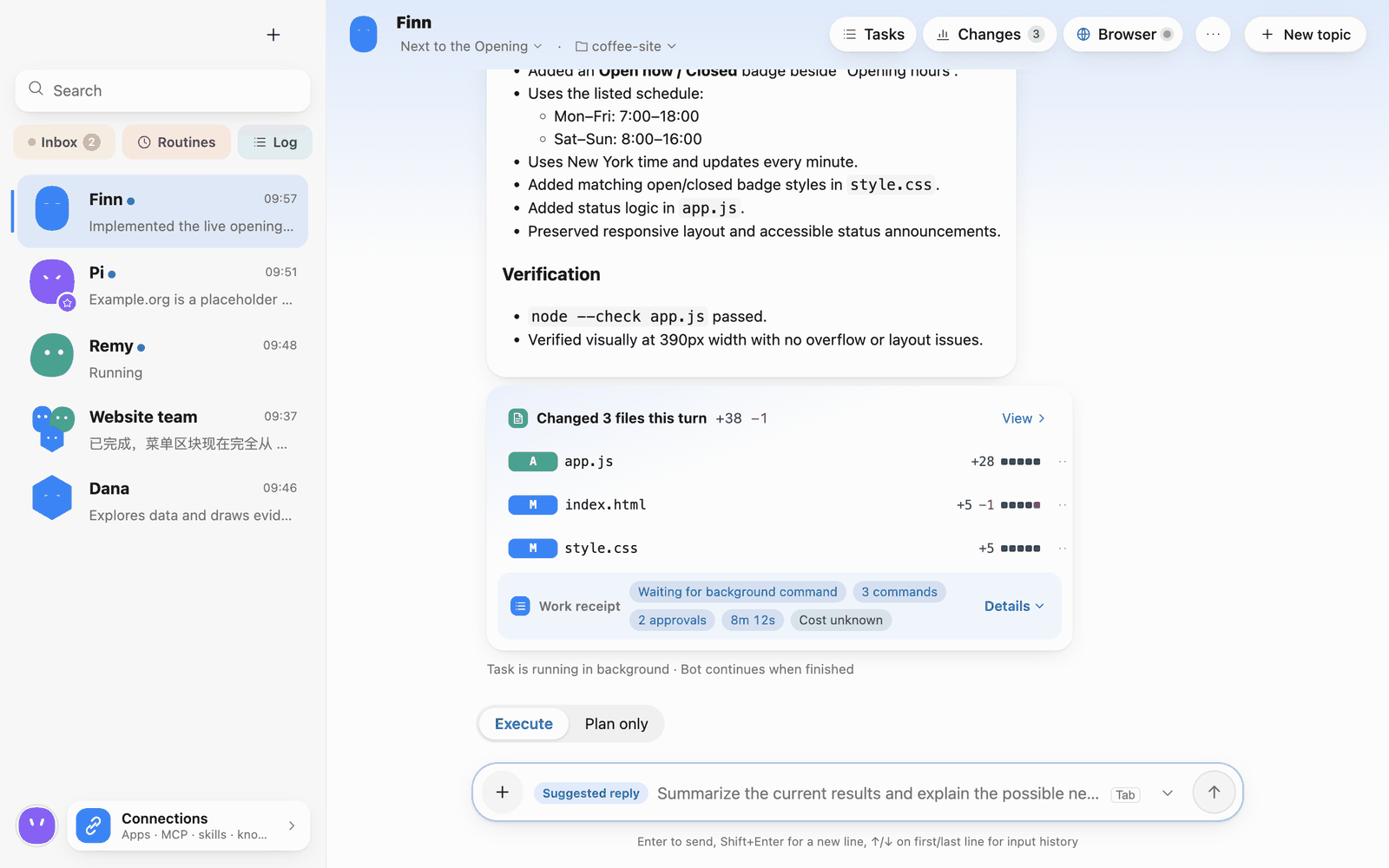 A finished run
- Plan: multi-step tasks start with a plan that gets ticked off as work progresses.
- Step rows: for example "6 steps · Edit file, Run command, Use browser ×4"; expand to see each step.
- Approval cards: actions that need your consent show up as cards in the chat (see 5 · Approvals and permissions).
- Changed files: "Changed 3 files this turn"; View opens the changes panel (see 4 · Working folders and changes).
- Web results: when a development task produces a web page, a local HTML file or a web service, the Bot opens it in its own browser to check it; visual results get a screenshot self-check, and obvious layout errors are fixed before hand-off.
Work receipts
Every run ends with a Work receipt row showing commands, approvals, time and cost. Click Details to expand it:
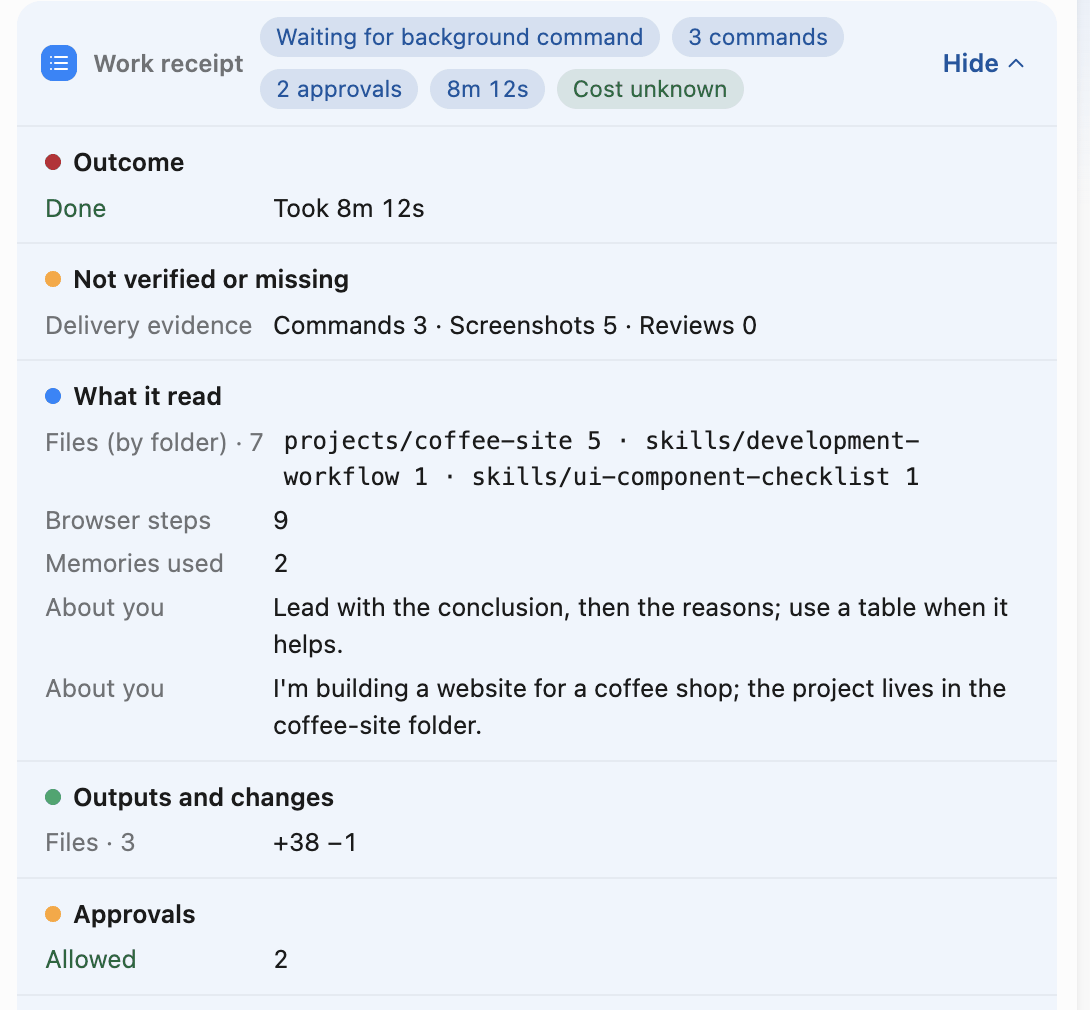 Work receipt
- Outcome: done, stopped or failed, and how long it took.
- Not verified or missing: delivery evidence (commands, screenshots, reviews); anything unverified is flagged.
- What it read: files read per folder, browser steps, memories used.
- Outputs and changes: files and lines changed.
- Approvals: how many allowed and denied.
- Actions with side effects: commands run, blocked steps.
- Cost and effort: model, requests, cost ("Unknown" when the provider gives no pricing) and active time.
The receipt is built from this computer's records (audit, changes, approvals, budget, plan). It contains no message text or file contents.
Background commands
Bots can run commands in the background, such as a local preview server. The chat shows a Running in background card with the output line count and run time; you can Open … in Bot browser, View output or Stop it.
Start, inspect, and stop a local preview
- Verify the working folder at the top of the chat and switch to Execute. In a test project, ask: “Run a local preview in the background. Listen only on 127.0.0.1 and tell me the port.”
- On the approval card, verify the command, directory, and port. Choose Allow this time if they match the task.
- The green Running in background card appears. Use Open … in Bot browser to preview the detected port, or View output to inspect the logs.
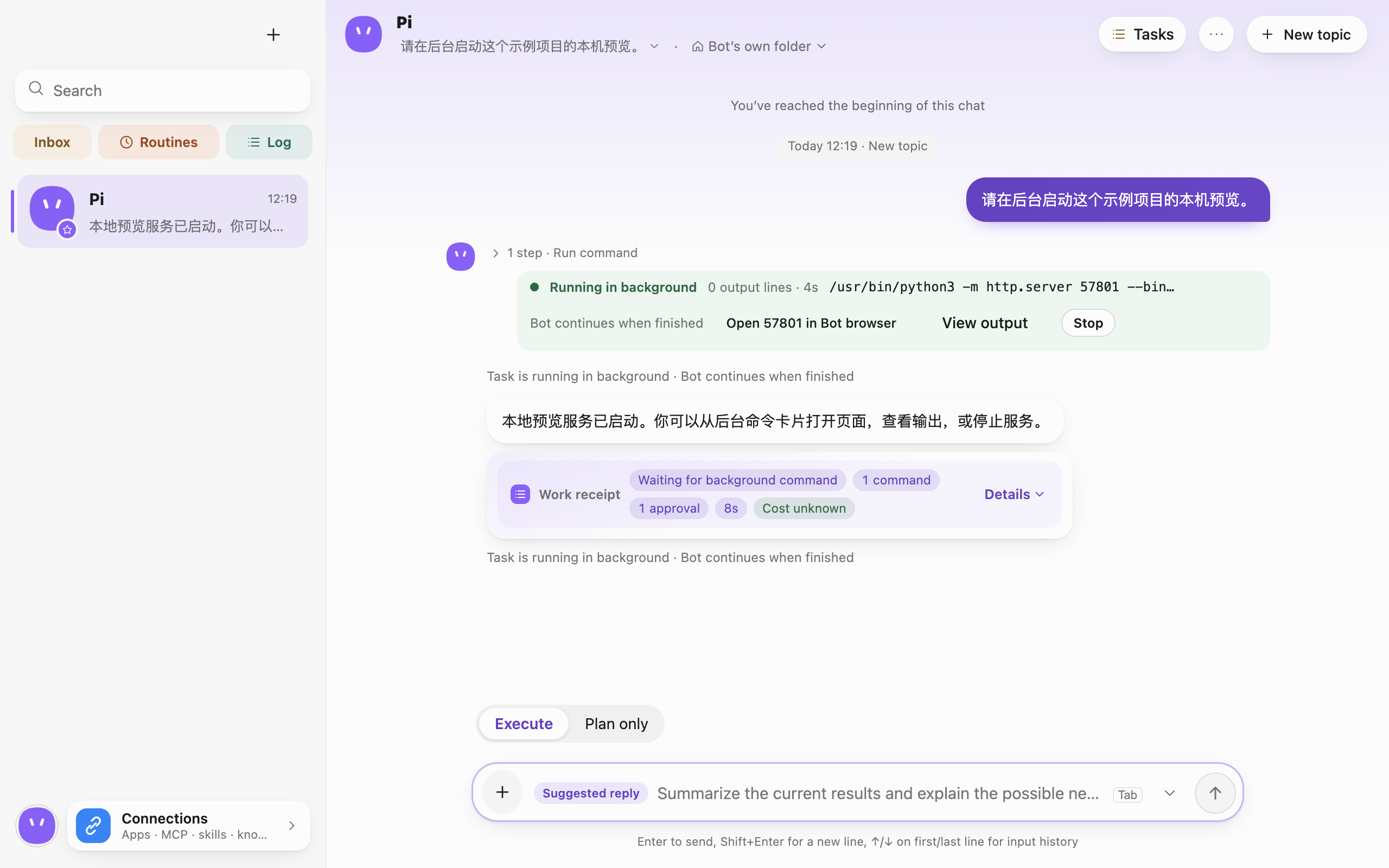 Running in background card with the preview port, output and stop controls · Captured in a separate macOS v0.0.1 test profile.
- When finished, choose Stop and check that the card shows the stopped state. The stopped process no longer serves the page.
If the card shows a process without a port, check the output for a port conflict or missing runtime. Request a different port and review the new approval. The browser shortcut appears for detected loopback listeners started by the Bot.
Background commands run for up to 2 hours by default (Settings › General › Background commands › Total time limit), and also end when you stop them, delete the chat, archive the Bot or quit the app. They may only listen on this computer (127.0.0.1). Starting one always needs your approval.
The Bot's browser
Click Browser at the top of the chat to open the Bot browser panel and watch the page the Bot is looking at.
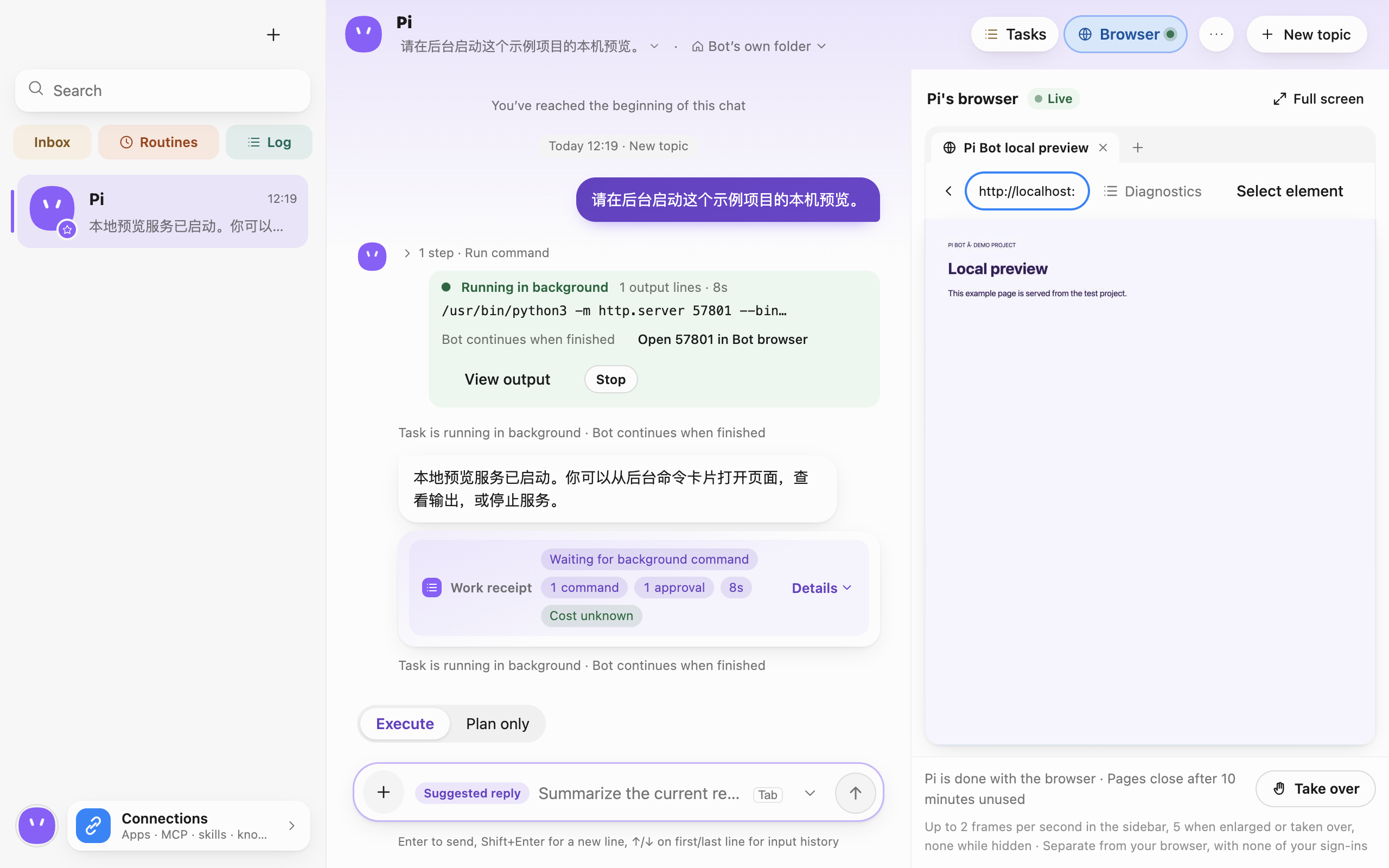 The local preview running in the Bot browser panel · Captured in a separate macOS v0.0.1 test profile.
- It's completely separate from your own browser, with none of your sign-ins.
- Take over lets you use the page yourself; Full screen enlarges it; Diagnostics and Select element help inspect the page.
- The sidebar view updates at up to 2 frames per second, 5 when enlarged or taken over, and none while hidden. Pages close after 10 minutes unused.
- By default the Bot browser can't open this computer's or private network addresses; a local preview the Bot started itself opens from Open … in Bot browser on the background command card.
View a page, take over, and give control back
- Send a public URL in chat and ask the Bot to open it. Review the domain if prompted. For a local preview, use the background command card.
- Select Browser at the top of the chat. Check the address, tab and page in the side panel. Use Full screen for a larger view.
- Choose Take over when you need to click or type yourself. Give control back when finished, then tell the Bot what to check next. Handle sensitive accounts and forms in your own browser.
- Select an element or open Diagnostics to inspect the page. If a local preview stops responding, check whether the background service is still running.