
Check for and install updates
After it starts and every few hours while running, Pi Bot asks pibot.space for the latest version. Only version information is read; no identity or usage data is sent. Downloading and installing always wait for you.
To check yourself: your avatar › Check for updates.
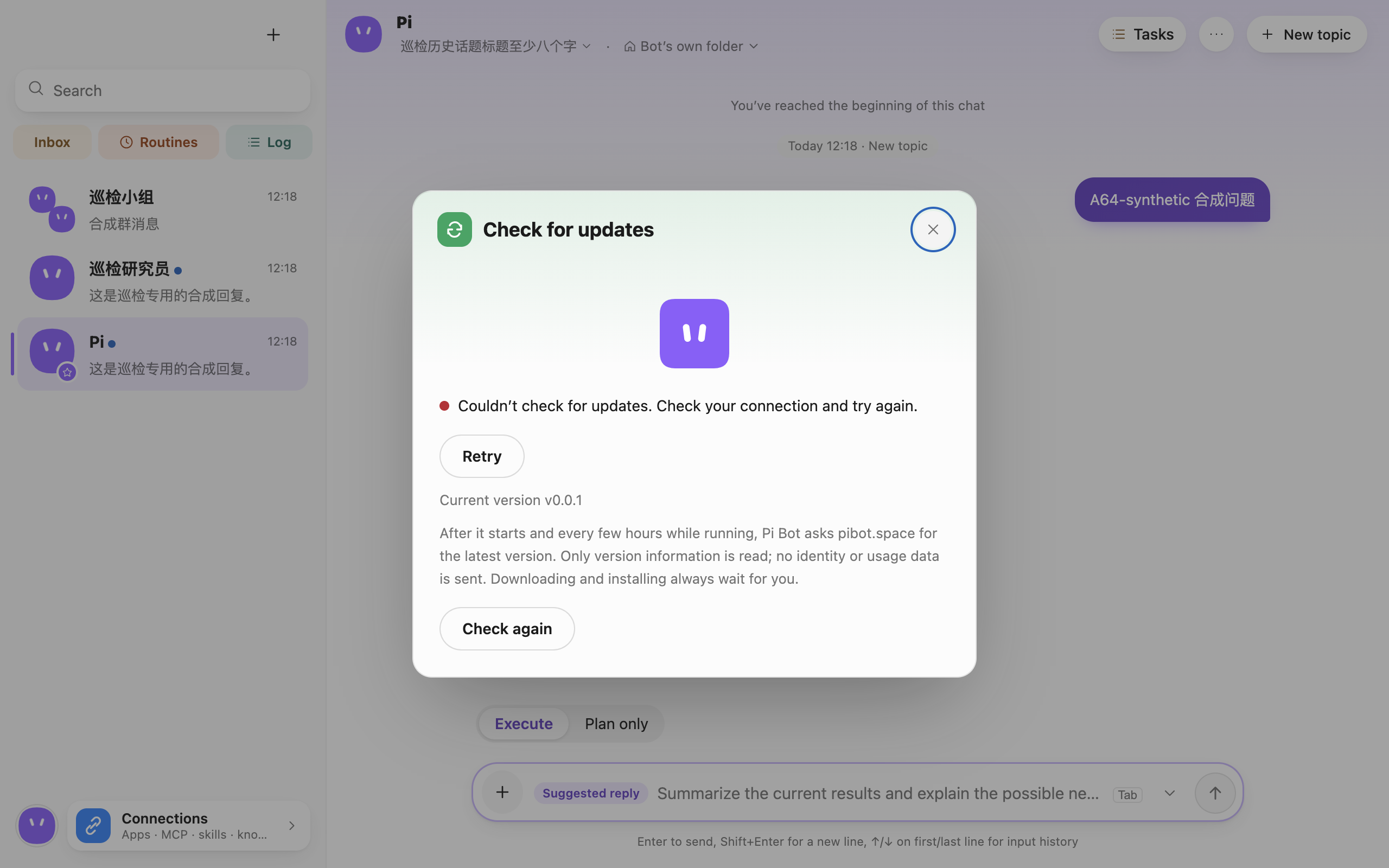 Check for updates dialog with Retry when offline
When a new version is available:
- The dialog shows the new version and what it changes.
- Click Update to download. Updates download only what changed; you can Cancel download.
- When the download finishes, choose Restart now (closes Pi Bot and the background service, installs, and reopens) or Later (installs automatically the next time you quit Pi Bot).
Per platform:
| System | In-app updates |
|---|---|
| macOS | Pi Bot must be in the Applications folder; otherwise download the new version from the website |
| Windows | Supported; installs silently in place |
| Linux | Only the AppImage updates in-app; download other formats from the website |
If an update fails, retry, or click Open download to get the installer from the website and install over the current version; your data is kept.
Where your data is stored
Chats, settings, Bots, memory and audit records are stored in the local data folder:
| System | Location |
|---|---|
| macOS | ~/Library/Application Support/Pi Bot |
| Windows | %APPDATA%\Pi Bot |
| Linux | ~/.local/share/pi-bot (or under XDG_DATA_HOME if set) |
API keys and sign-in tokens are encrypted with the system secret store and don't appear in plain text in the data folder. Uninstalling Pi Bot doesn't delete the data folder; to remove everything, quit Pi Bot and delete that folder yourself.
Pi Bot doesn't read or write other tools' data folders (such as the pi command-line tool's). Bring over from other AI tools on the Connections page only takes a read-only look at their settings when you click it.
Clear caches and old records
Settings › General › Data & storage:
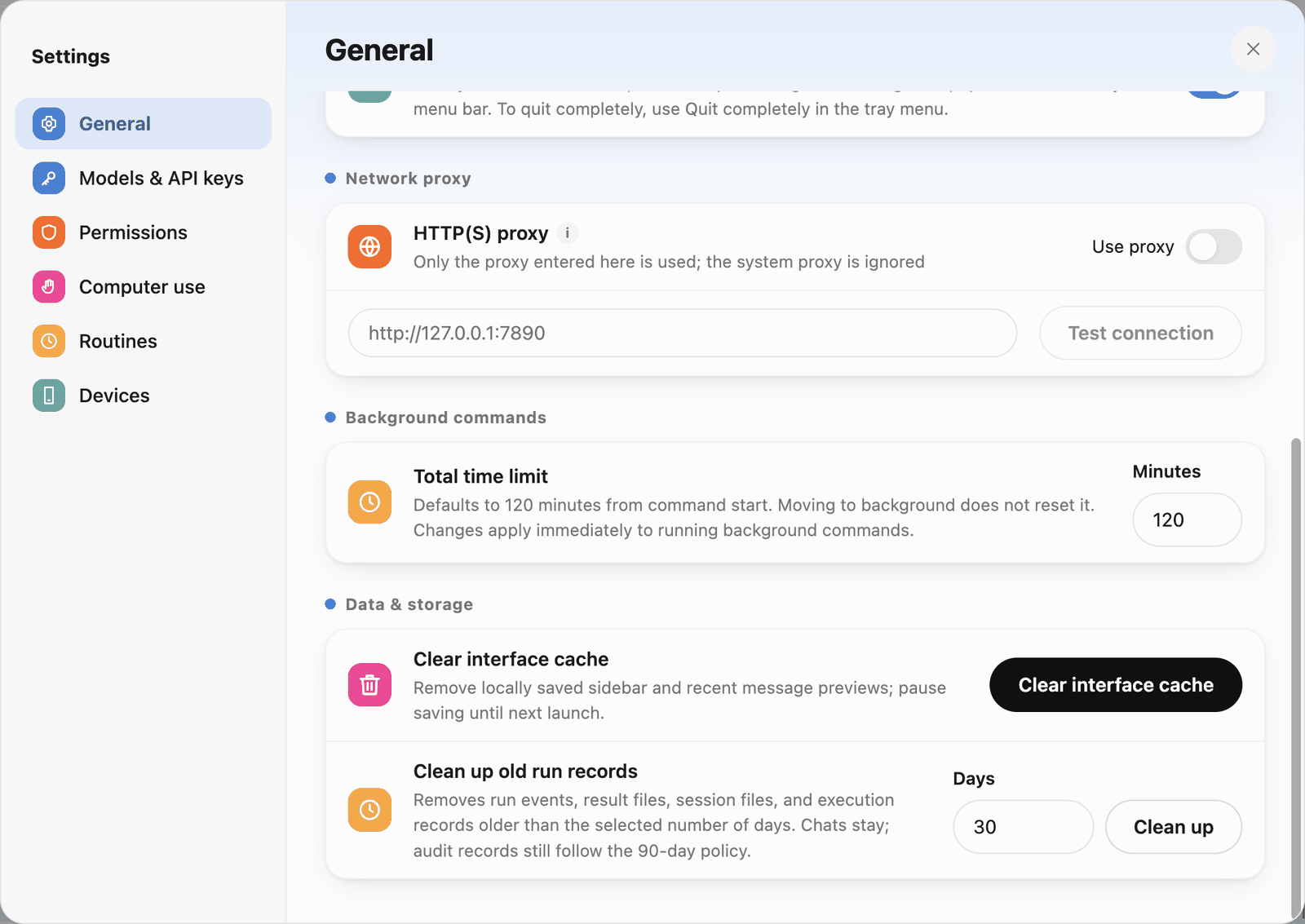 General settings
- Clear interface cache: removes locally saved sidebar and recent message previews, and pauses saving until next launch.
- Clean up old run records: removes run events, result files, session files and execution records older than the chosen number of days. Chats stay; audit records still follow the 90-day policy.
Each Bot's command log retention (days and size cap) is set in its profile panel (see 2 · Bots and roles).
Report a problem and export logs
Pi Bot never reports anything automatically. When something goes wrong: your avatar › Report a problem.
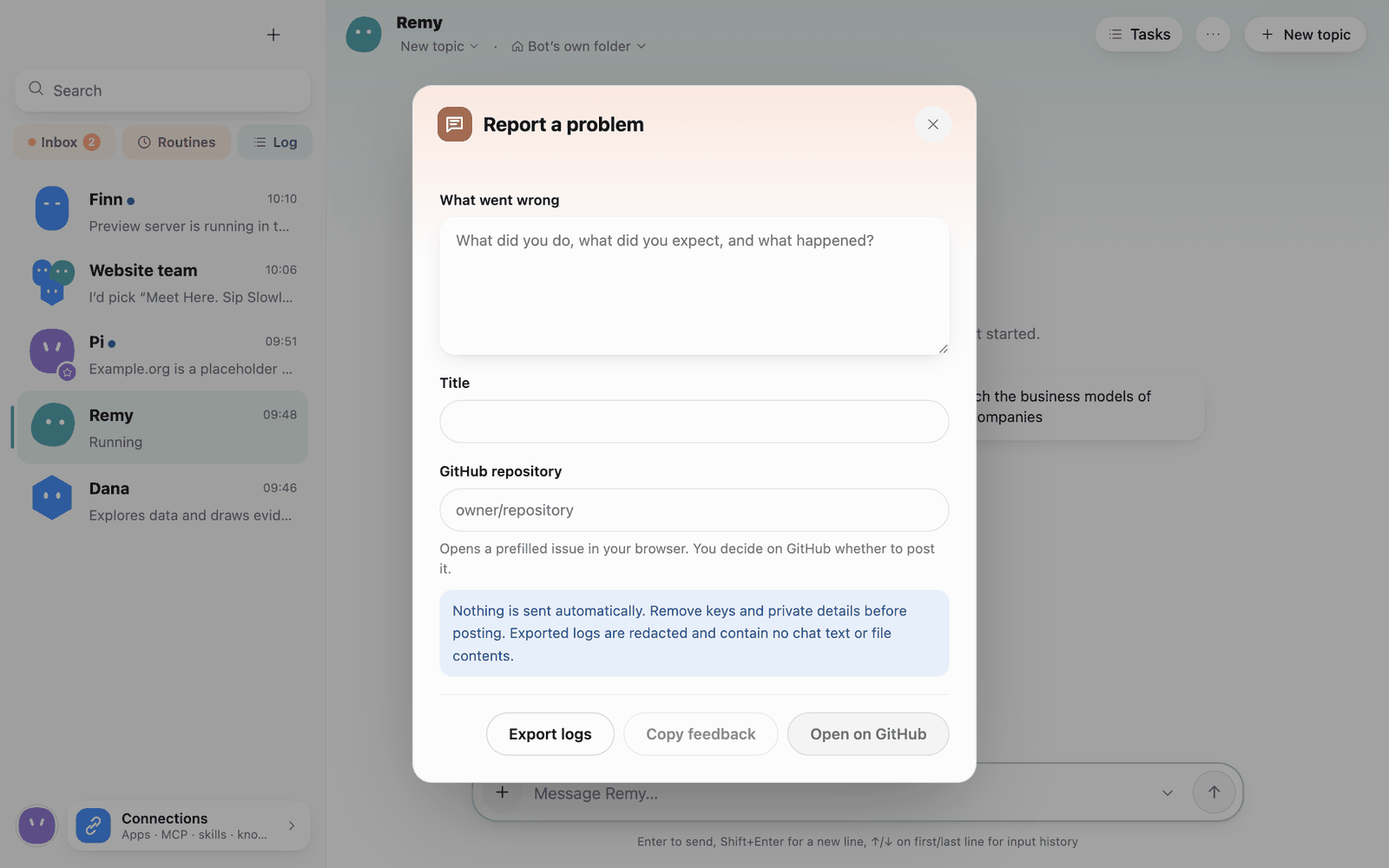 Report a problem
- Describe what went wrong (what you did, what you expected, what happened) and add a title.
- Choose one:
- Open on GitHub: opens a prefilled issue draft in your browser (title, description, version and OS). You decide on GitHub whether to post it.
- Copy feedback: copies it to the clipboard to paste wherever you like.
- Export logs: saves the logs to a file. Exported logs are redacted and contain no chat text, file contents or keys.
Check the description for keys and private details before posting.
About Pi Bot
Your avatar › About Pi Bot shows the version, the pi engine version, and the searchable list of third-party dependencies and licenses.
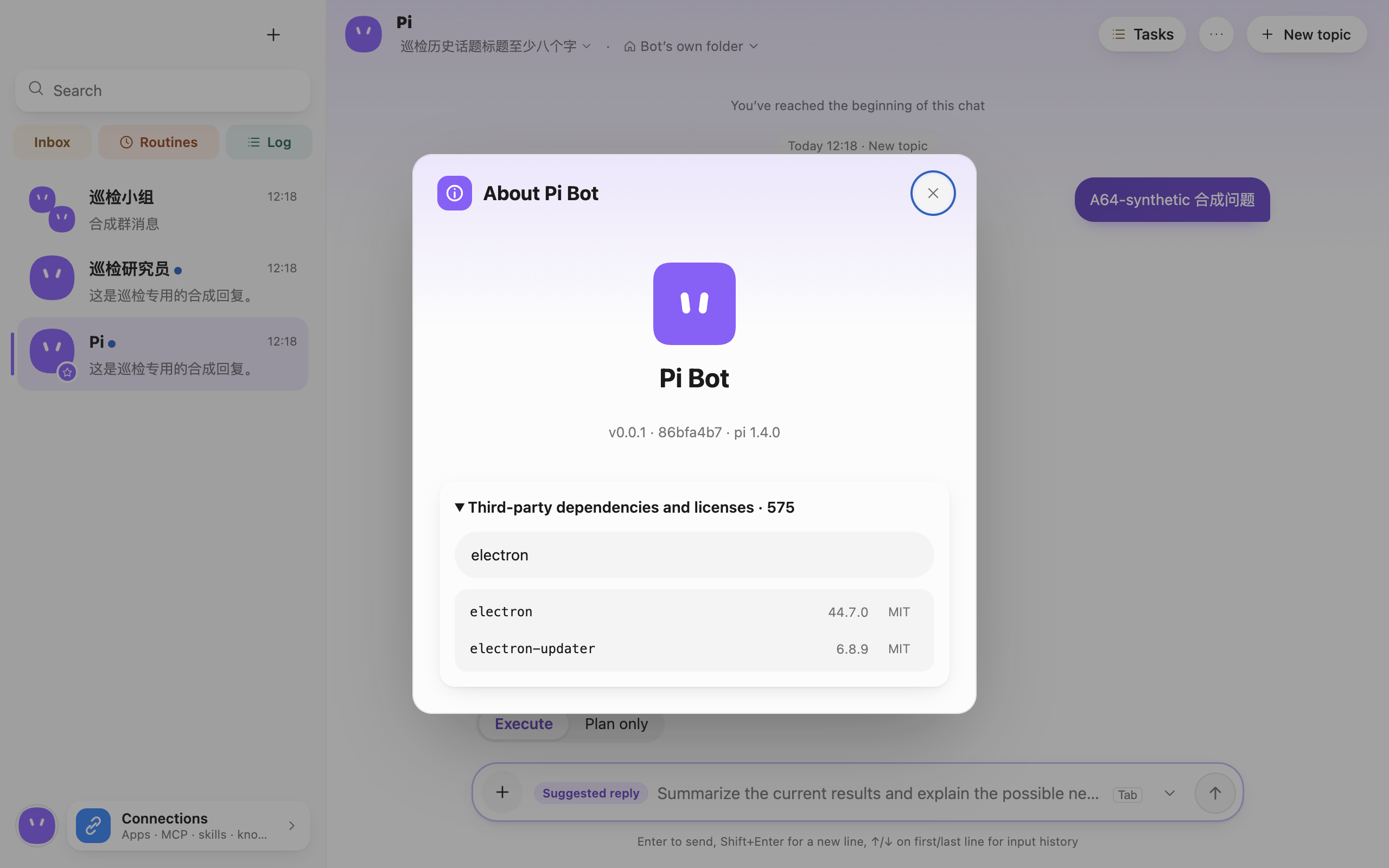 About Pi Bot
Settings › General also has language, appearance, startup at sign-in, the tray icon, the network proxy and the background command time limit:
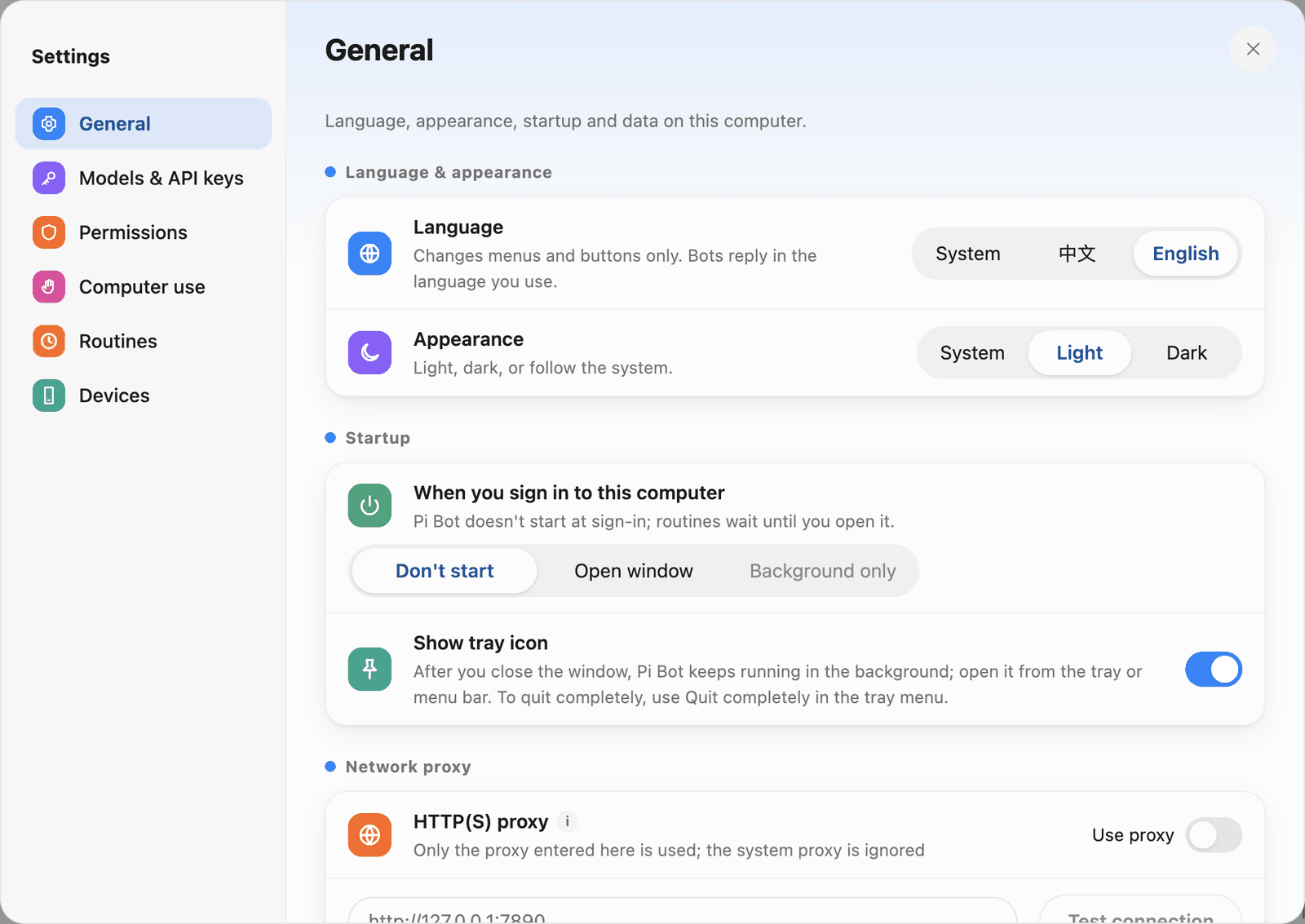 General settings