
A Bot's "brain" is the model you choose: an online provider (with an API key or a ChatGPT plan), an aggregator or gateway, or a local model running on your computer. Everything is set in Settings › Models & API keys.
Default and auxiliary models
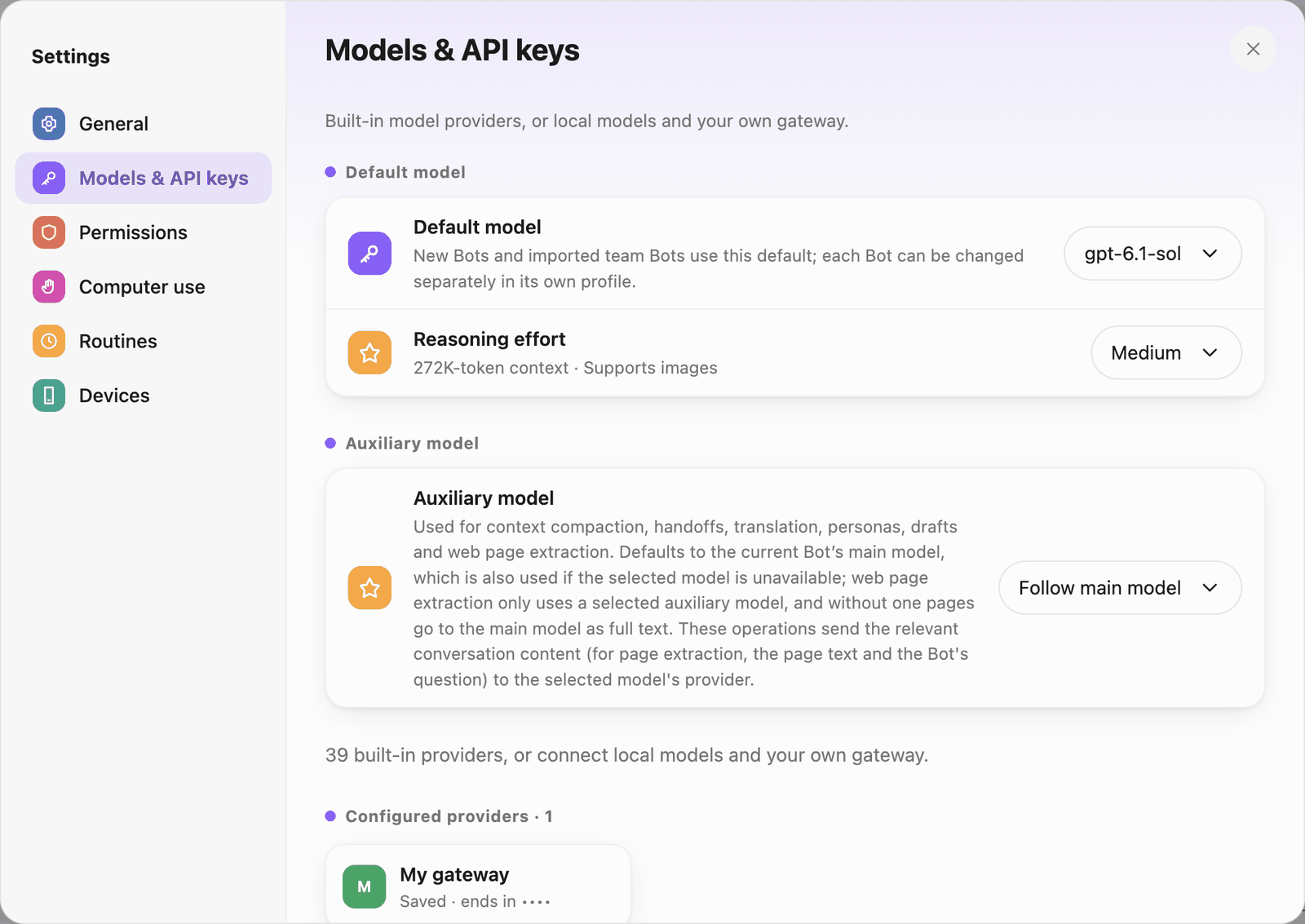 Models & API keys
- Default model: new Bots and imported team Bots use it; each Bot can change it in its own profile. Next to it is the Reasoning effort, with the context length and image support shown below.
- Auxiliary model: used for context compaction, handoffs, translation, personas, drafts and web page extraction; Follow main model by default. Pick a cheaper model to save money. These operations send the relevant conversation content to the selected model's provider.
- Configured providers: providers with saved credentials, showing the last 4 characters of the key.
Add a provider and an API key
Pi Bot has dozens of built-in providers, grouped into Popular, Gateways, Cloud, Fast, Local, Other and All, with a search box.
- Under Add a provider, click a provider, for example OpenAI.
- Paste the key into API key.
- Click Save & test. Once the test passes, pick one of its models as the default model, or open its model list.
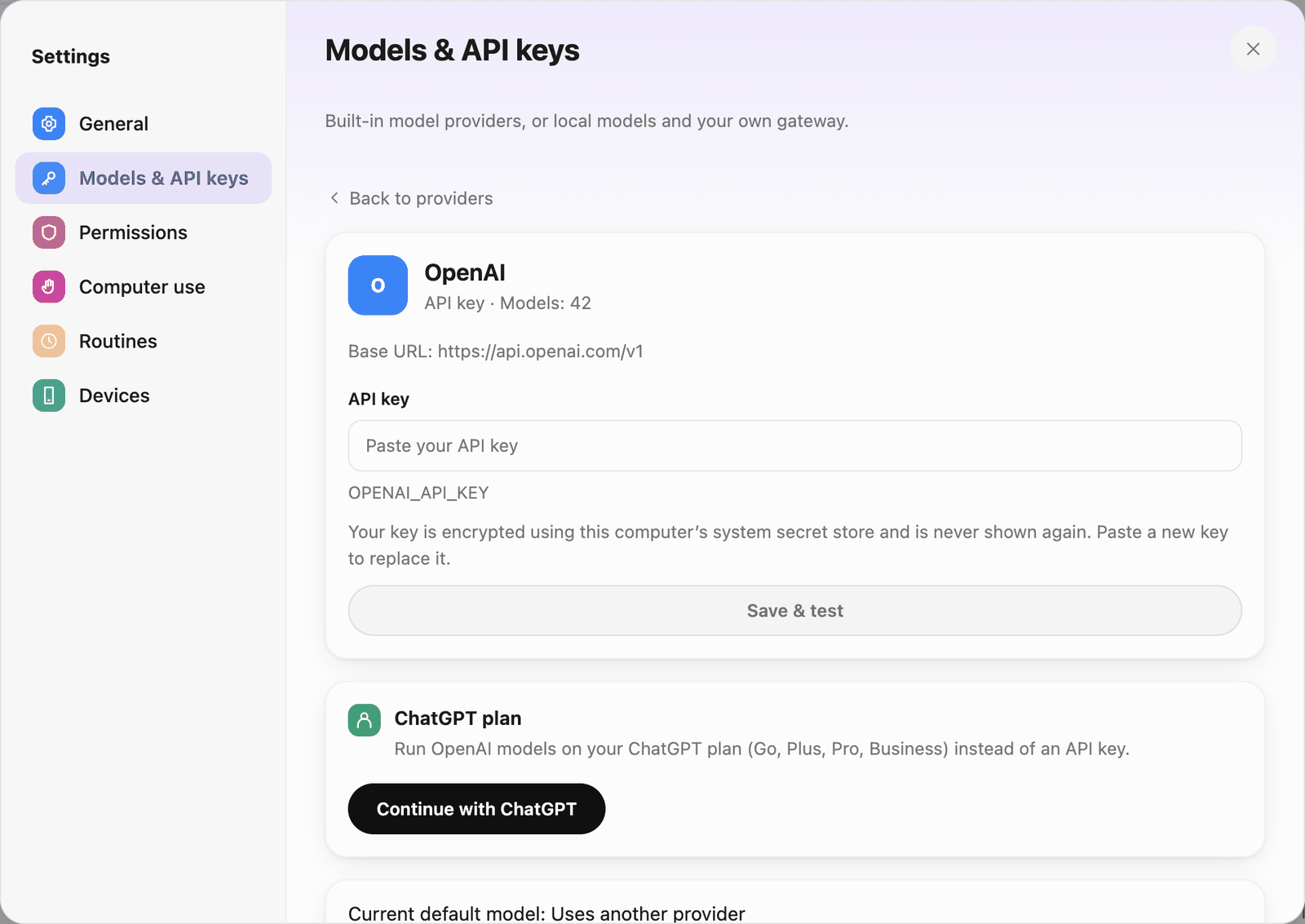 OpenAI
Keys are encrypted with this computer's system secret store (macOS Keychain, Windows DPAPI, the Linux system keyring) and never shown again; to change one, paste a new key. Keys are never written to logs or sent to the interface.
Cloud providers (Amazon Bedrock, Azure, Google Vertex AI, Cloudflare) use cloud credentials rather than a single key; fill in the authentication method shown on their page.
Sign in with a ChatGPT plan
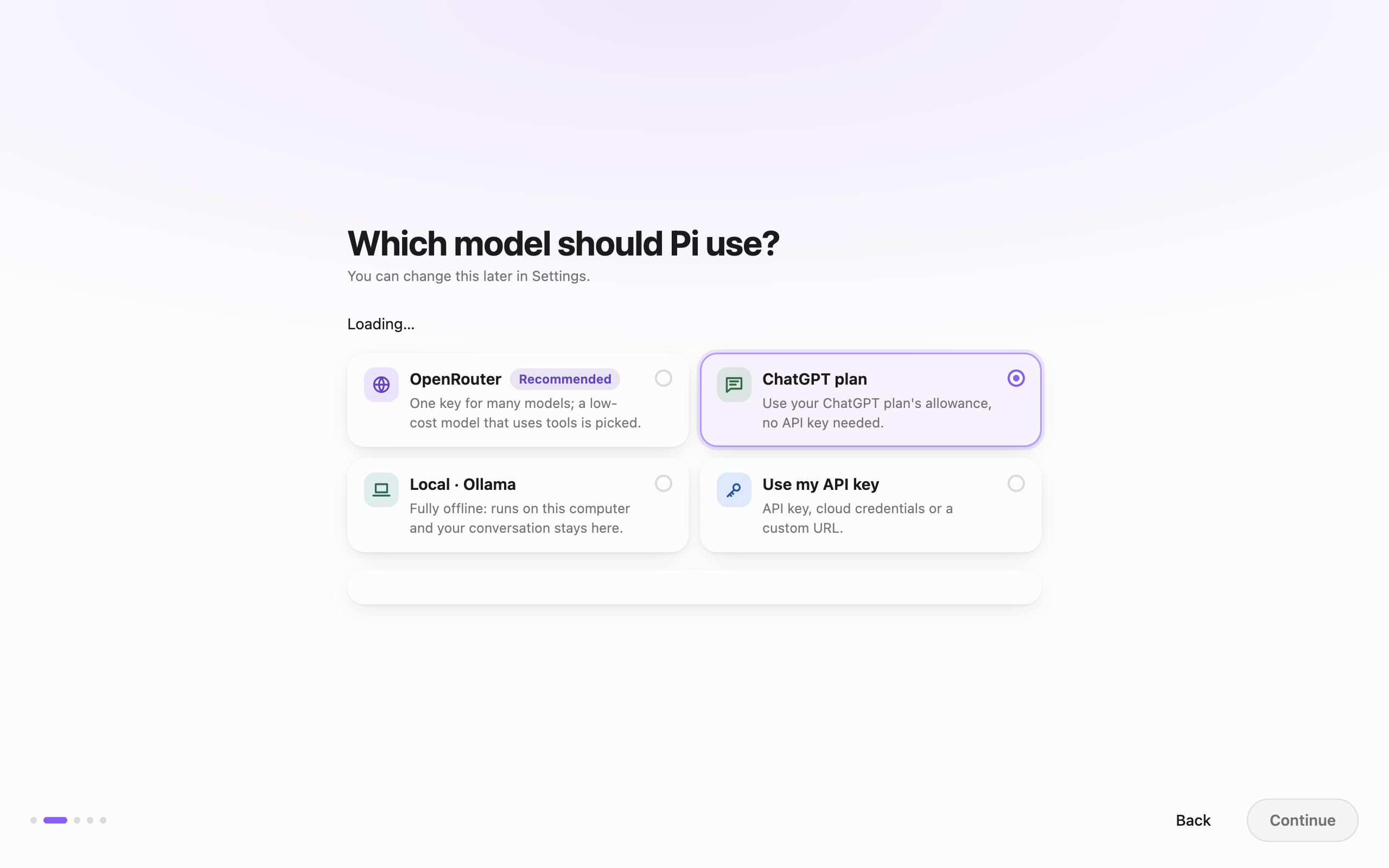 The ChatGPT plan selected in the welcome flow · Captured in a separate macOS v0.0.1 test profile.
With a ChatGPT Go, Plus, Pro or Business plan you can run OpenAI models on your plan's allowance instead of an API key. The plan and an OpenAI API key are two separate providers you can use at the same time: each Bot picks an OpenAI model or a ChatGPT plan model, and model pickers list them in two groups, OpenAI and ChatGPT plan.
- Settings › Models & API keys, click the Subscriptions group and choose ChatGPT plan.
- Click Continue with ChatGPT.
- The first time, Pi Bot explains: you sign in on OpenAI's page; afterwards, conversations of Bots that use this plan go straight to OpenAI and count toward your ChatGPT plan's usage, with no other server involved; sign-in tokens are stored encrypted on this computer only. Click Got it, continue.
- Finish signing in in your browser; the browser returns to Pi Bot. If it doesn't, click Browser didn't return to Pi Bot?, paste the last address the browser opened, and click Finish sign-in.
- The page then shows "Signed in as …", with Manage usage and Disconnect. Then pick a model from the ChatGPT plan group as a Bot's model.
Notes:
- When the plan's usage runs out you see Usage limit reached. Manage usage in ChatGPT, or give the Bot an OpenAI (API key) model in its settings.
- When the sign-in expires you're asked to sign in again.
- Subscription sign-ins stay on the computer and are not synced to the phone's offline mode (see 11 · Phone app).
Claude plans
Anthropic does not allow Claude subscriptions to sign in to third-party apps, so Claude uses an API key here. Plans such as Max and Team include monthly API credit: link a Claude Console organization in your claude.ai billing settings, create an API key in the Console, and paste it under Settings › Models & API keys › Anthropic. Read Anthropic's guide on that page links to the current amounts.
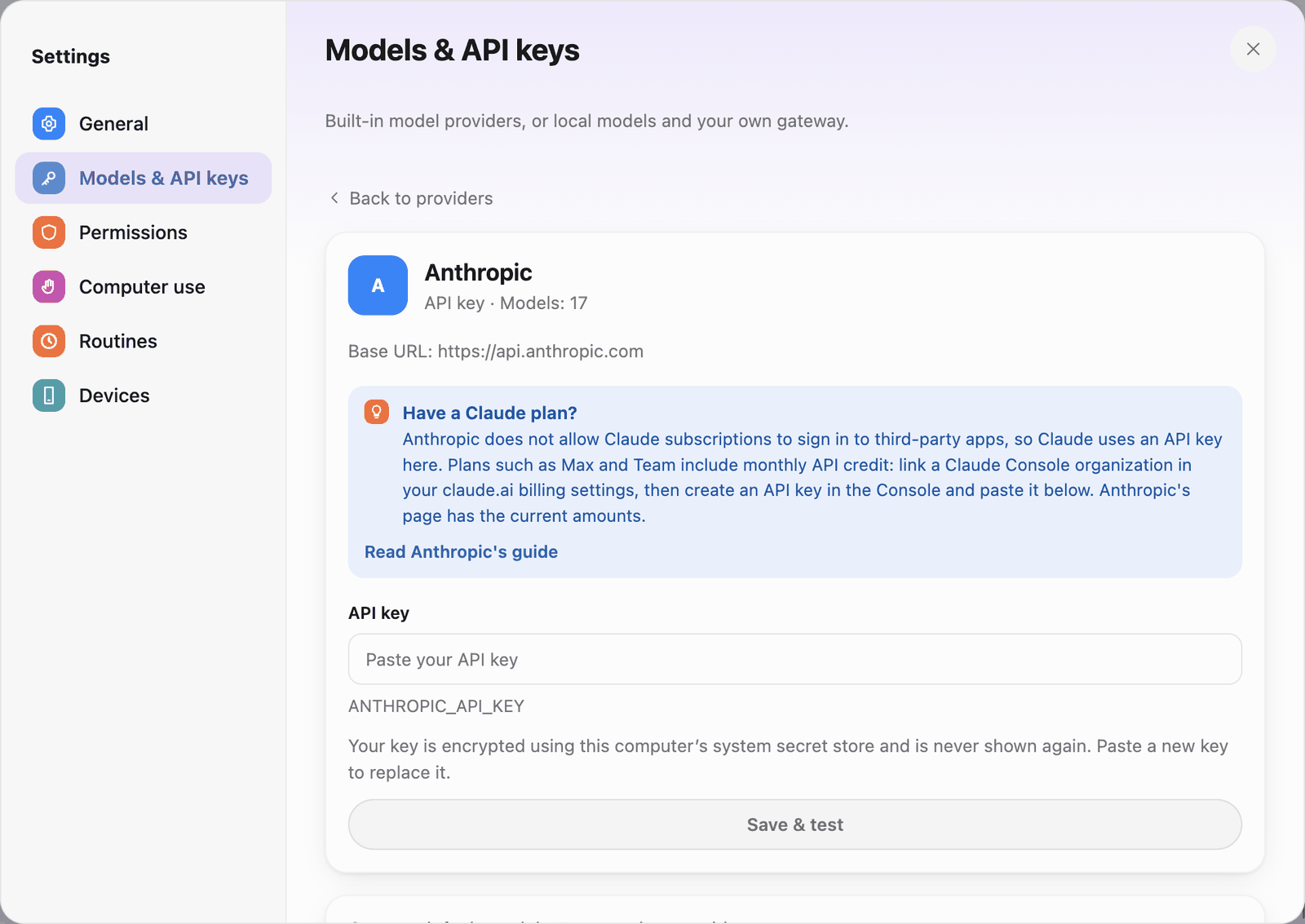 Anthropic
Local models and custom gateways
To run a model locally with Ollama, start Ollama and download a model on the same computer. Configure Ollama in Pi Bot under Settings › Models & API keys, then set it as the default model or assign it to a Bot. Send a test message and confirm that the model responds. To keep auxiliary model requests local too, have the auxiliary model follow the local main model or choose a local auxiliary model.
The Local group:
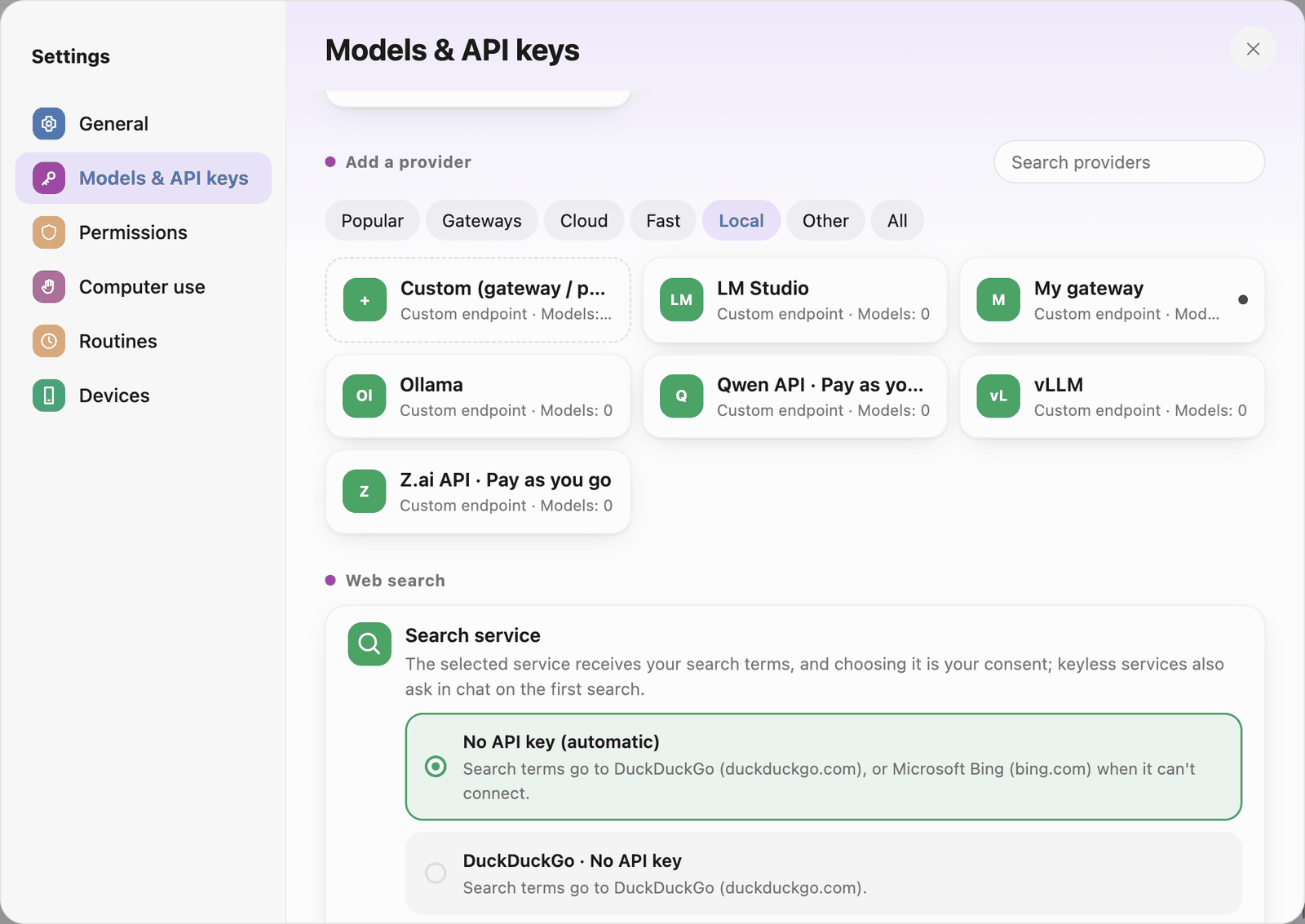 Local providers
- Ollama, LM Studio, vLLM: model servers you can run on your computer. When you use a local endpoint, requests to that model stay on that computer. Web search and connected external apps have their own data flows.
- Custom (gateway / proxy): any service with an OpenAI-compatible or other common interface. Enter a name, the address and a key (local models can leave it empty), choose the interface type, click Fetch models or Add model manually (model ID, context window, maximum output tokens, image and reasoning support), then save.
- Qwen API · Pay as you go, Z.ai API · Pay as you go: pay-per-use endpoints.
If your network needs a proxy, set it in Settings › General › Network proxy. Every model provider uses this proxy; only model servers on this computer (localhost, 127.0.0.1) connect directly. Pi Bot uses only the proxy entered here and ignores the system proxy.
Web search
The web search provider section in Models & API keys
Web search on the same page picks the service Bots use to search the web. The selected service receives your search terms, and choosing it is your consent:
- No API key (automatic): tries DuckDuckGo first, then Bing if it can't connect. Keyless services also ask in chat on the first search.
- DuckDuckGo, Bing: no account needed; may be rate-limited.
- Brave Search API, Tavily: enter an API key.
- Self-hosted SearXNG: enter your service address; only that address is allowed.
A different model per Bot
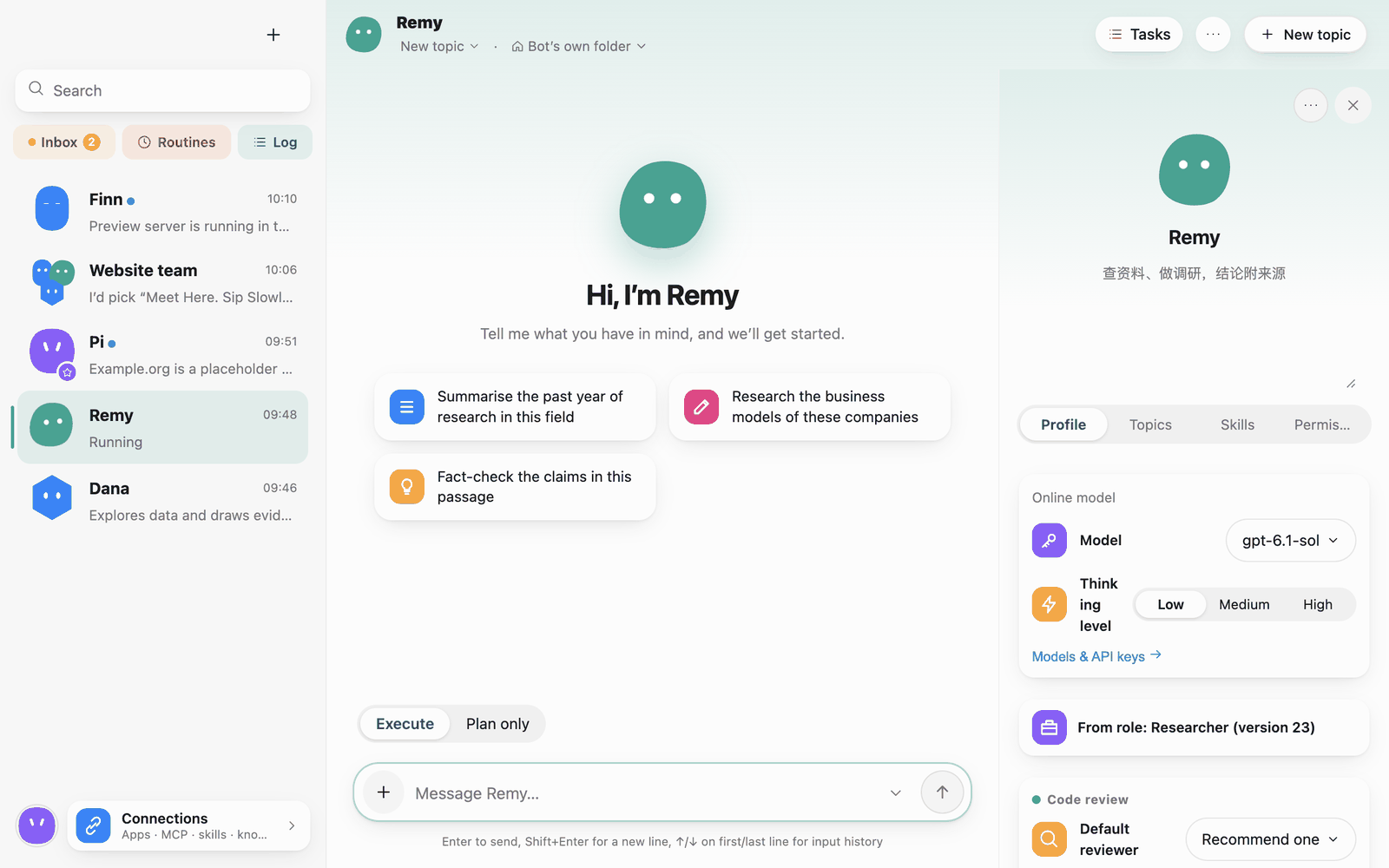 The model selector in a Bot profile
In the Bot profile panel › Profile › Model, pick another model and thinking level for that Bot (see 2 · Bots and roles). For example, give the code reviewer a different model from the Bot that writes code; reviews catch more that way.
Troubleshoot a model connection
Check the default model and configured providers here
- Check whether the error came from Save & test or a conversation. For setup errors, verify the provider, endpoint, and credentials. For conversation errors, check which model the Bot selected.
- For cloud providers, check that the key belongs to the provider, is valid, and has access to the model. For a local model, make sure Ollama or LM Studio is running and the model is loaded or installed. For custom gateways, also verify the API type.
- Once the test passes, send a short message to confirm the Bot can reply. If only tool calls fail, check model support for tool calling and inspect the run error and work receipt.
- In a report, share the provider, model name, and error text. Remove API keys, login tokens, and URLs with embedded credentials.