
Bots read and write files and run commands in a working folder. Each topic has its own folder, and every change can be reviewed line by line, commented on, discarded or committed in the changes panel.
Choose a working folder
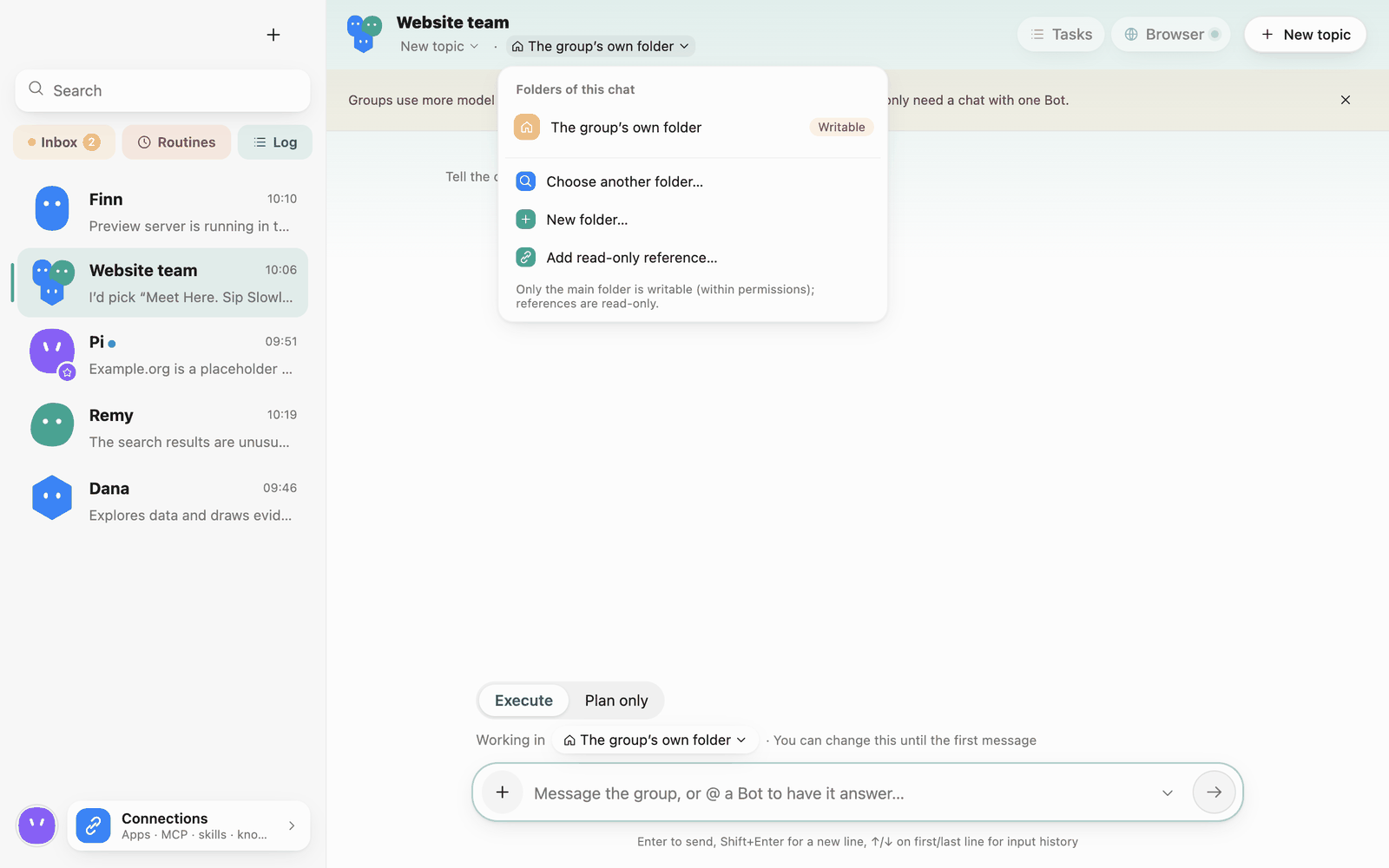
A new topic starts in the Bot's own folder (for groups, The group's own folder). To have the Bot work in your project:
- Click the folder name at the top of the chat (for example "Bot's own folder").
- In Folders of this chat, choose:
- Choose another folder…: pick an existing folder as the main folder.
- New folder…: create an empty folder.
- Recently used: folders used before; switch back in one click, or Add as read-only reference.
- The folder name now shows at the top of the chat.
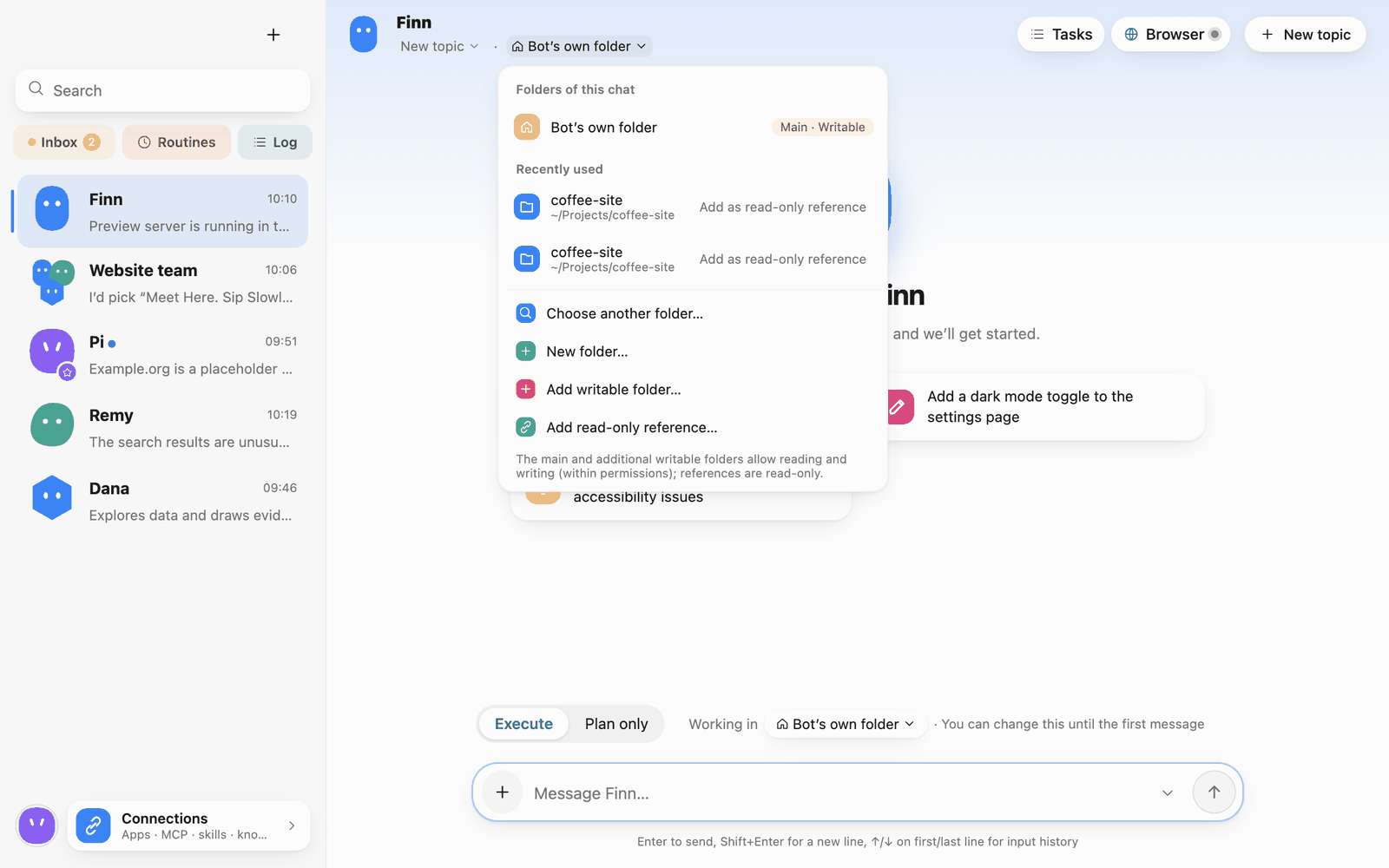 Folder menu
In a new topic you can change the folder any time before the first message. Folders belong to topics, so different topics of the same Bot can work in different projects.
If you paired a runner (another computer or server), the menu also has Choose a folder on a runner…; see 10 · Runners.
Writable folders and read-only references
Add read-only references from the working-folder menu
A topic can use several folders:
- Main folder: read and write (still within your permissions).
- Add writable folder…: another folder the Bot may write, for example when frontend and backend live in two repositories.
- Add read-only reference…: the Bot can read but not change it; good for material, designs or other projects.
The main folder and read-only references must be on the same device.
Automatic check commands
The lower part of the folder menu is Automatic check commands (tests, type checks and so on; one per line, up to 3). The first time a Bot finishes changing code in a folder, it looks at the project files and proposes commands; they're saved once you confirm. After that the Bot runs them automatically after changing code; if they fail, the output goes back to the Bot to fix, and after a few rounds without passing it stops and asks you to look. The commands still go through the Run commands permission.
You can also click Set commands to write your own, or choose Don't check this folder. Commands are stored on the folder and shared by every chat and Bot working in it.
The changes panel
When a Bot changes files, the Changes button at the top of the chat shows a count. Click it to open the panel.
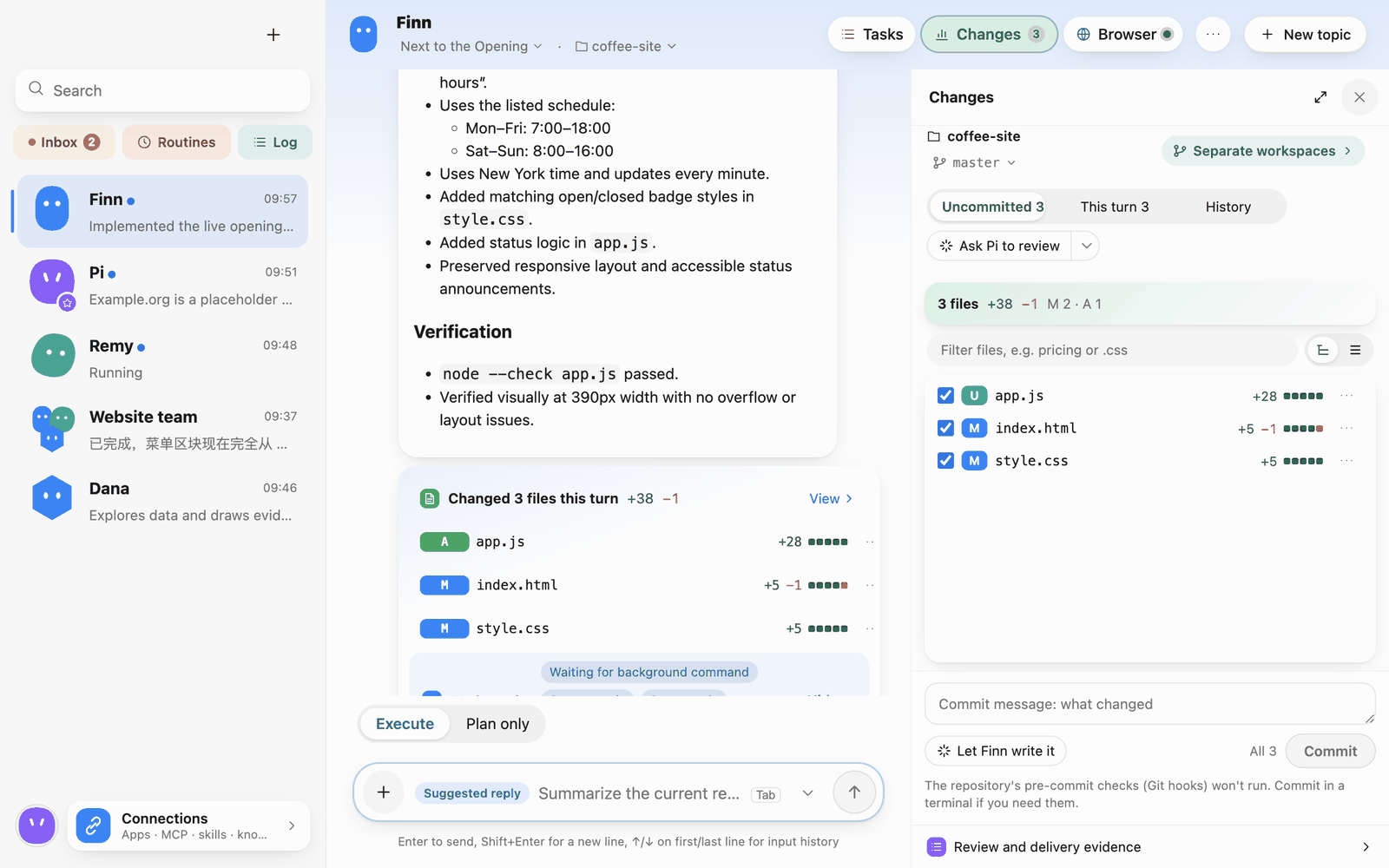 Changes panel
- Which changes: Uncommitted (everything not yet committed in the folder), This turn (what this run changed), History (the latest 50 commits).
- File list: each file is marked added, modified or deleted with line counts; generated and dependency files are folded separately, since they rarely need line-by-line review. You can filter files and switch the layout.
- Line by line: click a file to see its diff.
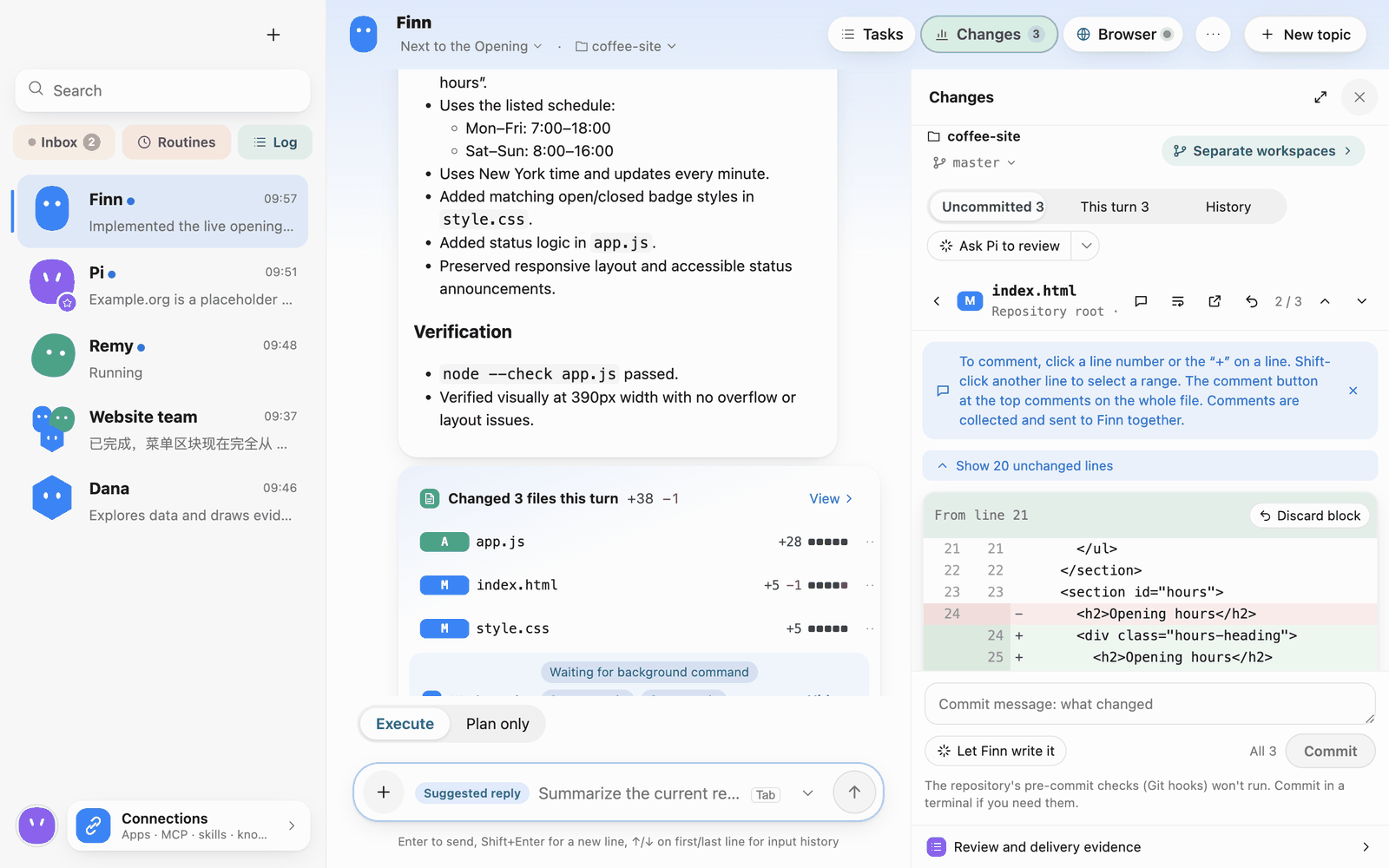 Diff
In the diff you can:
- Comment: click a line number, or hover a line and click "+"; Shift-click another line to select a range; the comment button at the top comments on the whole file. Comments are collected and sent to the Bot together.
- Discard block: undo one block of changes.
- Expand: show unchanged lines above, or Show all.
Independent review by another Bot
The top of the changes panel has an Ask … to review button. Reviews are read-only: the reviewer only sees these changes and the folder, and can't edit files or run commands that change anything.
The arrow next to the button chooses the reviewer:
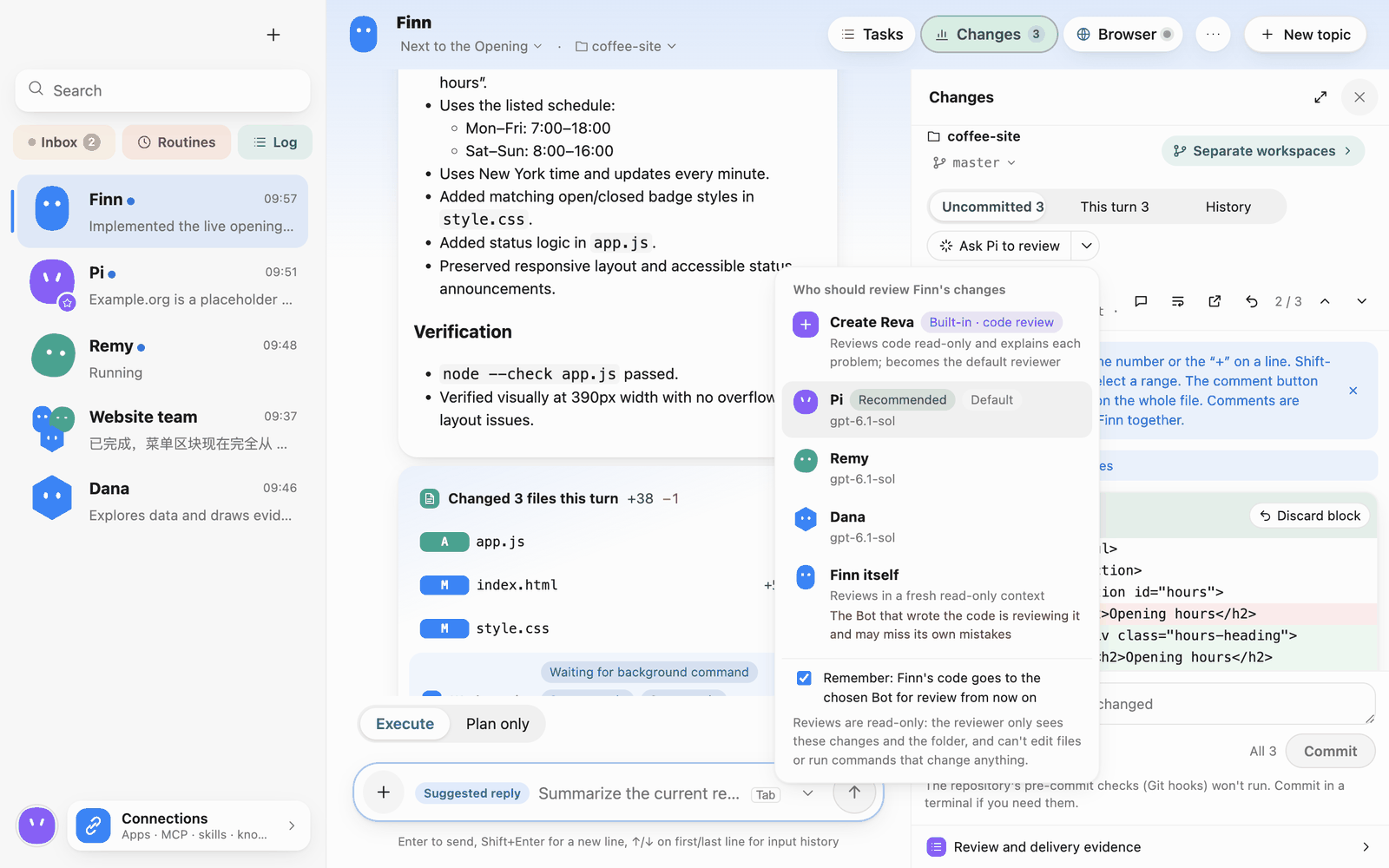 Choose who reviews
- The list recommends a Bot on a different model or with the Code Reviewer role; if there's none you can Create a code reviewer right there.
- The Bot that wrote the code can also review in a fresh read-only context, though it may miss its own mistakes.
- With Remember checked, this Bot's code goes to the chosen reviewer from now on.
The review result arrives as a message in the chat, listing the problems found (security, bugs, suggestions) and what wasn't covered; the panel shows the review status and offers Review again.
Commit
If the working folder is a Git repository, you can commit from the changes panel:
- Write a Commit message, or click Let … write it to have the Bot draft one from the changes.
- Check the files to include (all by default).
- Click Commit.
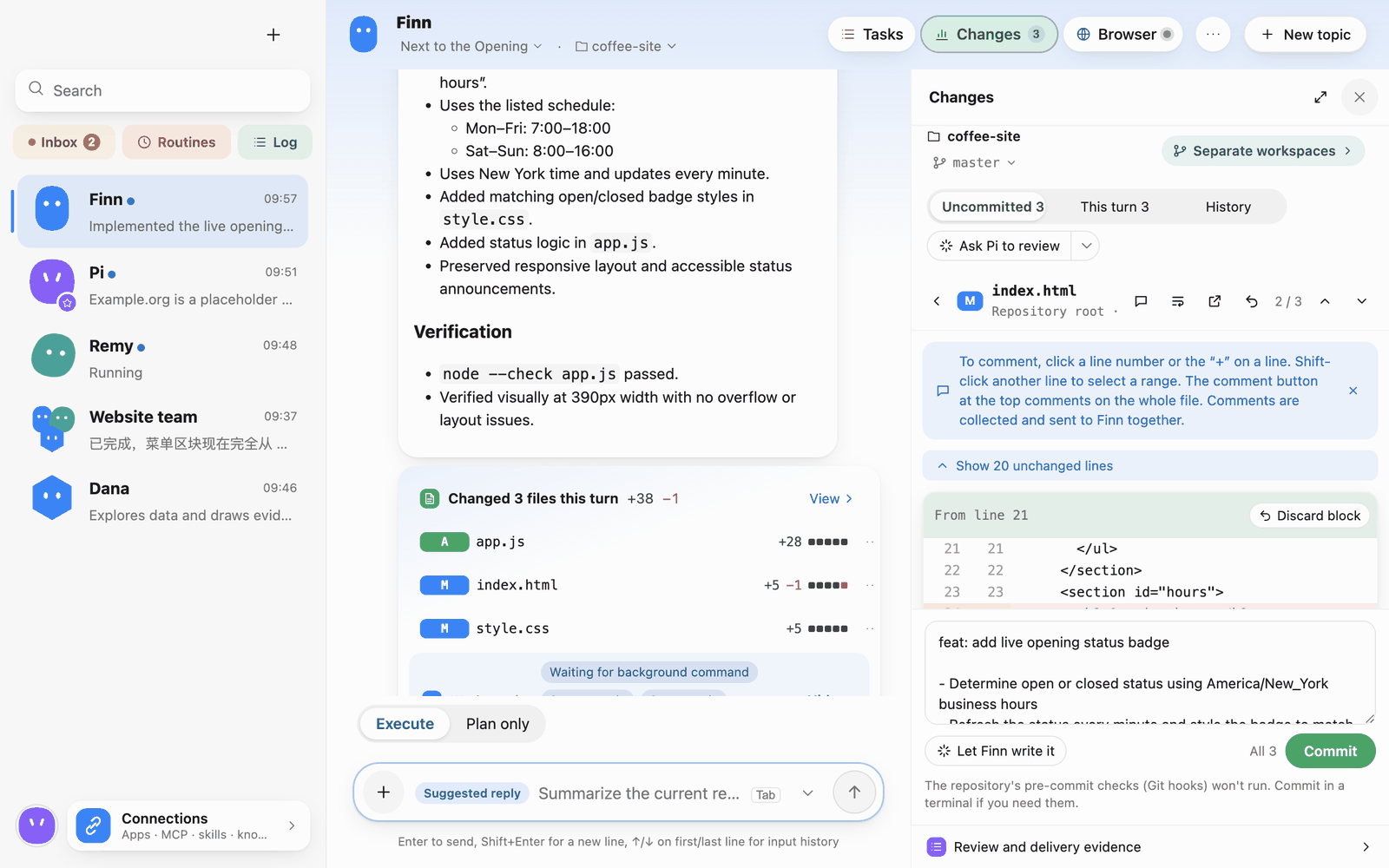 Commit message
Afterwards the panel shows that nothing is uncommitted, plus the current commit:
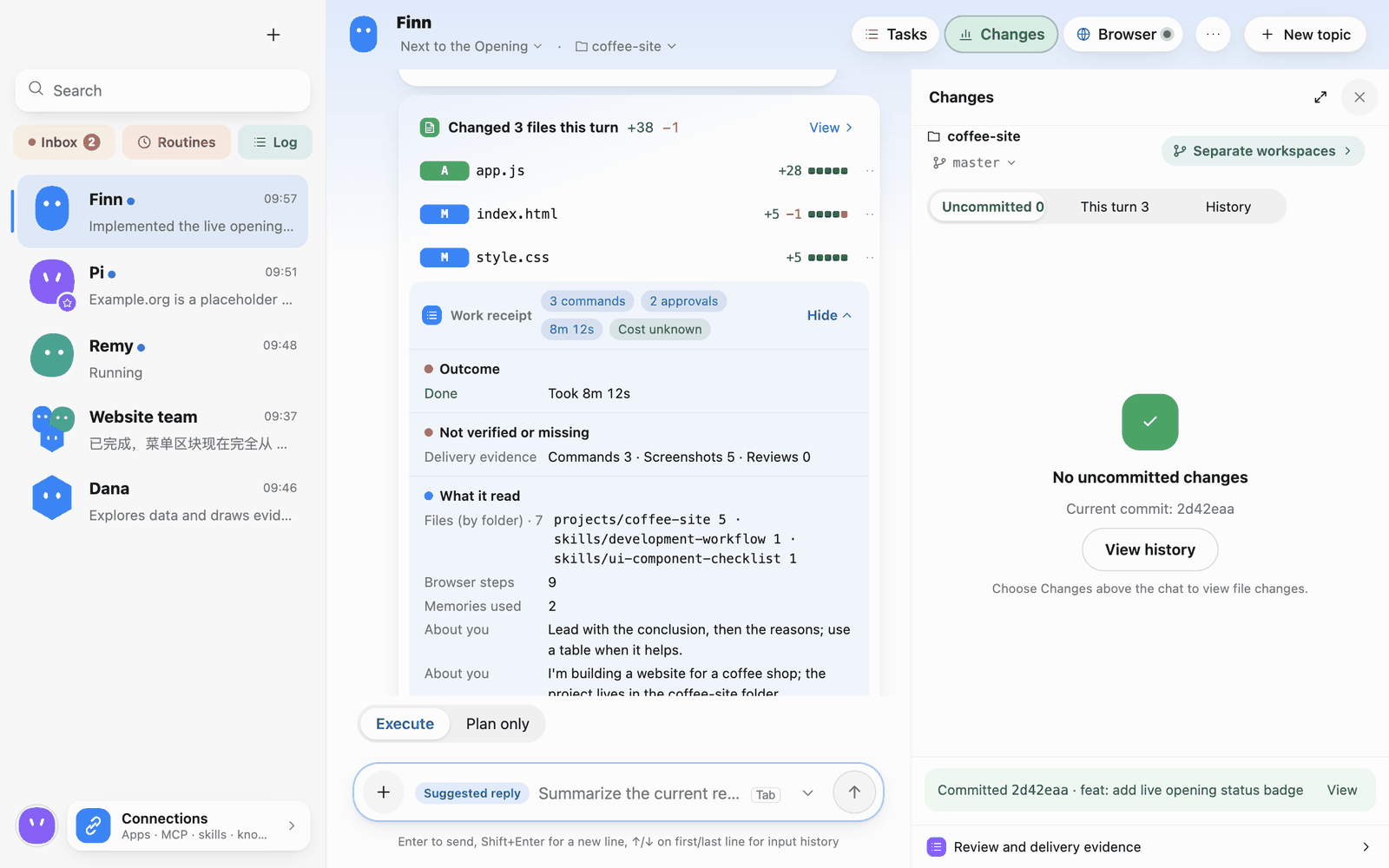 Commit done
Notes:
- Committing here doesn't run the repository's pre-commit checks (Git hooks). Commit in a terminal if you need them.
- The commit uses the author from your computer's Git configuration.
- Push, branches and pull requests are done with Git or GitHub.
- If a background command is still running in this folder, stop it before committing.
Separate workspaces
Separate workspaces at the top of the changes panel creates a separate workspace for a Git project, so the Bot can work there without touching the main project, and integrate the result back afterwards. Integration only takes committed work; uncommitted files in the main project or the workspace need handling first. Parallel development tasks in group chats use separate workspaces automatically (see 6 · Group chats).
Where deliverables go
Reports, change notes and other deliverables a Bot writes go under .pibot/out/ in the working folder, one subfolder per task, for example .pibot/out/contact-section/.
Workflow example
Choose a project and team
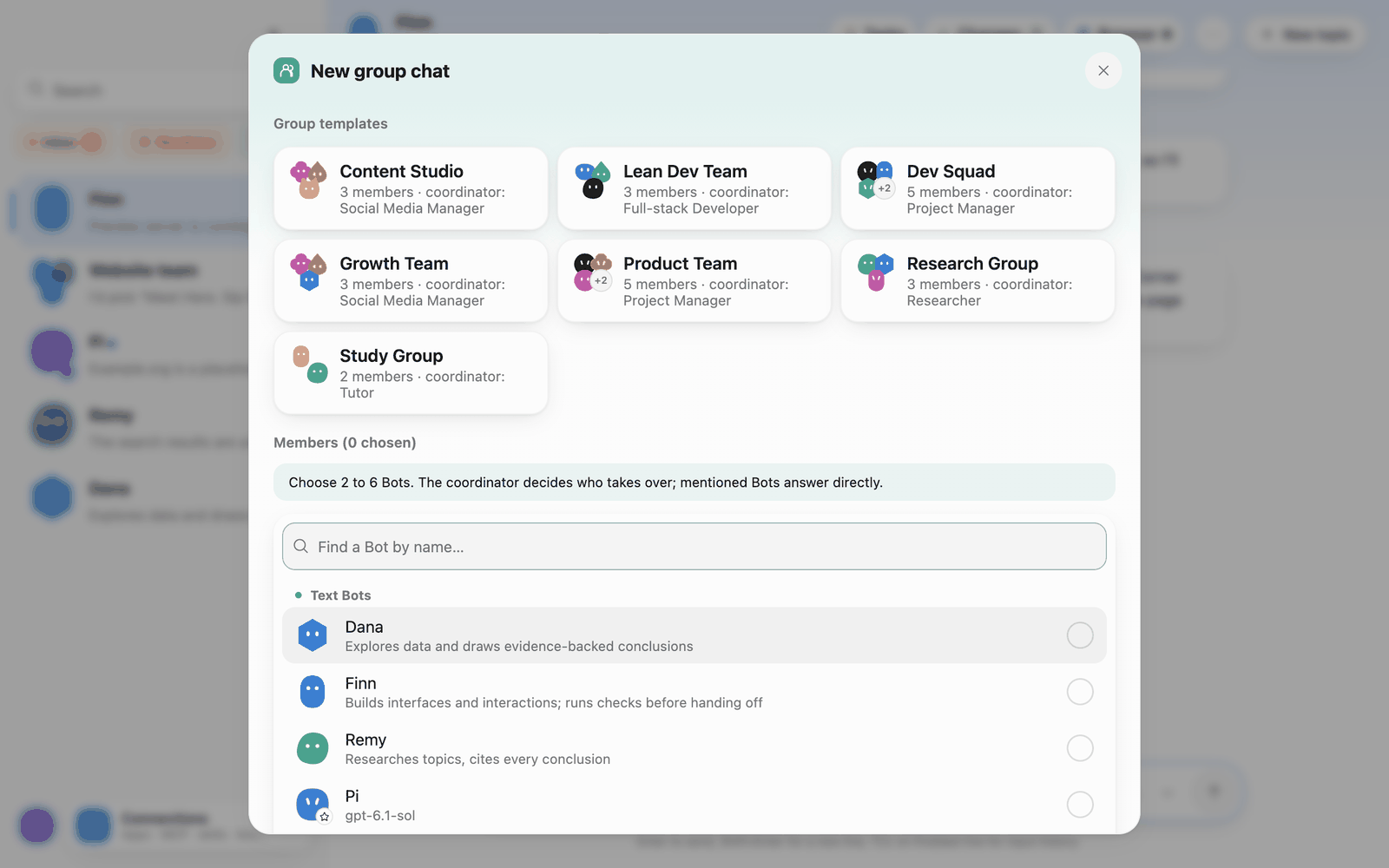
Create a group from the lightweight development template or add developer, reviewer, and coordinator roles. Set the group’s working folder to your Git project. Check the scope and existing changes before you start.
Review the plan and start work
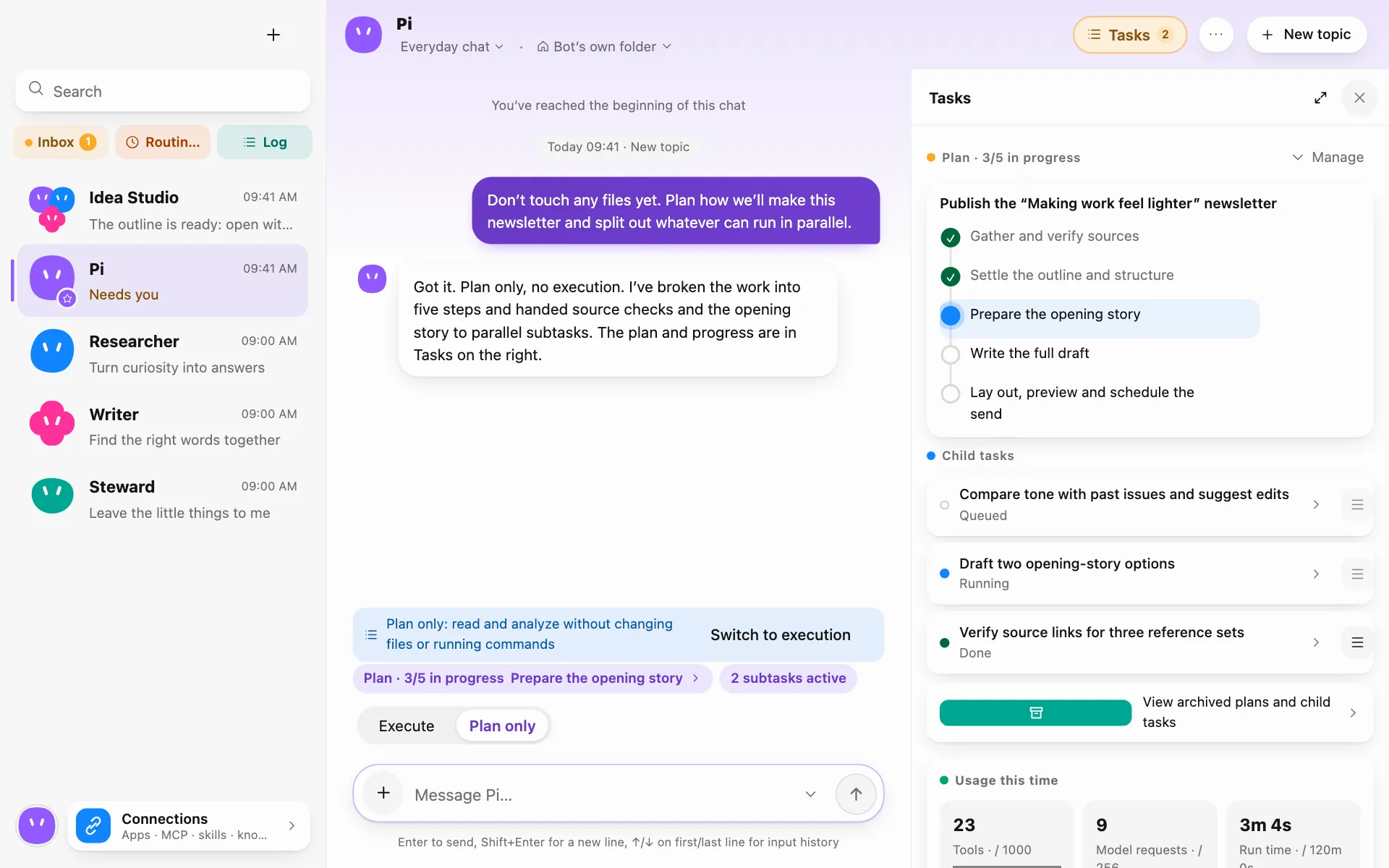
Use Plan Only to ask the coordinator for steps, dependencies, and deliverables. Review the plan before running it. Suitable parallel development tasks run in separate workspaces. Sequential steps can run in the main group folder.
Inspect the diff and review findings
Open the Changes panel to inspect file diffs, command results, and review findings. You can request a read-only review from another Bot. The coordinator reviews changes from isolated workspaces, and you decide whether to merge when prompted for approval.