
Every tool a Bot calls goes through a permission check: allowed actions run, actions that need asking show an approval card, and disallowed actions are refused. Every approval, command run and outgoing send is written to the activity records.
Permission settings
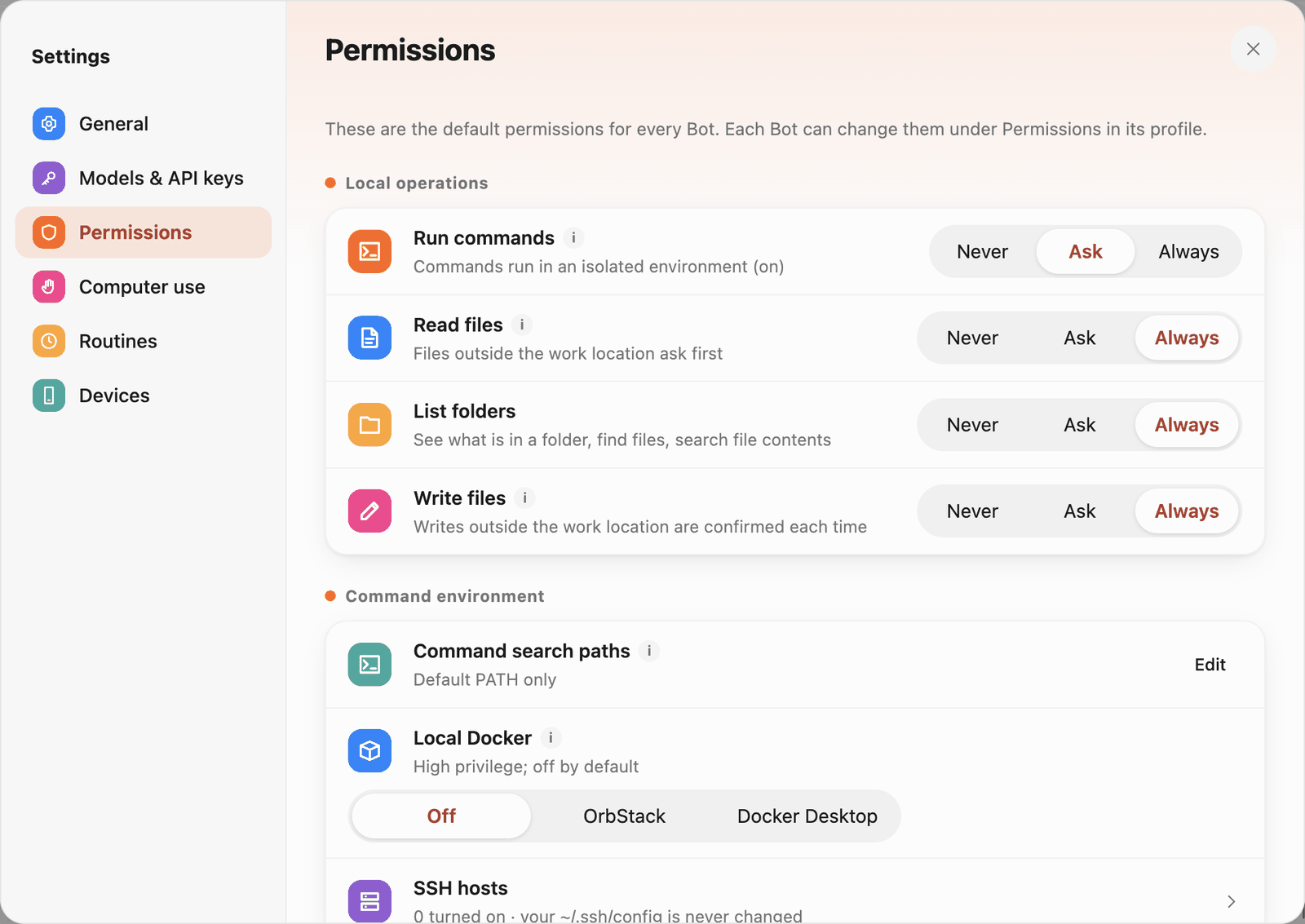
Open Settings › Permissions. These are the default permissions for every Bot; each Bot can change them on the Permissions tab of its profile (see 2 · Bots and roles).
 Permissions (top)
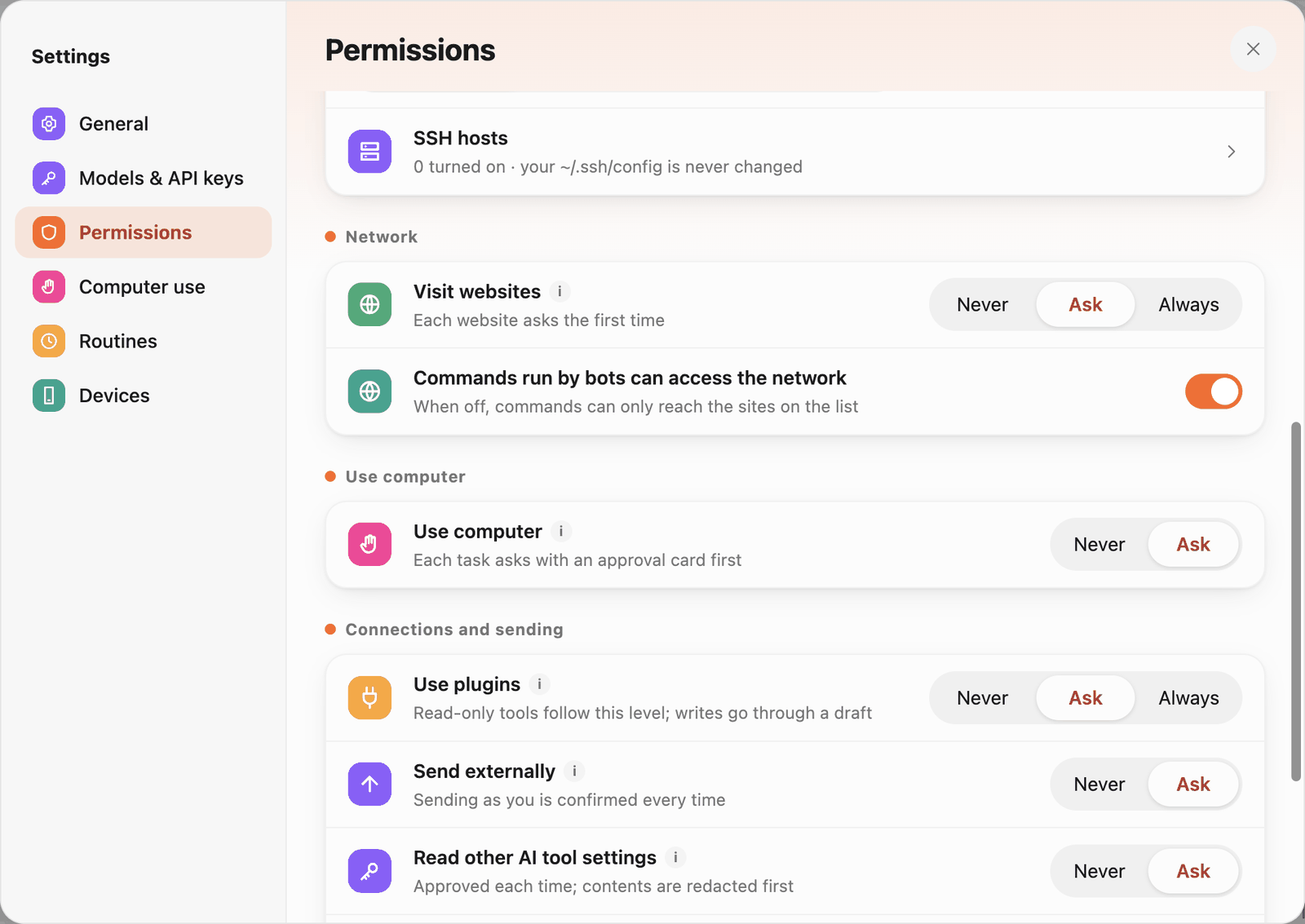
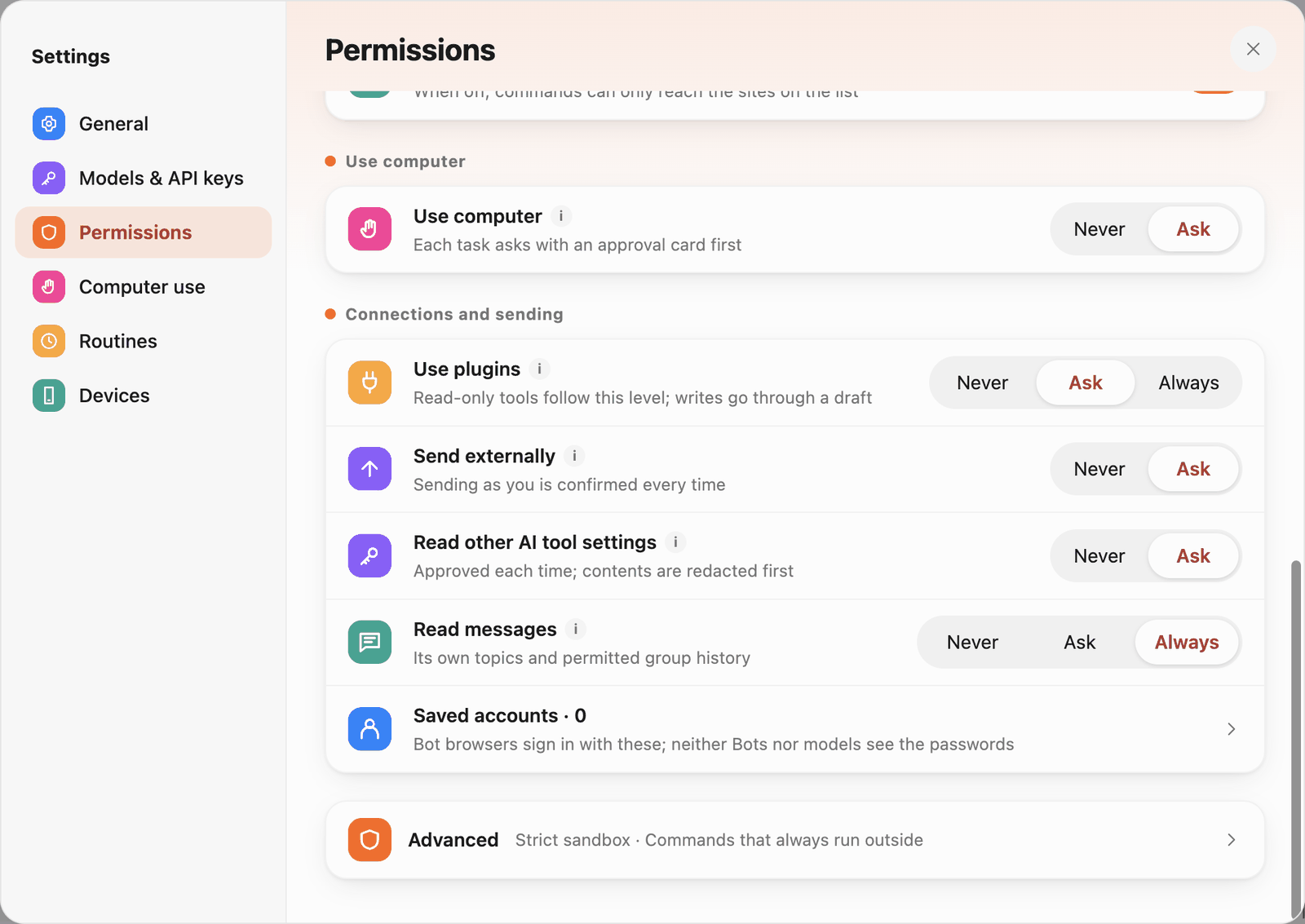
Each item has three levels: Never, Ask, Always (some have only the first two).
| Group | Item | Default behaviour |
|---|---|---|
| Local operations | Run commands | Commands run in an isolated environment, approved per level |
| Read files | Files outside the work location ask first | |
| List folders | See what is in a folder, find files, search file contents | |
| Write files | Writes outside the work location are confirmed each time | |
| Network | Visit websites | Each website asks the first time |
| Commands run by bots can access the network | When off, commands can only reach the Allowed websites list | |
| Use computer | Use computer | Each task asks with an approval card first |
| Connections and sending | Use plugins | Read-only tools follow this level; writes go through a draft |
| Send externally | Sending as you is confirmed every time | |
| Read other AI tool settings | Approved each time; contents are redacted first | |
| Read messages | Its own topics and permitted group history |
 Permissions (middle)
 Permissions (bottom)
The same page also has:
- Command environment: Command search paths (folders added to the default PATH), Local Docker (high privilege, off by default; OrbStack or Docker Desktop), SSH hosts (your
~/.ssh/configis never changed). - Saved accounts: the Bot browser signs in to websites with these; neither Bots nor models see the passwords.
- Advanced: Strict sandbox, and commands that always run outside the sandbox.
Approval cards
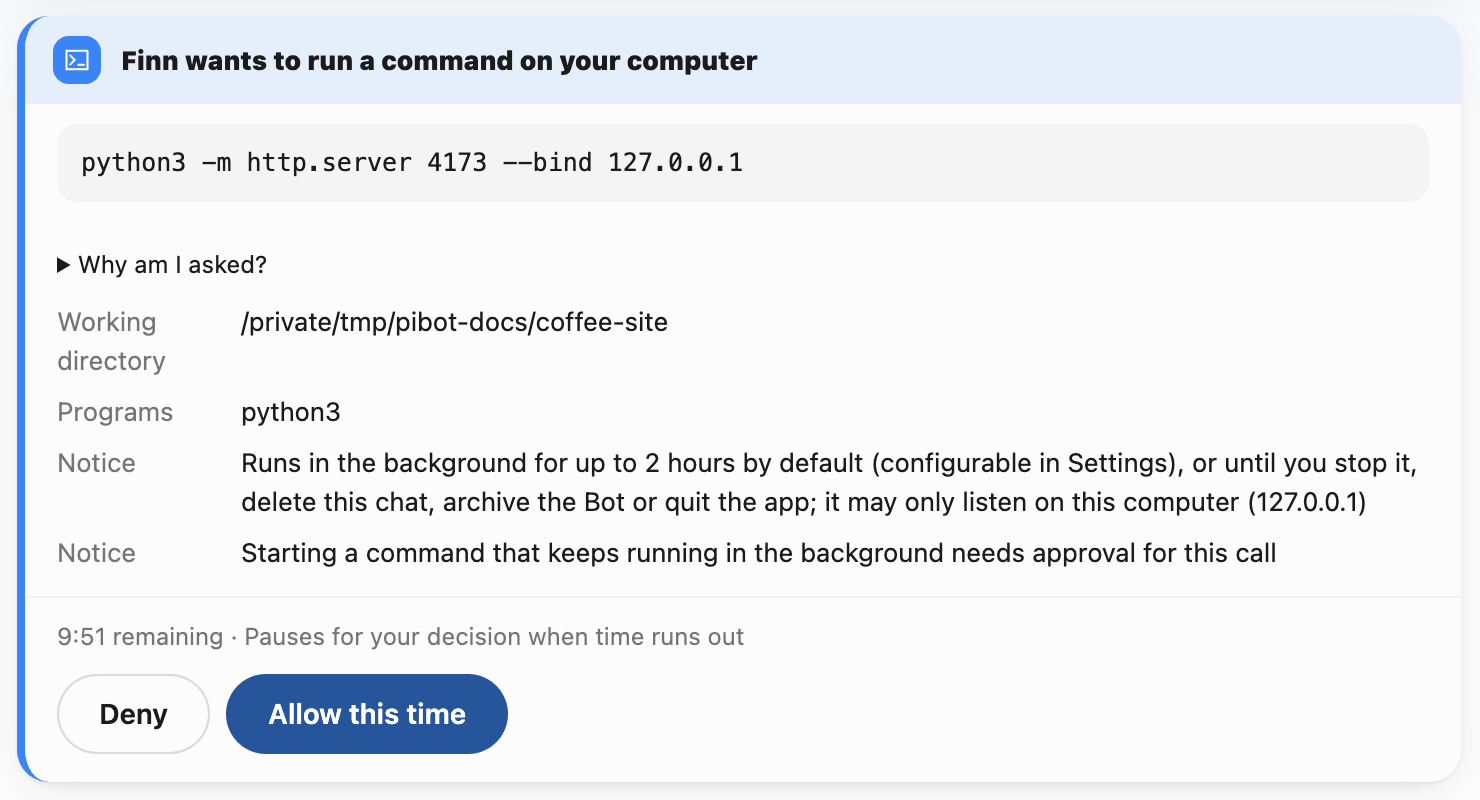
When your consent is needed, an approval card appears in the chat and the sidebar Inbox shows a count.
 Command approval card
The card spells out what will happen: the exact command, working directory, program and notices (for example "Runs in the background"). Expand Why am I asked? to see which rule required approval:
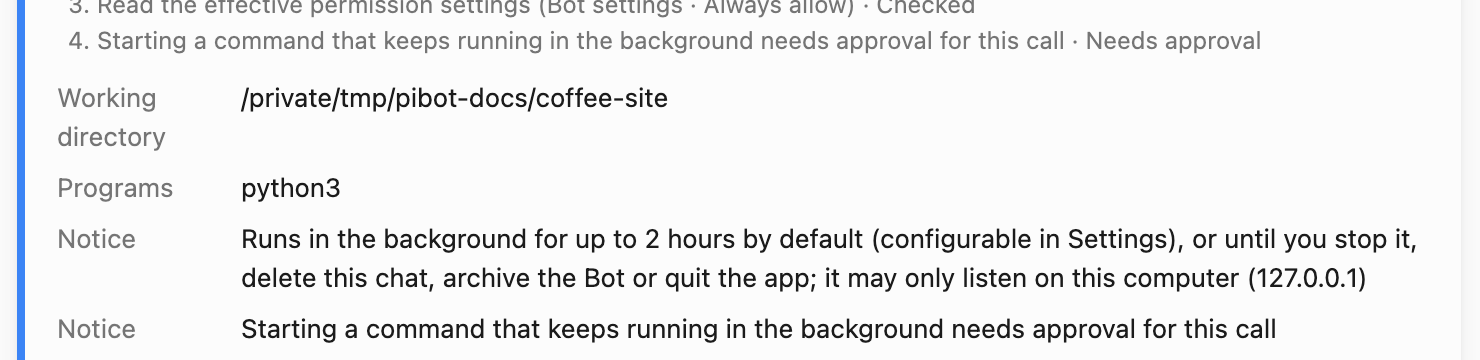 Why am I asked?
Buttons:
- Deny: don't do it; the Bot finds another way or tells you it can't.
- Allow this time: allow just this once.
- Always allow: don't ask again for this kind of action (the scope is shown on the card).
- Allow this website in this conversation (for websites): valid only in this conversation, until restart.
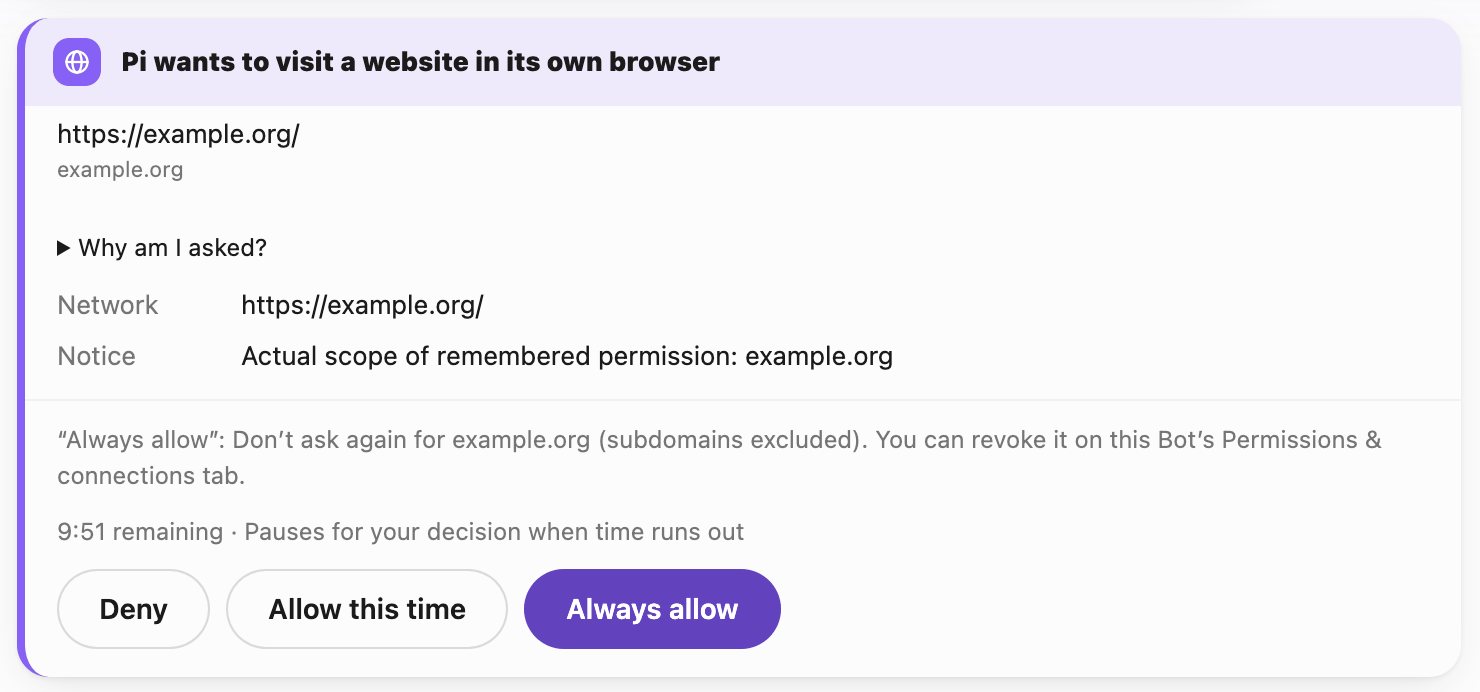 Website approval card
If a card in a chat isn't answered within 10 minutes, the task pauses and waits for you. Approvals from routines go to the Inbox and are denied automatically after 24 hours. A message you send while an approval is pending is sent as a new request once the approval is handled.
Remembered permissions
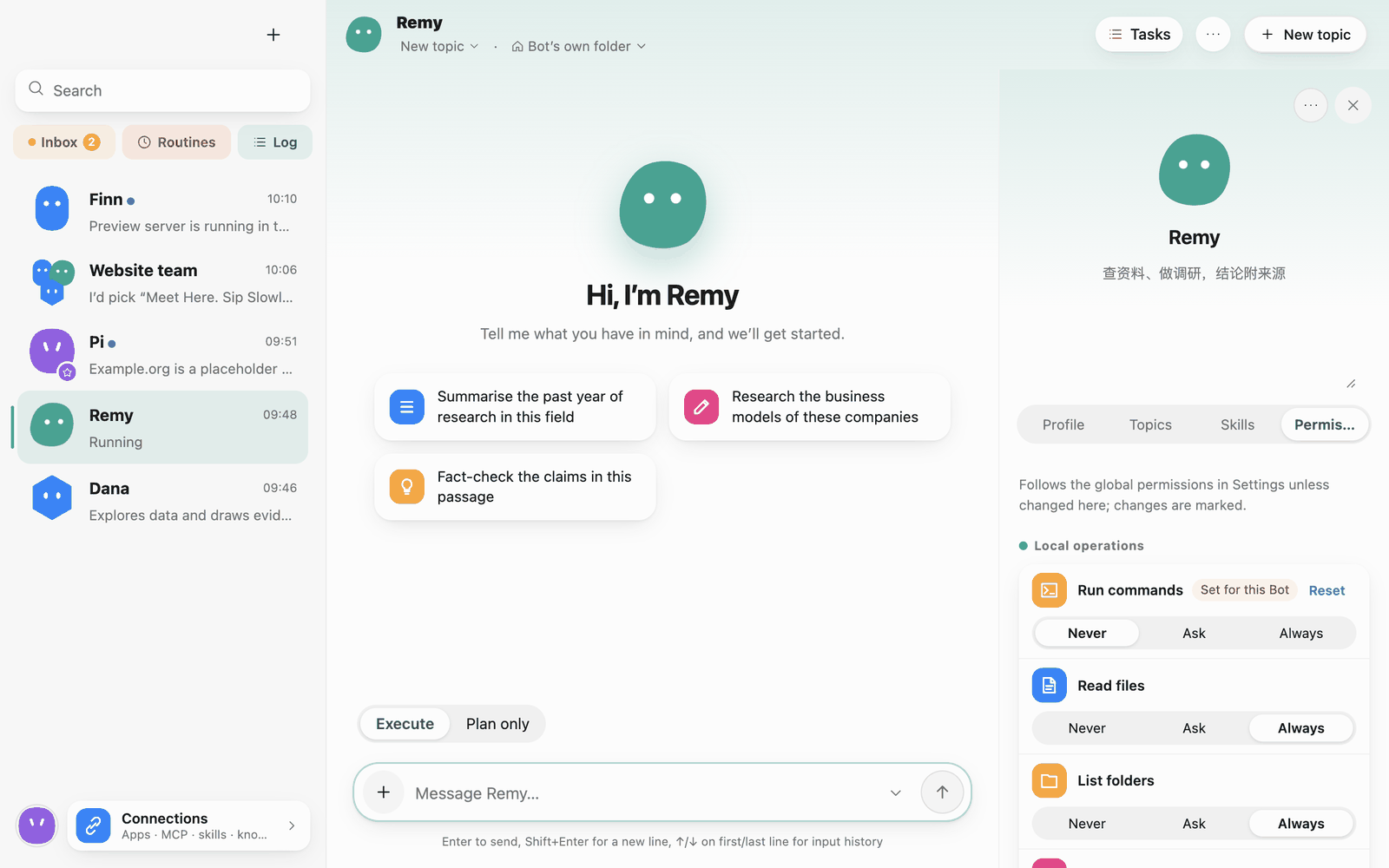 Open the Bot’s Permissions tab before managing saved approvals
Permissions granted with Always allow are stored on that Bot; review and revoke them on the Permissions tab of its profile. Routines also have Preauthorizations for this routine, which apply only to that routine (see 7 · Routines and to-dos).
YOLO mode
Turn on YOLO mode from "…" at the top right of a chat. Actions YOLO can approve are then allowed without asking in this conversation.
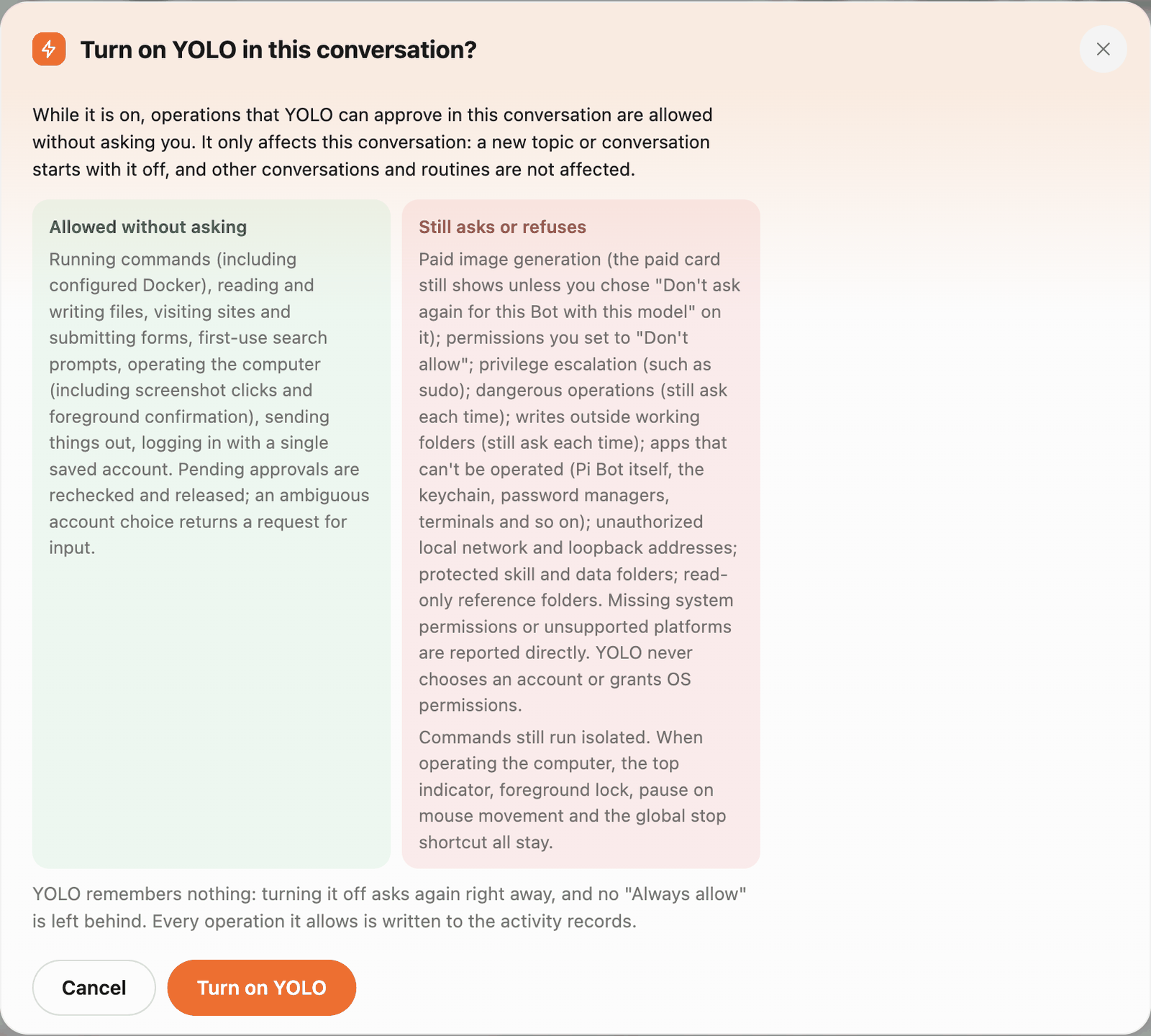 Turn on YOLO
- It only affects this conversation: a new topic starts with it off, and other conversations and routines are not affected.
- Allowed without asking: running commands (including configured Docker), reading and writing files, visiting sites and submitting forms, first-use search prompts, operating the computer, sending things out, logging in with a single saved account.
- Still asks or refuses: paid image generation, permissions set to Never, privilege escalation (such as sudo), dangerous operations, writes outside working folders, apps that can't be operated, unauthorized local network and loopback addresses, protected skill and data folders, read-only reference folders.
- Commands still run isolated. YOLO remembers nothing: turning it off asks again right away, and every action it allowed is in the activity records.
Command isolation (sandbox)
Advanced permissions entry; the platform-specific sandbox behavior is described below
Commands Bots run are isolated by default: they can write only the working folders, and network access is limited by the Allowed websites list.
- macOS: uses the system's built-in sandbox; nothing to install.
- Linux: needs
bubblewrapandsocat(see 1 · Install). - Windows: command isolation isn't supported yet. Each command runs directly as you only after you approve it, and Run commands can't be set to Always. YOLO doesn't auto-approve Windows commands either unless you separately turn on YOLO auto-approval for commands without isolation (you confirm before it turns on).
When the sandbox blocks a command, the Bot explains why and can ask you to confirm running it once outside the sandbox. If you never want that offer, turn on Strict sandbox in Settings › Permissions › Advanced.
Computer use
Bots can operate apps on your computer the way a person does (press buttons, fill in fields, take screenshots). Each task asks with an approval card first. The settings are in Settings › Computer use:
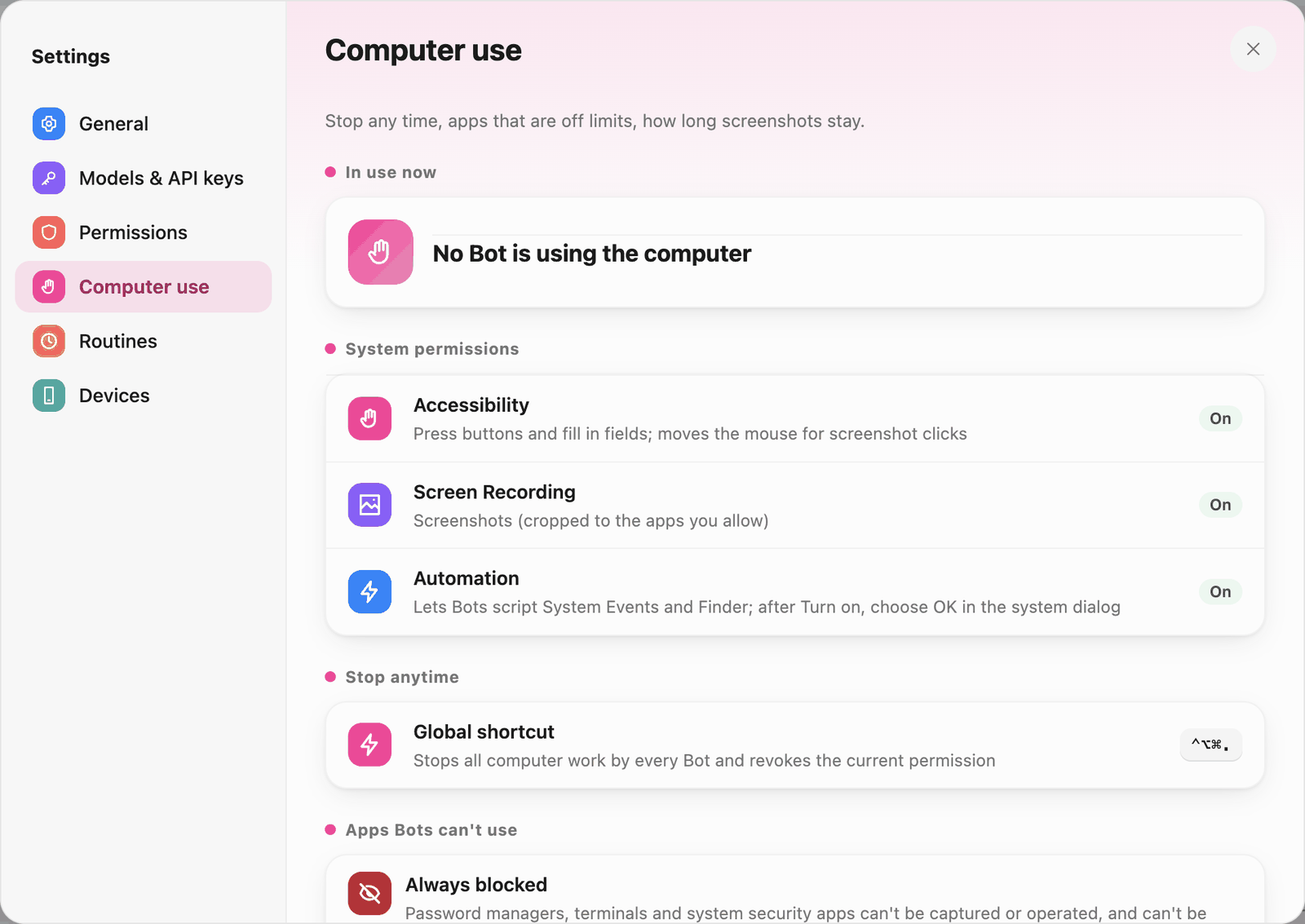 Computer use
- In use now: which Bot is operating the computer, with a way to stop it.
- System permissions (macOS): Accessibility, Screen Recording, Automation. Windows needs no extra permission, but windows running as administrator can't be controlled. Linux needs none on X11; on Wayland screenshots are confirmed once per session and position clicks are limited.
- Stop anytime: a Global shortcut (⌃⌥⌘. on macOS) stops all computer work by every Bot and revokes the current permission.
- Apps Bots can't use: password managers, terminals and system security apps are Always blocked; chat and mail apps are in Added by you by default and can be removed; Add app adds more.
- Step screenshots: keep for 3, 7 or 30 days; they're deleted automatically when they expire.
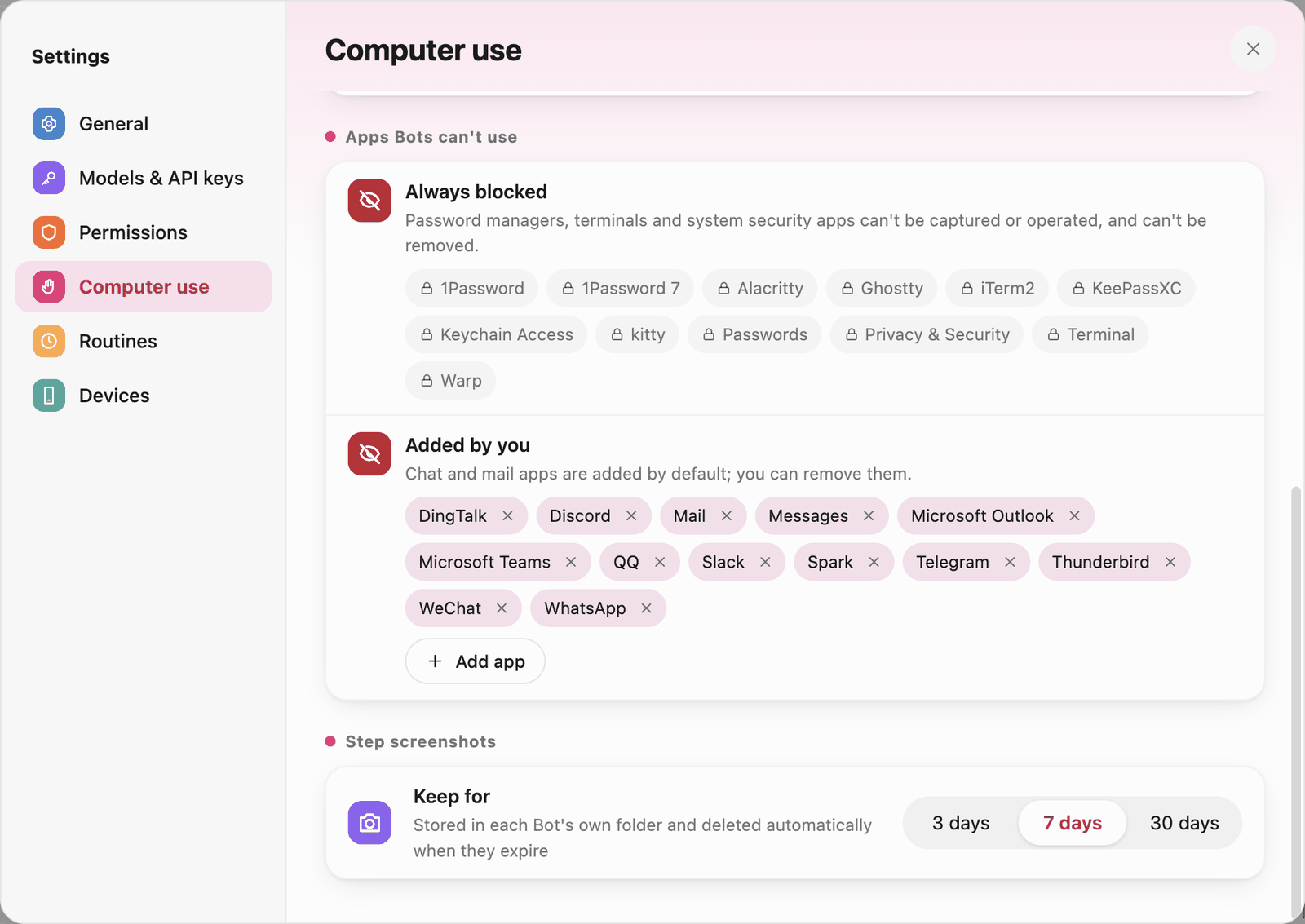 Apps Bots can't use
Activity records
Log in the sidebar opens the activity records: every approval, run and outgoing action is recorded here, only on this computer, and records remain after a Bot is deleted. Filter by Bot, time and type.
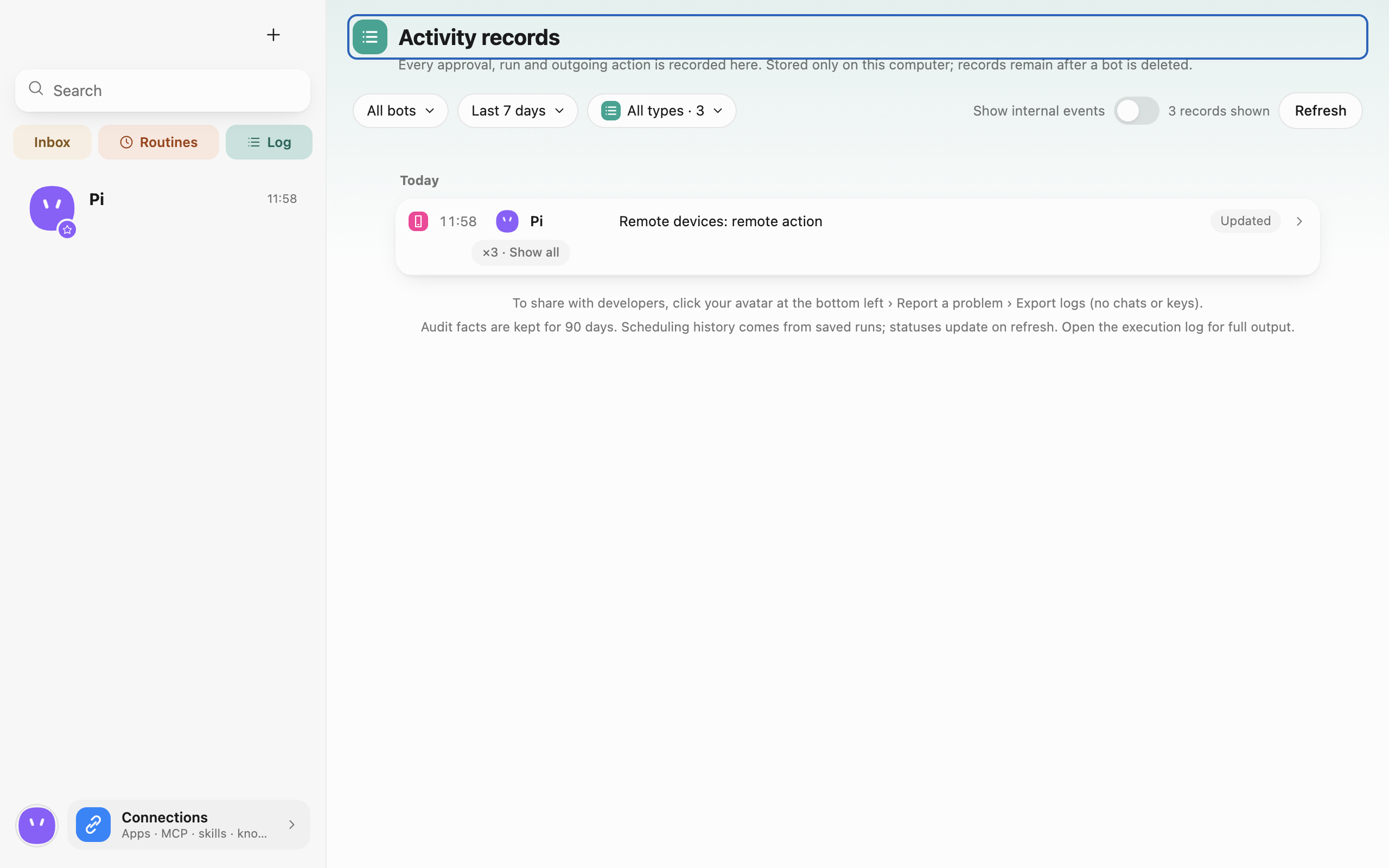 Activity records · Captured in a separate macOS v0.0.1 test profile.
Audit records are kept for 90 days. To send logs to the developers, use your avatar › Report a problem › Export logs (no chat content or keys).
Sandbox doctor
For blocked commands, certificate errors or network failures, run the installed app from a terminal. This opens no window, starts no brain database writer, and does not change permissions, logins or settings. Your running Pi Bot can stay open.
macOS (invoke the executable directly to see output):
"/Applications/Pi Bot.app/Contents/MacOS/Pi Bot" --sandbox-doctor
Windows (PowerShell; adjust the installation path; the pipeline waits for the report):
& "$env:LOCALAPPDATA\Programs\Pi Bot\Pi Bot.exe" --sandbox-doctor | Out-String
Linux (from the extracted app directory, or substitute your downloaded AppImage filename):
./pi-bot --sandbox-doctor
# Or
./Pi-Bot.AppImage --sandbox-doctor
The report lists pass, fail or skip, duration, denial rules and fixed error features. It checks command isolation, HTTPS certificates, macOS system proxy lookup, scratch workspace writes, protected names and domain denials. Names are resolved by the sandbox proxy; the HTTPS check covers that resolution and connection path, with no separate direct DNS check. It uses its own temporary folder and a fixed network profile allowing only example.com, with an attempt to reach example.org to verify blocking. It does not read your network settings or establish whether a particular Bot's permissions are correct. These public test sites receive diagnostic requests, with no chat, file content or keys; no tools are installed. Windows has no command isolation: containment checks are skipped, and other passing checks do not prove isolation.
The report contains fixed codes and features, without raw commands, PATH, accounts, chat or file content, and can be copied to developers. Network, proxy or test-site outages can also cause failures. Temporary files are deleted after confirmed cleanup; if process cleanup cannot be confirmed, the command fails and retains its temporary folder instead of deleting files still in use. Exit code 0 means no failed items; 1 means a failed or incomplete check. Interrupting stops and cleans up this check.
Example: approve a command once for this project
Review the project folder and command before allowing this run
- Verify the test project in the conversation's working-folder selector. Add reference-only directories as read-only.
- Set Run commands to Ask under Settings → Permissions. Check the Bot's Permissions tab for a saved approval that could apply.
- State the task and scope. For example: “List changes in the current Git working tree. Tell me what command you plan to run first. Leave the files alone.”
- If an approval card appears, expand Why am I asked? Check the exact command, working directory, and program. Choose Allow this time for one run. Decline if the scope is wider than expected, then tell the Bot what is acceptable.
- Open Activity records and filter by Bot and action type to find the decision. For file changes, open Changes to inspect the actual diff.
When an approval card does not appear
- The action completed immediately. Check its recorded decision, saved approvals for the Bot, and YOLO mode for the conversation. To return to interactive approval, revoke the relevant approval and check the conversation mode.
- The Bot is waiting. Look for a card in the chat, or open Todos for approvals generated by a routine. Check that the request still belongs to the task before deciding.
- The action was denied immediately. Review whether a permission or a system limitation applied. Group permissions can narrow a member's permissions, and remote approval depends on the request. Then request an action within the allowed scope.