
Put several Bots in one group and a coordinator hands out the work: a Bot you @mention answers directly, the coordinator takes other messages and splits bigger jobs into a plan for the members. Groups use more model capacity (several Bots may process each message); most tasks only need a chat with one Bot.
Create a group chat
- Click "+" at the top of the sidebar › New group chat (⌘2 / Ctrl+2).
- Pick a group template, or choose members yourself:
- Templates: Content Studio, Lean Dev Team, Dev Squad, Growth Team, Product Team, Research Group, Study Group. You preview a template first; it then creates its Bots (with the default model and role permissions) and the group, and the coordinator posts a welcome message.
- Your own: choose 2 to 6 Bots. Image Bots can be members; the coordinator must be a text Bot.
- Enter the Group name and choose the Coordinator.
- Click Create group chat.
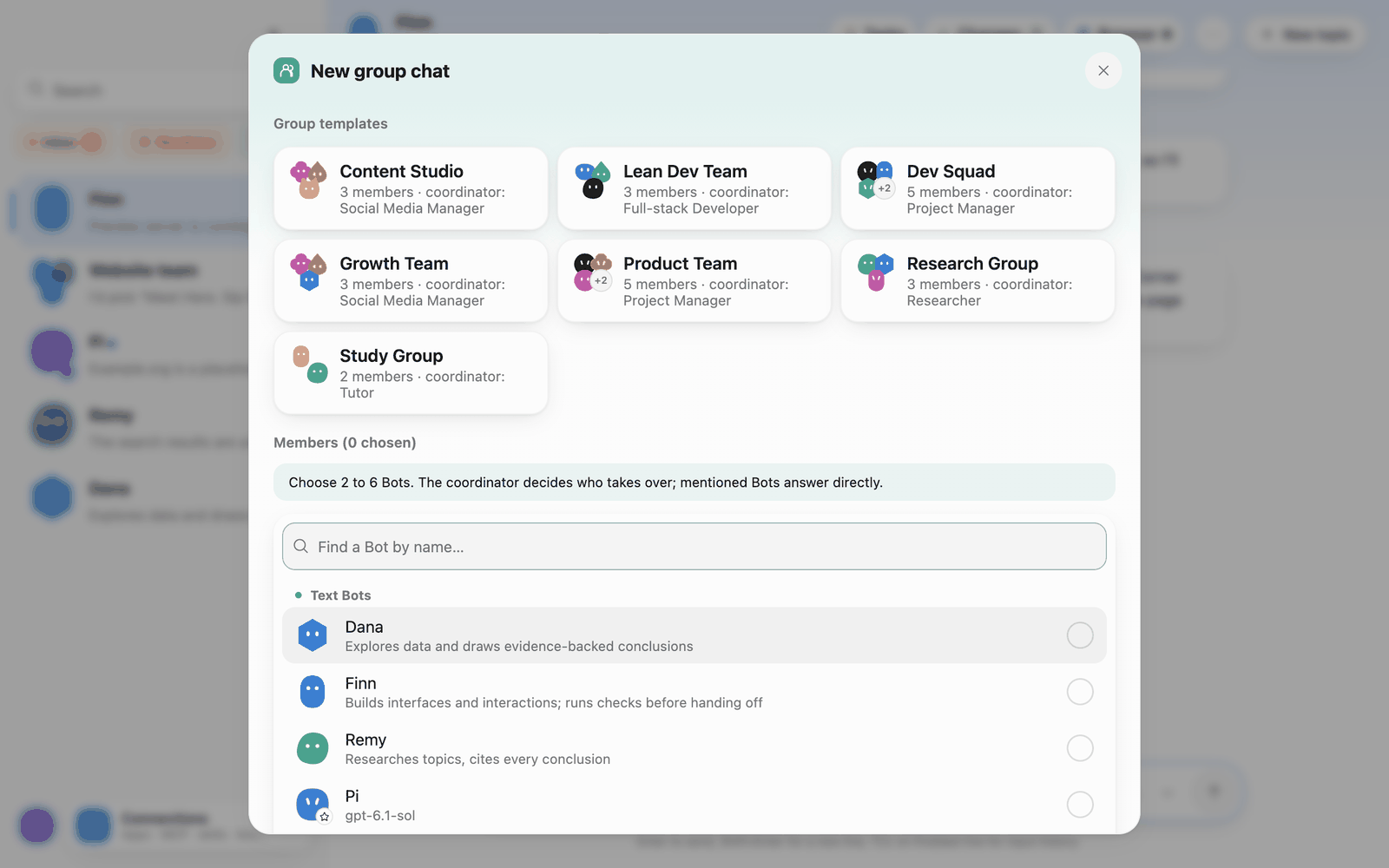 New group chat
A group also has its own working folder, The group's own folder by default. Click the folder name at the top of the chat to use your project folder instead (only the main folder is writable; references are read-only):
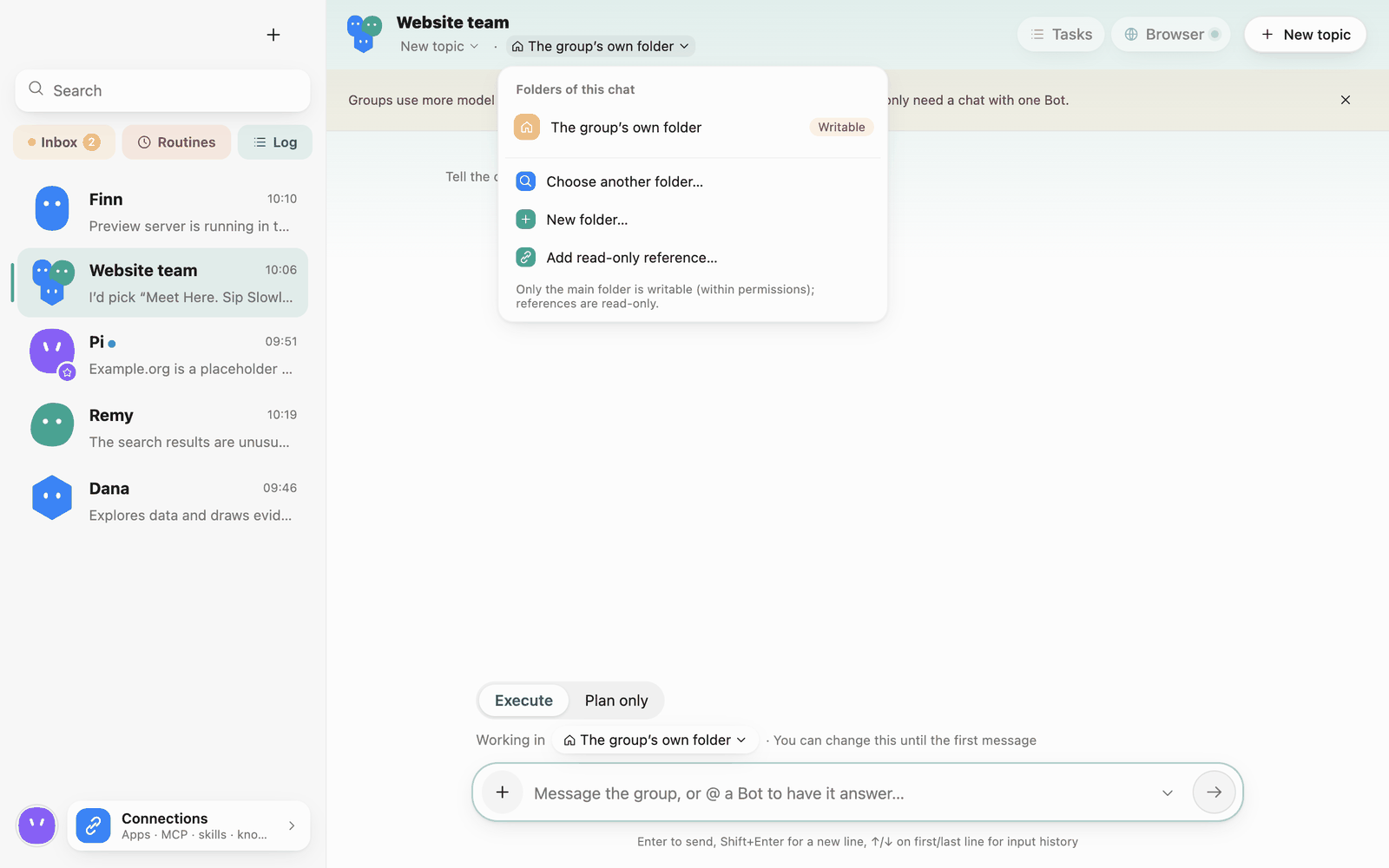 Group folder
Giving work to a group
- Say what you need and the coordinator decides who does it, or @mention a member to have it answer directly.
- Groups have Execute / Plan only too. Let everyone analyse with Plan only, then click Switch to execution.
- The top of the group shows "Automatic rounds: N / 4": when Bots have replied to each other that many times, they stop and wait for you. You can also turn on Pause automatic conversation.
- Each member's run can be stopped on its own ("Stop this run by …").
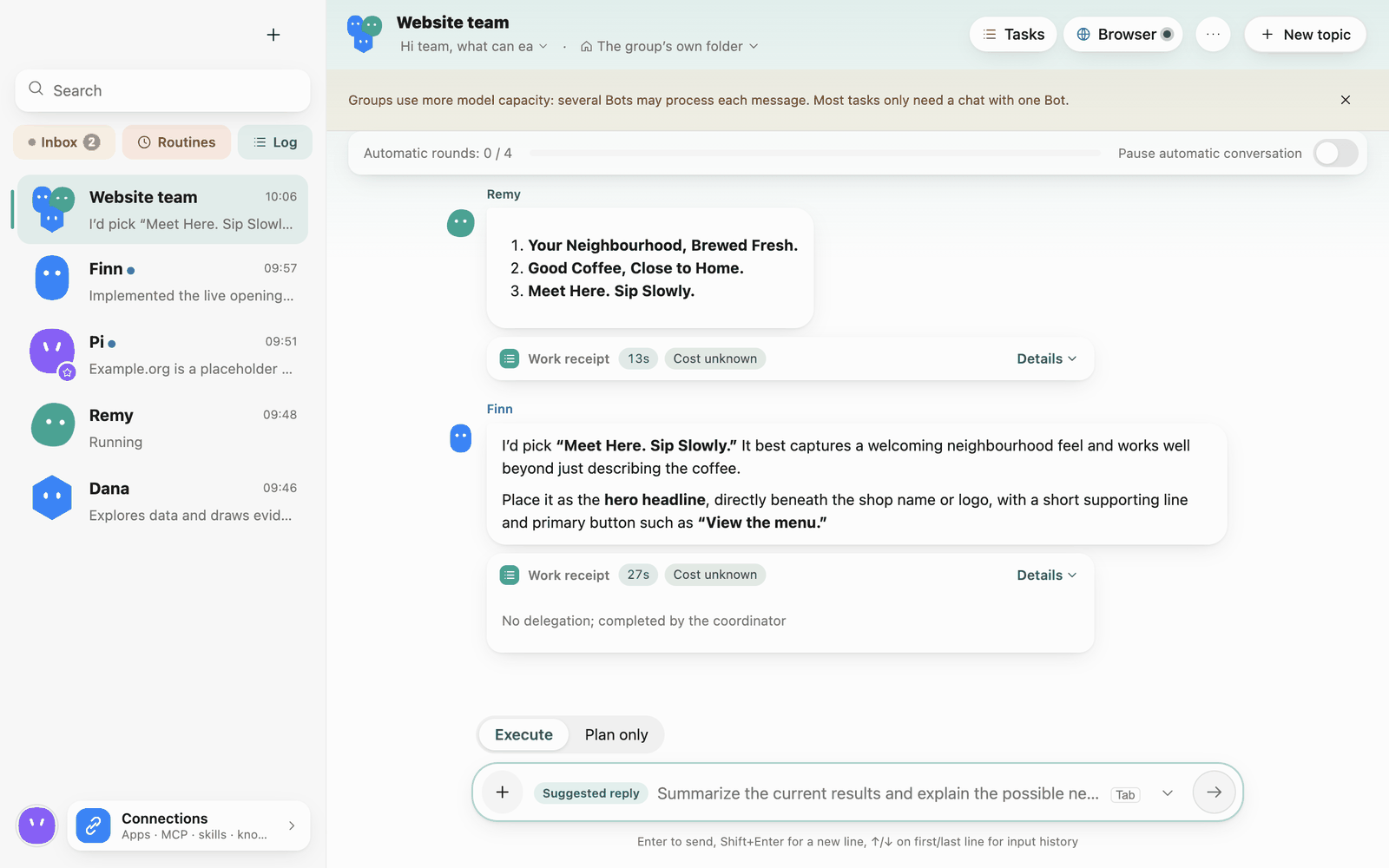 Group chat
Tasks panel and plans
Click Tasks at the top of the group to open the tasks panel:
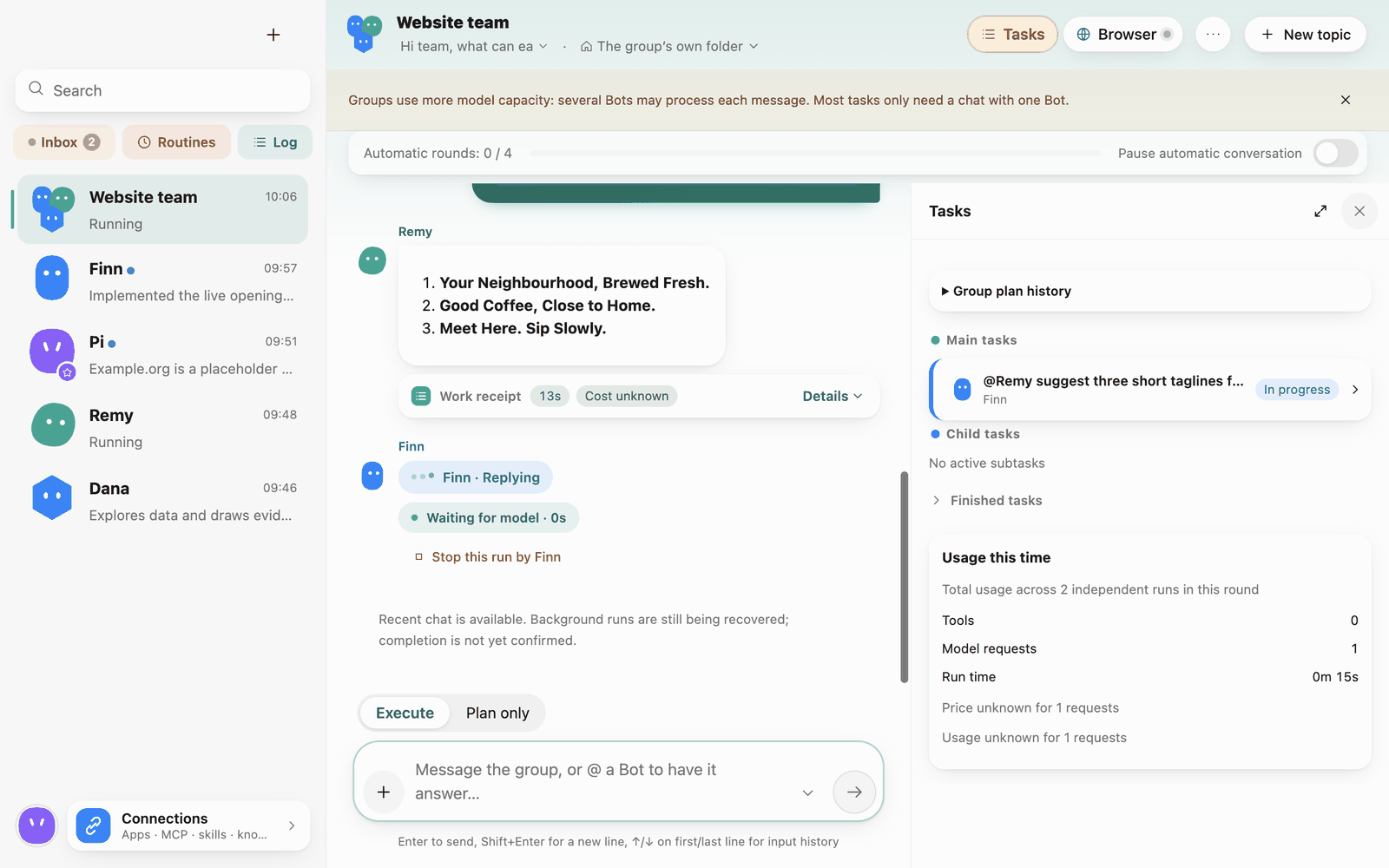 Tasks panel
- Main tasks and Child tasks: who is doing what, and whether it's in progress or waiting for you.
- Finished tasks.
- Usage this time: tools, model requests, run time and cost across all runs in this round (with a note when some requests have no pricing).
- Group plan history: earlier execution plans.
For complex work the coordinator first posts an Execution plan card: who does each step, which steps depend on which, which can run at the same time, the deliverables, and an estimated cost. Click Start to run it, or Modify to say what to change and send it back to the coordinator. Serial steps run in the group's main folder; parallel development tasks each use a separate workspace and are merged after the coordinator's review and your permission approval.
A plan whose steps all passed can be saved with Save as a reusable plan on its completion message and run again directly.
Group profile and settings
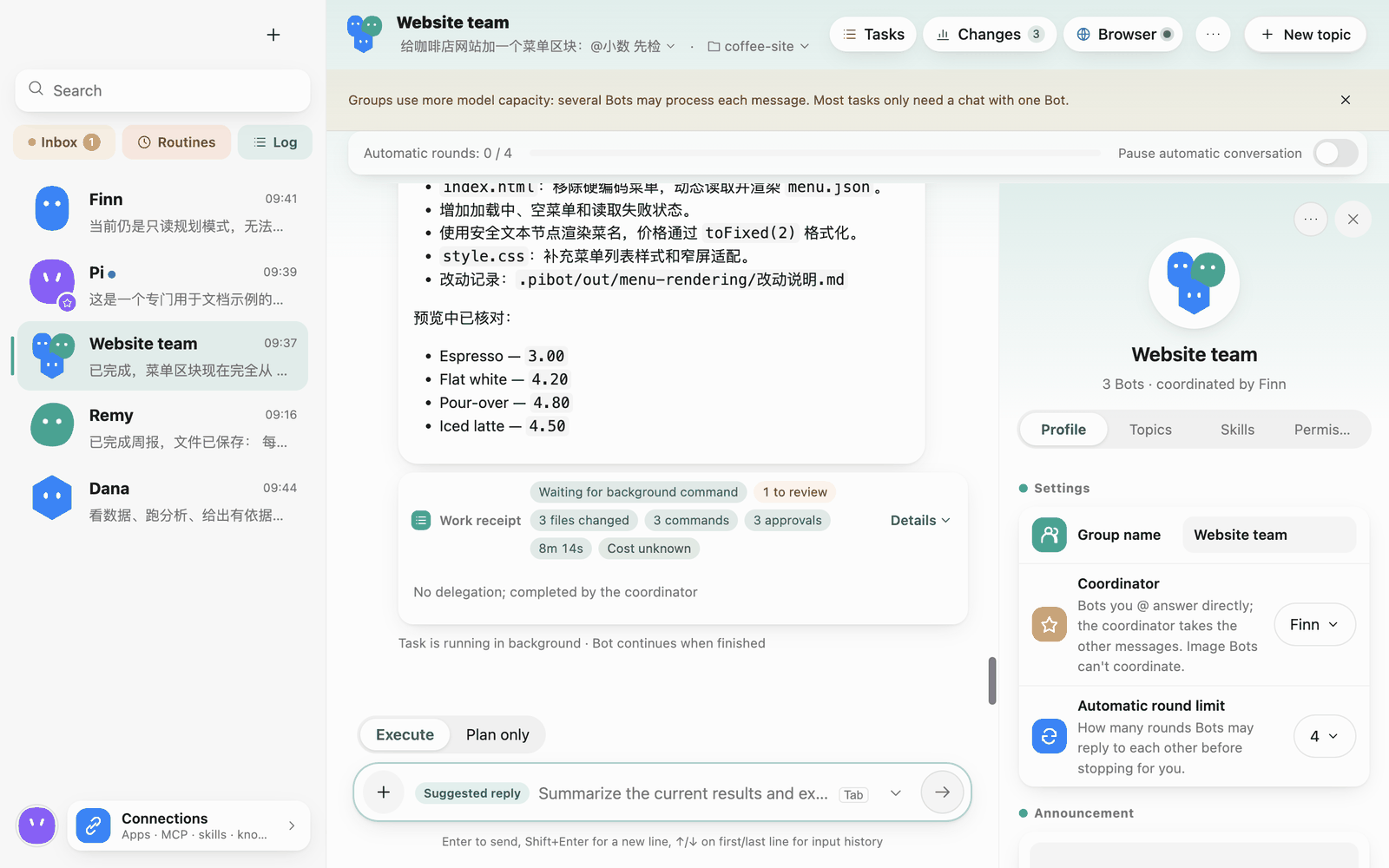
Click the group name to open its profile panel, with Profile, Topics, Skills, Permissions and Settings tabs.
 Group profile
- Group name, Coordinator, Automatic round limit, Announcement (saved when you leave the box).
- Members: see members and add another Bot. Members' private chats are unaffected.
- Used folders, Run limits (including the cost cap).
- Skills: a group can have its own skill list.
- Permissions: a group has its own permission scope, which can only narrow members' permissions, never widen them.
- Archive: stops the group's tasks and keeps chats and files; restore it from Archived in the sidebar.
Example: hand off research to a writing Bot
- Create a group with a coordinator, a researcher, and a writing Bot. Select the working folder for deliverables.
- Start in Plan only. Say: “Have the researcher record findings and sources from the three documents in research.md. Have the writing Bot use that file to produce draft.md. Propose a plan with writing dependent on research.”
- Check the assignees, dependencies, and paths on the plan card. Start the plan and open Tasks to follow each step.
- When research finishes, open research.md and check the sources. If writing is still waiting, see whether the previous step needs review or approval.
- Open draft.md from the group result. To supply missing information, quote the relevant result in the group and explain what to add.
Workflow example
Assign work in a group
Create a group with members and a coordinator. Describe a goal and let the coordinator assign work, or mention a Bot directly to get its response. For example, have a research Bot gather sources and a writing Bot turn the findings into a draft.
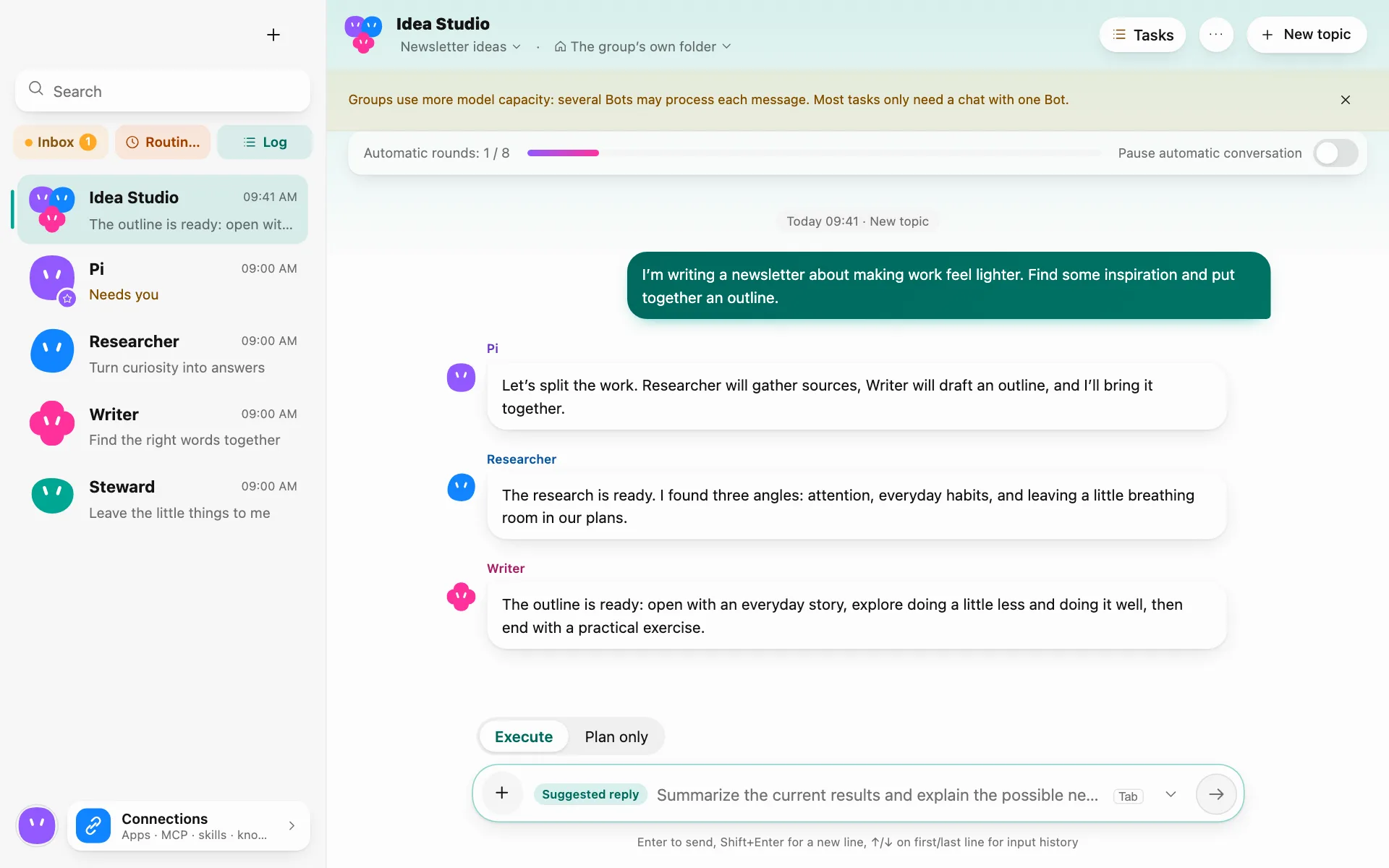
What the receiving Bot sees
Pi Bot supplies group members and roles, the group announcement, and relevant messages and task details. An assignment can also include a goal, inputs to reference, and prior deliverables. Bots can look up earlier group messages as needed. Direct chats, private memory, and full tool execution logs stay in their original context.
Track the handoff
Open Tasks at the top of the group chat to see assignees and status. When the researcher finishes, its result can appear in the main chat. For more involved work, ask the coordinator to propose a plan and review assignees, dependencies, and deliverables before starting.