
Routines let a Bot work automatically on a schedule, on folder changes or on connection events, for example writing an industry brief every Monday morning. The Inbox collects everything waiting for you: approvals, decisions, sign-ins, and your own personal to-dos.
The Routines page
Click Routines in the sidebar.
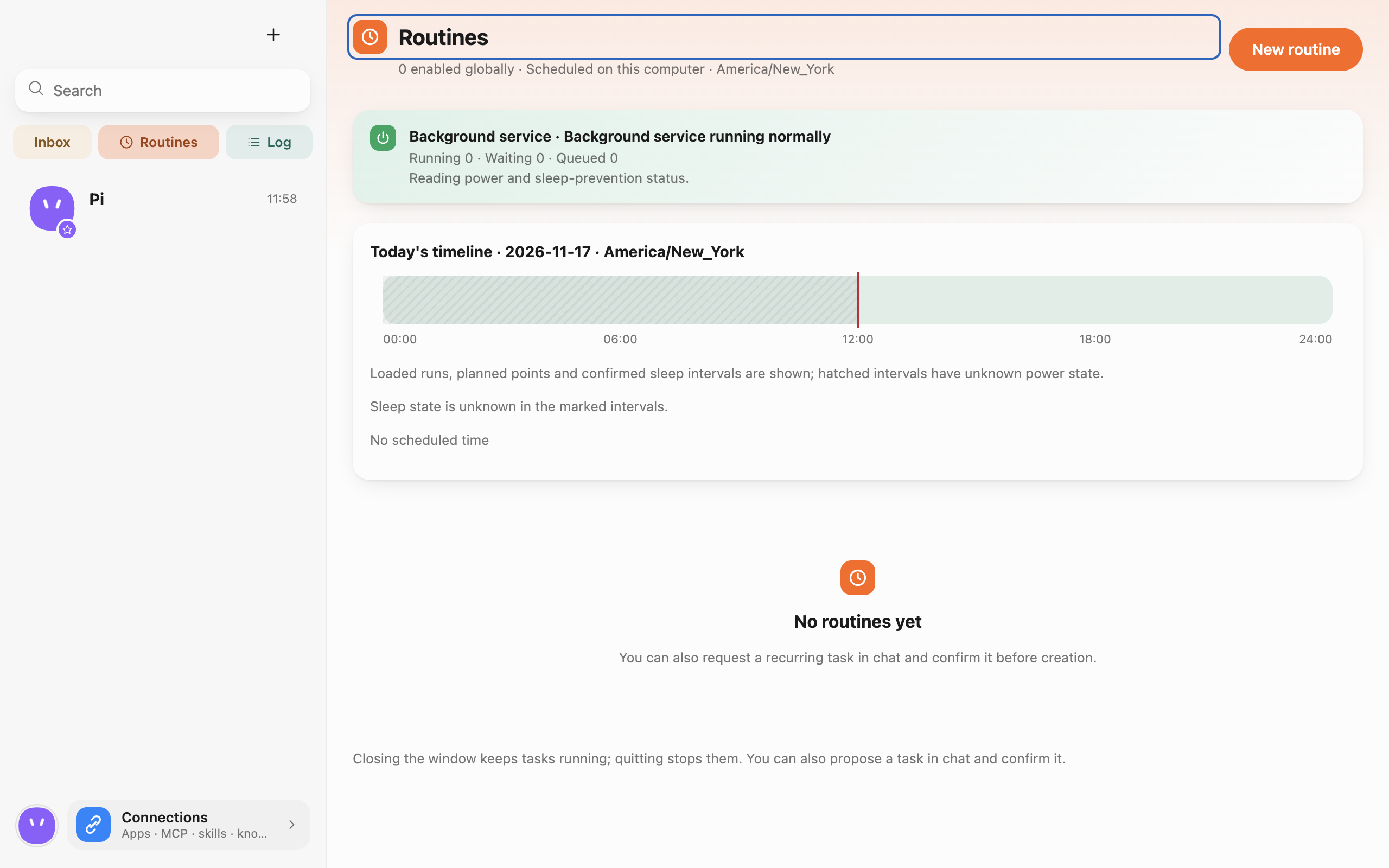 Routines · Captured in a separate macOS v0.0.1 test profile.
- At the top is the background service status: tasks running, waiting and queued, and whether the computer is awake and on AC power.
- Today's timeline: completed runs, scheduled points and sleep intervals.
- Tasks: each card shows the assigned Bot, the trigger, the last and next run; the switch at the top right disables it.
Routines keep running when you close the window and stop when you quit completely (unless you choose to keep them running after quitting, below). You can also ask a Bot in chat to propose a recurring task; it's created once you confirm.
Create a routine
Click New routine and fill in:
- Name.
- Assigned Bot.
- Instructions for each run: what the Bot is told every time it runs.
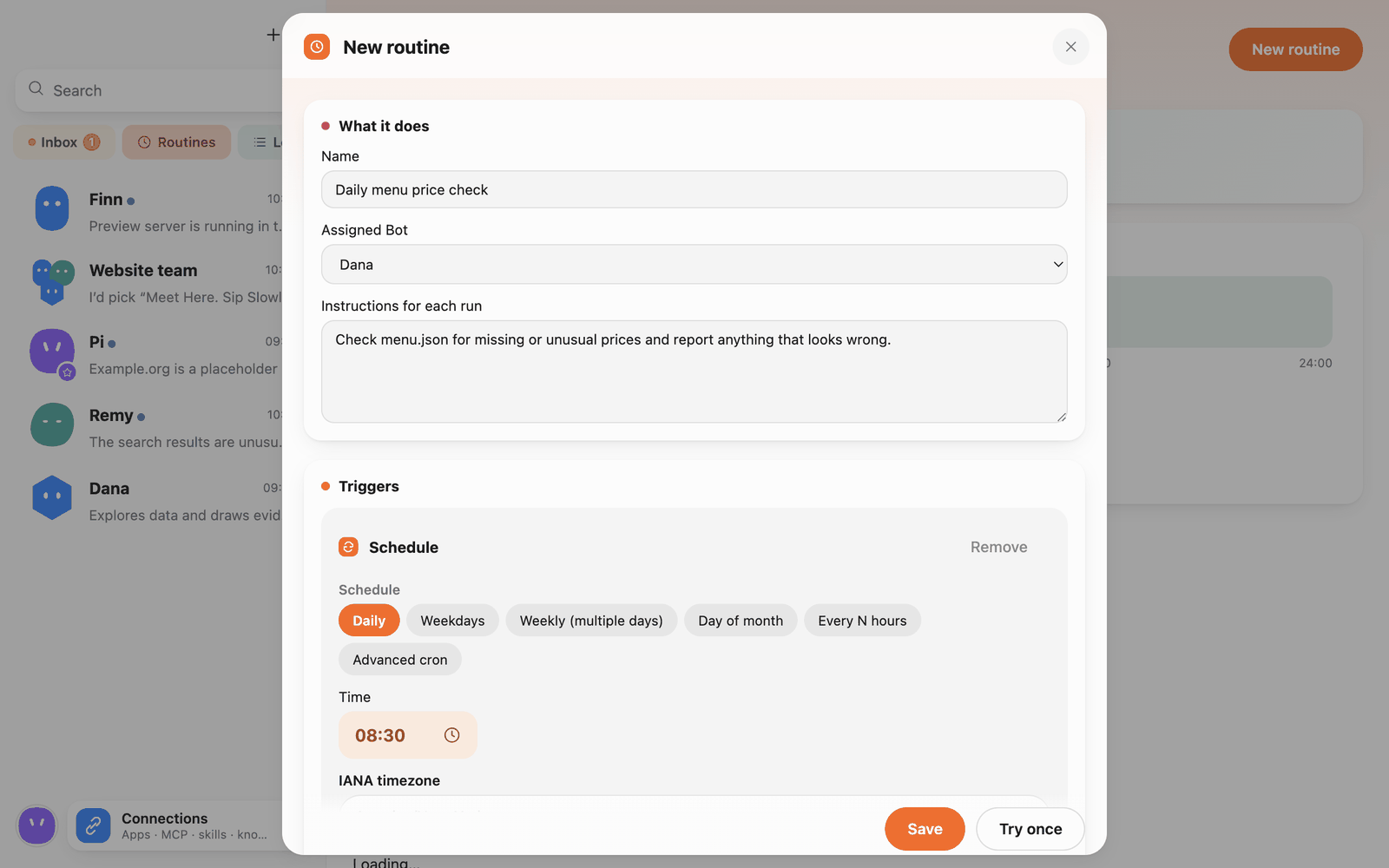 New routine
Then set triggers, preauthorizations and how it runs, and click Save. Try once runs it before saving so you can see the result.
Triggers
A routine can have several triggers; add them with the buttons below the trigger list:
-
Schedule: Daily, Weekdays, Weekly (multiple days), Day of month, Every N hours, or Advanced cron (standard five-field cron, minimum interval 5 minutes). Times use the 24-hour clock. New routines use the system time zone (IANA) at creation; you can search for another one.
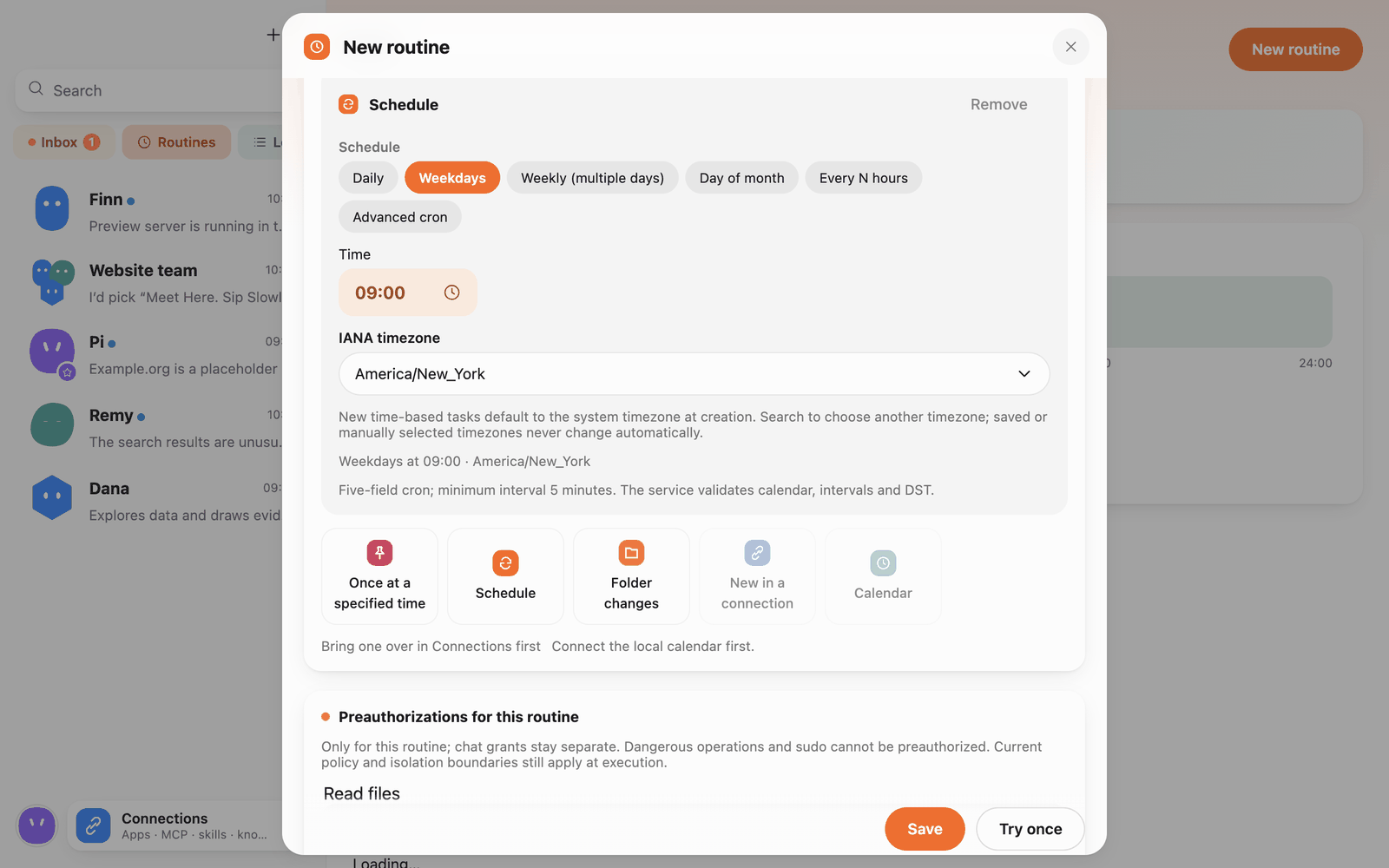 Schedule trigger
-
Once at a specified time: run once at a date and time (see below).
-
Folder changes: run when a watched folder changes.
-
New in a connection: run when a connection (such as an app you brought over) has something new. Bring one over in Connections first.
-
Calendar: trigger from events in the local calendar. Connect the local calendar first.
Run once: the date and time picker
After choosing Once at a specified time, click Pick a date and time:
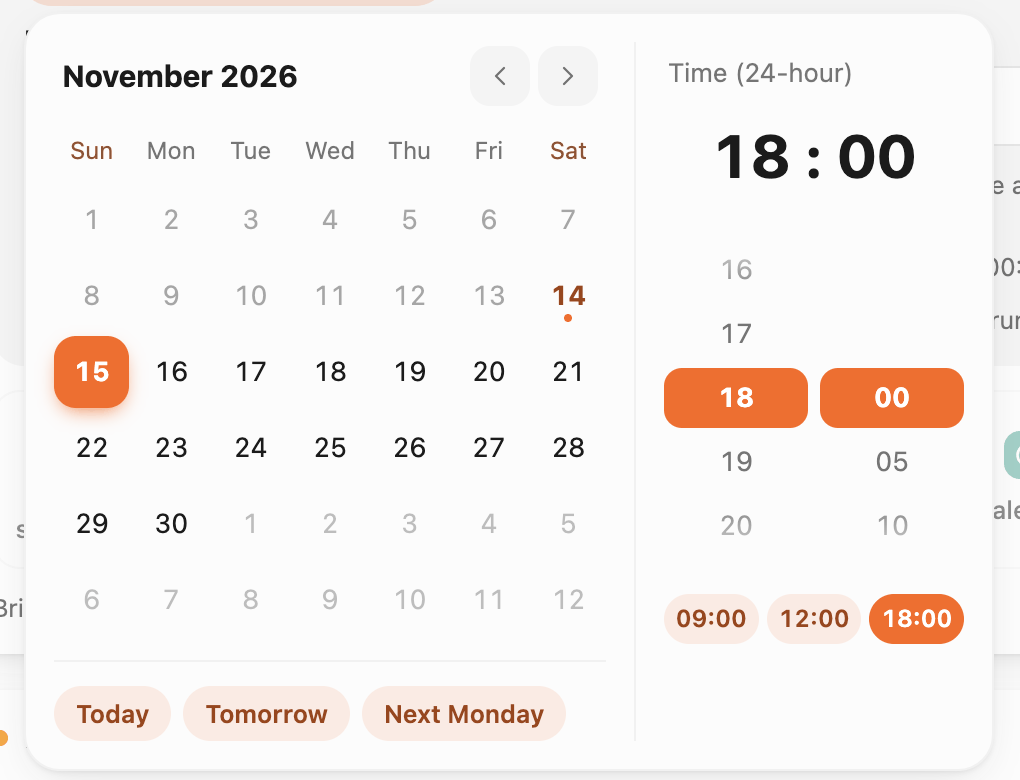 Date and time picker
- The left side is a month calendar with Today, Tomorrow and Next Monday shortcuts; past dates can't be picked.
- The right side is the time (24-hour): scroll the hour and minute columns, or click a quick time (09:00, 12:00, 18:00).
- The appointment runs automatically once; failures are not retried. Manual and trial runs don't use it up.
Preauthorizations and how it runs
Triggers and pre-approval in the routine editor
Preauthorizations for this routine: you may be away when a routine runs, so you can allow reading files, listing folders, writing files, running commands, visiting websites and so on in its work location ahead of time. They apply only to this routine and don't change chat permissions. Dangerous operations and sudo can't be preauthorized, and the current policy and isolation still apply at run time. Computer use can't be allowed in advance; when it's needed, it goes to the Inbox.
How it runs:
- Workplace: only the main folder is writable; extra folders are read-only.
- Include the previous result summary: tells this run what the last one did.
- Output folder: each period's results go to their own folder (following the trigger time, or per day, week or month), and the next period gets the previous one for comparison; the previous folder is read-only for the new run.
- Notify after runs: Always, When attention is needed, Never.
- Run limit: 5–120 minutes, not counting time spent waiting for approval.
- Tasks missed while the computer sleeps: Follow global, Catch up once after waking, Skip, or ask you in the Inbox.
Run history
Click a routine to open its details, where you can Disable, Run now or Delete it. Below is the Run history:
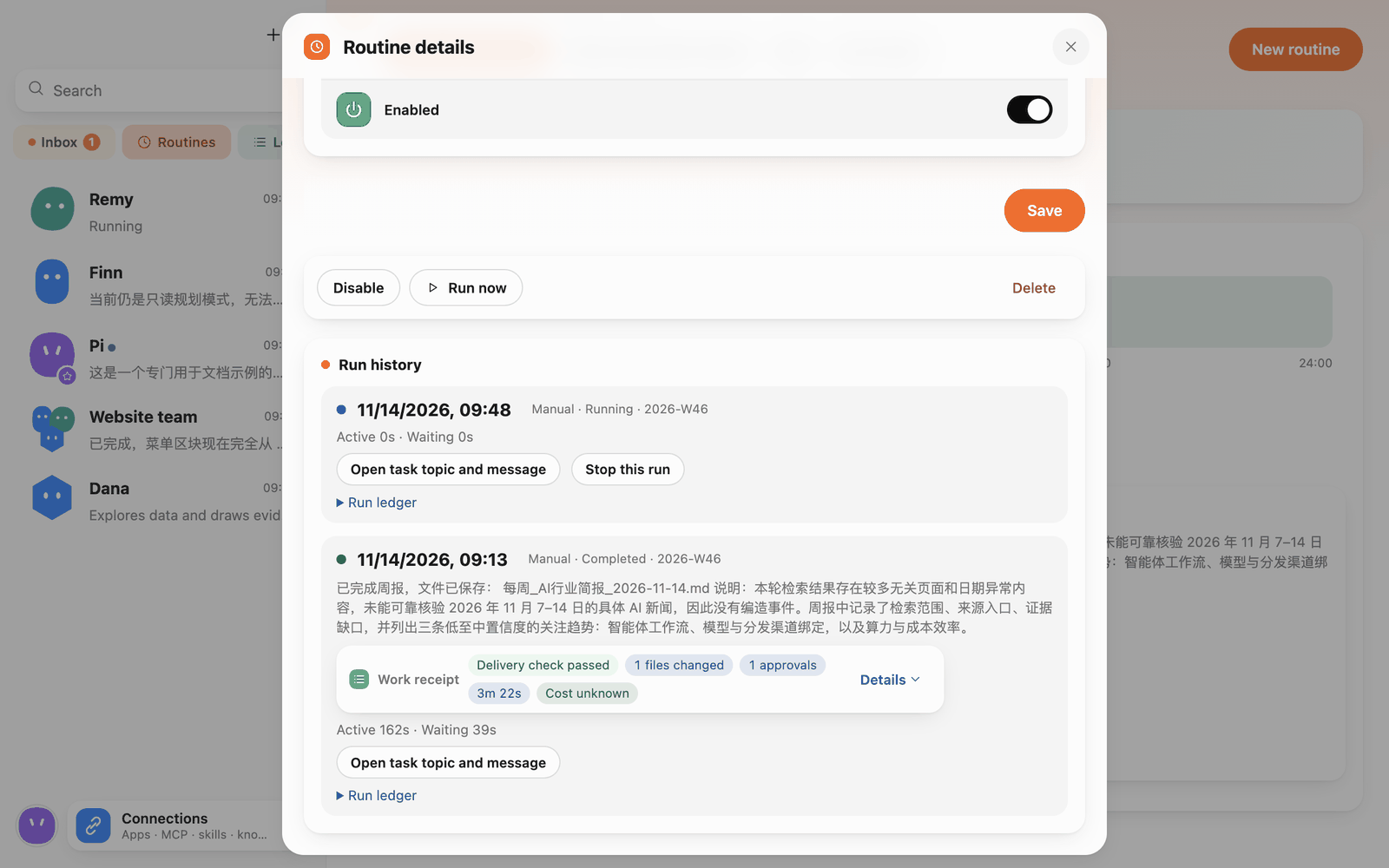 Run history
Each run shows its time, how it was triggered, status, a result summary and its work receipt. You can Open task topic and message, Stop this run while it's running, or expand the Run ledger for details. Actions that need your approval during a run appear in the Inbox.
When the computer sleeps or Pi Bot quits
Settings › Routines:
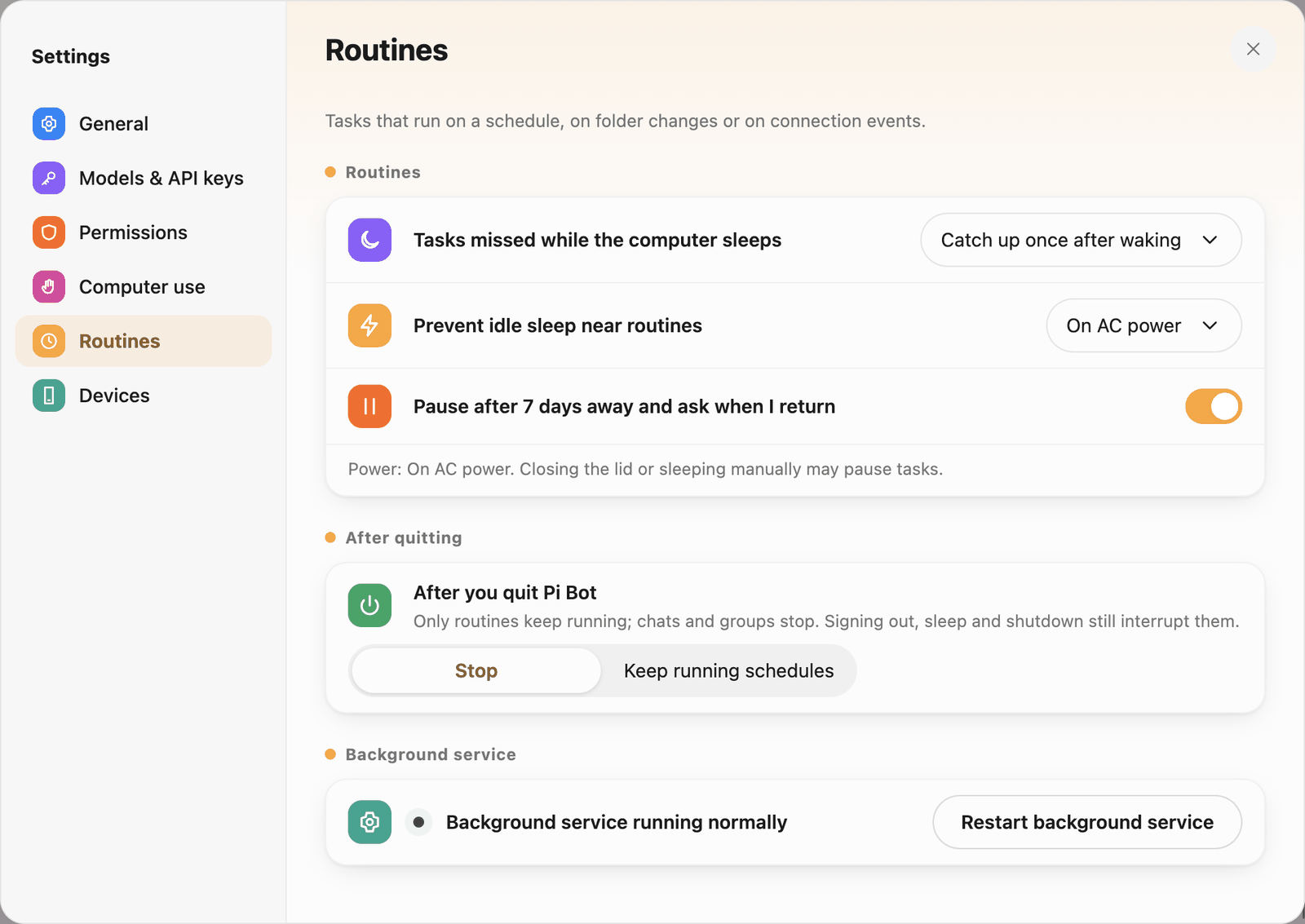 Routines settings
- Tasks missed while the computer sleeps: catch up once after waking / skip / ask.
- Prevent idle sleep near routines: On AC power / Always / Never. Closing the lid or sleeping manually may still pause tasks.
- Pause after 7 days away and ask when I return.
- After you quit Pi Bot: Stop, or Keep running schedules (chats and groups stop; signing out, sleep and shutdown still interrupt).
- Background service: status, and Restart background service.
To start routines in the background when you sign in to the computer, choose Background only in Settings › General › Startup.
Inbox
Inbox in the sidebar opens "Needs you": everything unresolved from your Bots' chats in one place. The number on the sidebar button is how many are waiting.
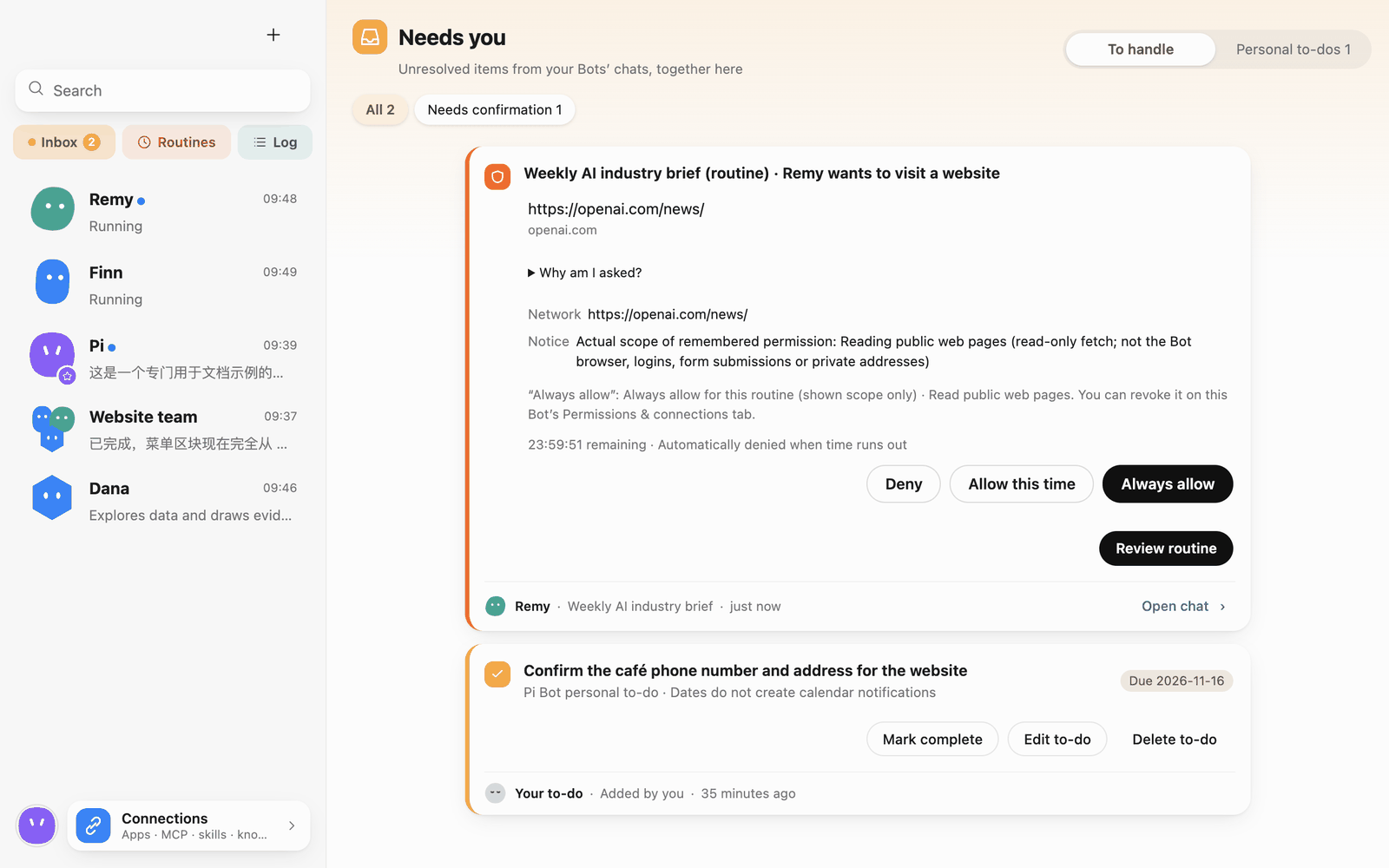 Needs you
- The To handle tab: approval cards, decisions, websites waiting for you to sign in, and so on, filtered by All or Needs confirmation. Handle each card right there, or Open chat for context.
- Approvals from routines land here and are denied automatically after 24 hours.
Personal to-dos
The Personal to-dos tab is your own to-do list.
- Click New to-do.
- Write the to-do, optionally with a Due date (the picker has Today, Tomorrow, Next Monday and Clear).
- Click Save.
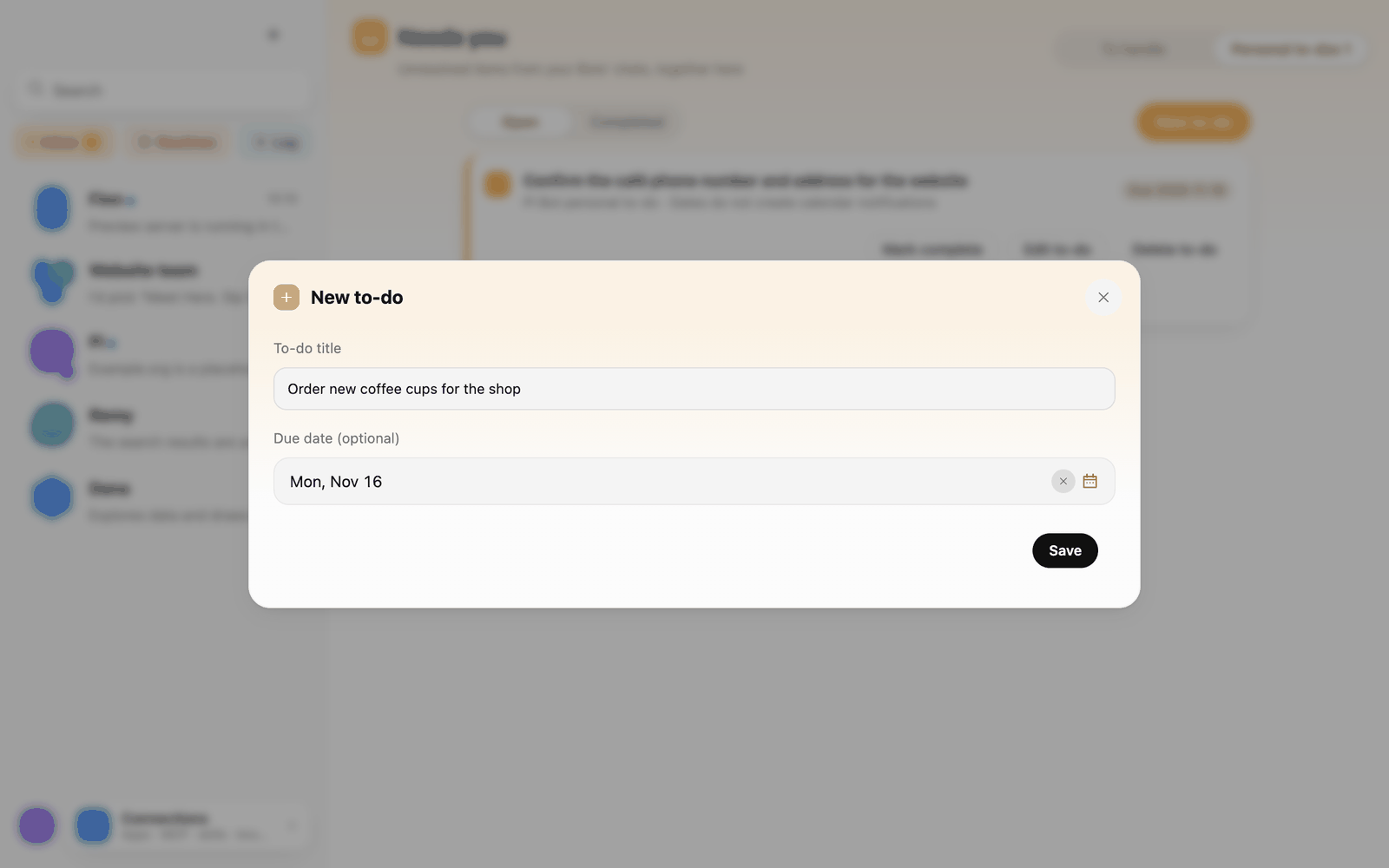 New to-do
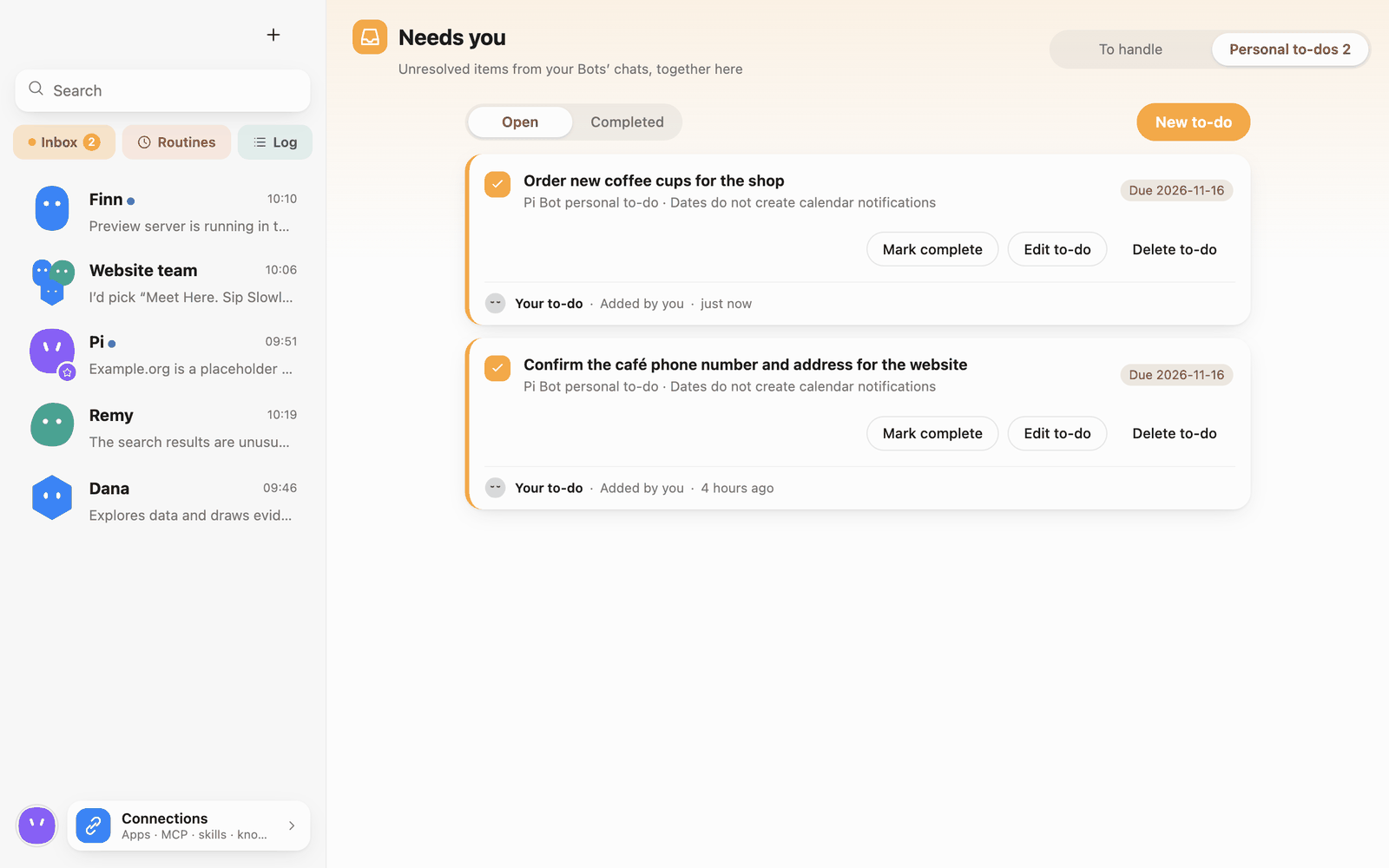 Personal to-dos
Each to-do can be marked complete (Mark complete), edited (Edit to-do) or deleted (Delete to-do); filter by Open or Completed. Due dates don't create calendar notifications.
Example: summarize new files every weekday
Describe the work in New routine before selecting a trigger
- Put a few sample files in a test folder. Open Routines → New routine and choose a Bot.
- Specify input and output. For example: “Read new documents in the working folder. Save a summary with filenames, key points, and any files you couldn't read. Leave originals intact.”
- Verify the working folder and read-only references. Choose Schedule → Weekdays, set the time, and check the time zone.
- Run a trial before saving. Check the work receipt for files read and the report path. Handle any approvals.
- Save and confirm the next run time. Run history distinguishes trial, manual, and scheduled runs.