
A runner is a small program installed on another computer or server. Once paired, Bots can read and write files and run commands in that machine's folders, while the brain (model calls, chat history, permission checks) stays on your computer.
Useful when your code and data live on an always-on machine or server, or when commands need to run on Windows or Linux.
Install a runner
Download the runner from pibot.space. The runner's version number matches the desktop app.
| System | Form | Notes |
|---|---|---|
| Windows | .exe installer (per user, no administrator needed) |
Tray app; adds the pibot command to your user PATH; Start menu entries for pairing and status; optional start at sign-in |
| macOS | Tray app | Status, pairing, logs and quit from the menu bar |
| Linux | .deb / .rpm |
Command-line program installed to /opt/pibot-runner, command pibot; needs bubblewrap and socat |
To keep a Linux runner running for your user:
systemctl --user enable --now pibot-runner
Pair
Pairing exchanges a one-time code through the relay; after that both ends talk end-to-end encrypted, and connect directly when they're on the same local network.
On your computer (Pi Bot):
- Open Settings › Devices.
- Turn on Allow paired devices to connect. The text below the switch explains what the relay can see (IP addresses, connection times, frame sizes and presence; it forwards end-to-end encrypted data without storing chats).
- Click Add device › Another computer / server.
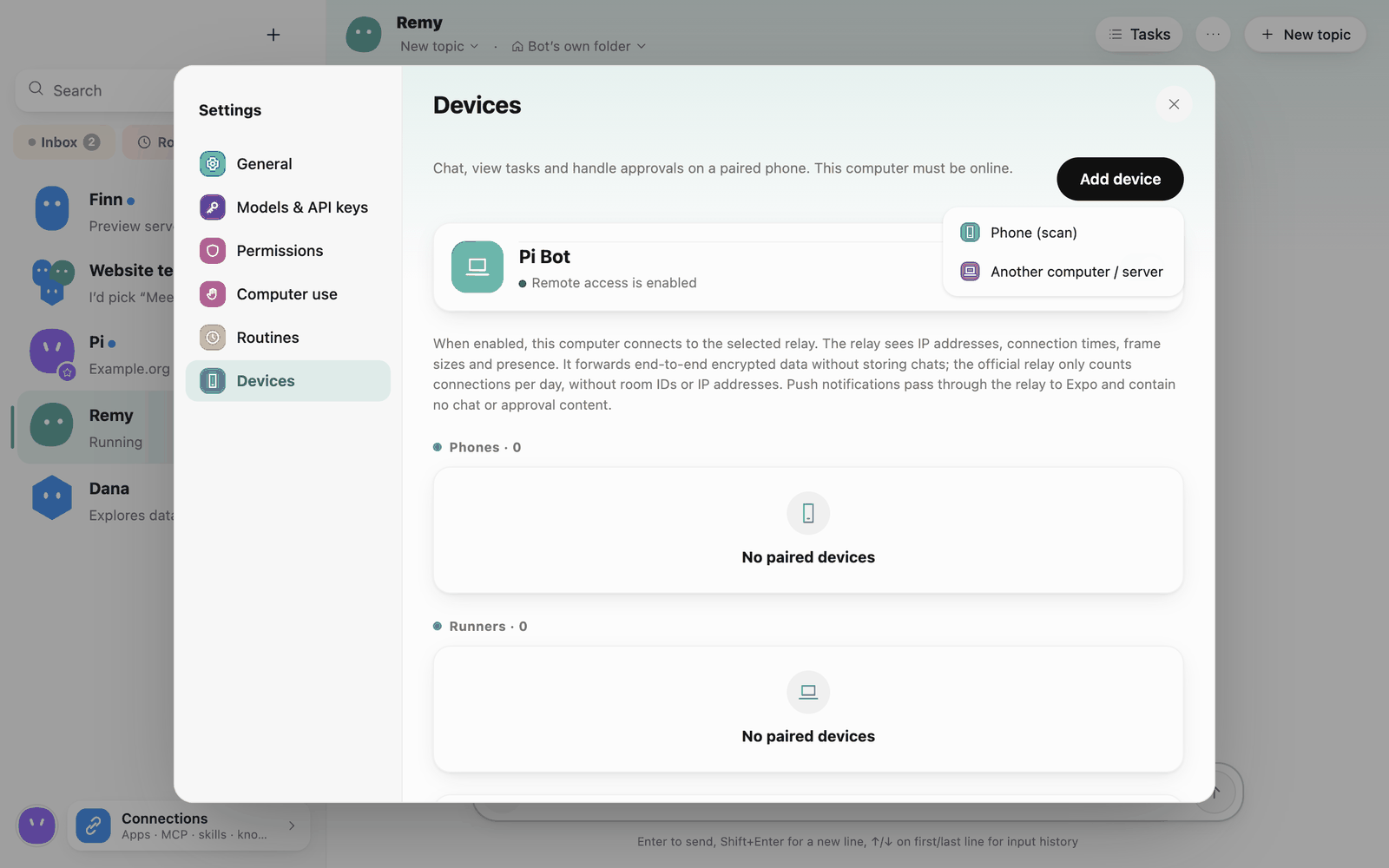 Add device
On the runner machine:
- Copy the code shown on your computer. Paste it in Pair… in the runner tray, or run
pibot runner pair "<code>". The code lasts 10 minutes and can be used once. New code or closing the card invalidates it. Optionally add--name "Build box". - A custom relay is included after
@and saved automatically. For an older runner, runpibot runner pairwithout a code and use Enter a code on the computer.
Once paired, the runner appears under Runners in Settings › Devices with its online status and connection path (Direct · LAN / Direct · NAT traversal / Via relay). Both ends must use the same relay (the official relay by default).
Have a topic work in a runner folder
Two ways:
- Choose it yourself: click the folder name at the top of the chat › Choose a folder on a runner…, browse the runner's folders and click Use this folder. This item is unavailable while the runner is offline.
- The Bot proposes it: when a Bot sees that work belongs on a runner, it posts a "… proposes working on a runner" card naming the runner and folder. Move there makes the topic work in that folder from the next message (read-only references and writable folders are cleared); Don't move changes nothing.
A runner won't hand its own data folder, system folders or a disk root to a Bot; pick a project folder below them. A topic's main folder and read-only references must be on the same device. Groups can use a runner folder as their folder too.
Commands and approvals on a runner
Commands and file access on a runner go through the same permission checks and approvals on your computer as local work; approval cards name the runner.
- Linux / macOS runners: commands run in the runner's isolated environment (Linux needs
bubblewrapandsocat; Pi Bot shows the install command when they're missing). - Windows runners: commands on Windows have no system isolation, so each command needs your approval (Approve each command).
When a runner is offline, steps waiting for it fail with the reason; wait for it to reconnect, or switch to a local folder.
Manage and revoke
In Settings › Devices, click a runner to rename it, see the capabilities it offers Bots, or Revoke pairing.
- Revoke pairing: the runner can no longer connect.
- If the runner is offline, the revocation can't be delivered; choose Remove anyway. Trust on this computer is revoked at once and the runner can't connect, but it keeps its own pairing file until you run
pibot runner revokeon that machine.
Running the runner
Windows / macOS (tray): the tray app starts the runner after installation; its menu shows status and offers pairing, logs and quit. Quit asks the runner to stop and waits for it; if the runner no longer responds, the tray checks the process and ends it, then quits.
Linux (command line):
pibot runner start                 # foreground, Ctrl+C stops it
pibot runner start --daemon        # background
pibot runner install-service       # write the systemd user service (not started yet)
systemctl --user enable --now pibot-runner
loginctl enable-linger "$USER"     # optional: keep running after you log out
The runner keeps its device key in the system's credential store when there is one (macOS Keychain, Windows, Linux Secret Service). On a Linux server without a graphical session and Secret Service, it uses an encrypted file instead, which needs a passphrase:
-
When run interactively it asks for the passphrase.
-
In the background or under systemd, put the passphrase in
~/.config/pibot-runner/env(permissions 600):mkdir -p ~/.config/pibot-runner printf 'PIBOT_RUNNER_PASSPHRASE=%s\n' 'your passphrase' > ~/.config/pibot-runner/env chmod 600 ~/.config/pibot-runner/envWithout a passphrase the runner stops with
passphrase_required.
On a server with a fixed address, --listen <IP:port> (repeatable) lets the desktop connect to it directly and use the relay less.
Using a self-hosted relay
Copy the code from your computer and paste it on the runner. The code includes the validated relay address, saved after pairing. An explicit conflicting --relay is rejected. Codes without a suffix use --relay, the environment, or the official relay. The legacy flow supports pibot runner pair --relay wss://relay.example.com.
Status, logs and common problems
pibot runner statusshows whether it runs, whether it is paired and how it is connected; add--jsonfor scripts.- Data and logs: macOS
~/Library/Application Support/Pi Bot Runner; Windows%LOCALAPPDATA%\Pi Bot Runner; Linux~/.local/share/pibot-runner(or$XDG_DATA_HOME/pibot-runner). Logs are inlogs/<date>.logthere; the tray's Open logs opens that folder. - The desktop shows the runner offline: first check both ends use the same relay, then look for
connection_failedin the runner log. passphrase_required: see the passphrase notes above.- To pair with another computer: remove the runner in the old Pi Bot first, then run
pibot runner pairon the runner.
Running from source
In the open-source repository you can run it without packaging (Node at the version in the repository's .nvmrc, and pnpm):
pnpm install
node apps/runner/bin/pibot.mjs runner pair --data-dir ./runner-data
node apps/runner/bin/pibot.mjs runner start --data-dir ./runner-data
pnpm runner:package               # build the runner package for this platform
Command-line reference
pibot runner start [--daemon] [--listen <IP:port>]   start (Linux can run as a --daemon)
pibot runner stop                                   stop
pibot runner status [--json]                        show status
pibot runner pair [<code>] [--name <device name>] [--relay <wss://…>]   create a one-time pairing code
pibot runner revoke                                 delete this runner's pairing
pibot runner tray                                   start the tray app (Windows / macOS)
pibot runner install-service / uninstall-service    install / remove the Linux systemd user service
pibot --version                                     version
Environment variables: PIBOT_DATA_DIR sets the runner's data folder; PIBOT_RUNNER_RELAY sets the relay (official wss://relay.pibot.space by default); PIBOT_RUNNER_PASSPHRASE decrypts the local credential file when starting without a graphical session.