
The phone app lets you chat with your Bots, check tasks and handle approvals while you're away. Phone and computer are end-to-end encrypted: they connect directly on the same local network, otherwise through a relay that only sees ciphertext. When the computer can't be reached, the phone can also reply to private chats itself using models synced from the computer (offline mode).
Install
The official v0.0.1 APK targets ARM64 Android devices. After installing it, open Pi Bot and start pairing from the first-launch screen.
The phone app is currently available as an Android package (APK) from download page. The desktop app updates itself; on the phone, download and install the new APK to update. An iOS version isn't available for download yet.
Turn on remote access on the computer
- On the computer, open Settings › Devices.
- Turn on Allow paired devices to connect.
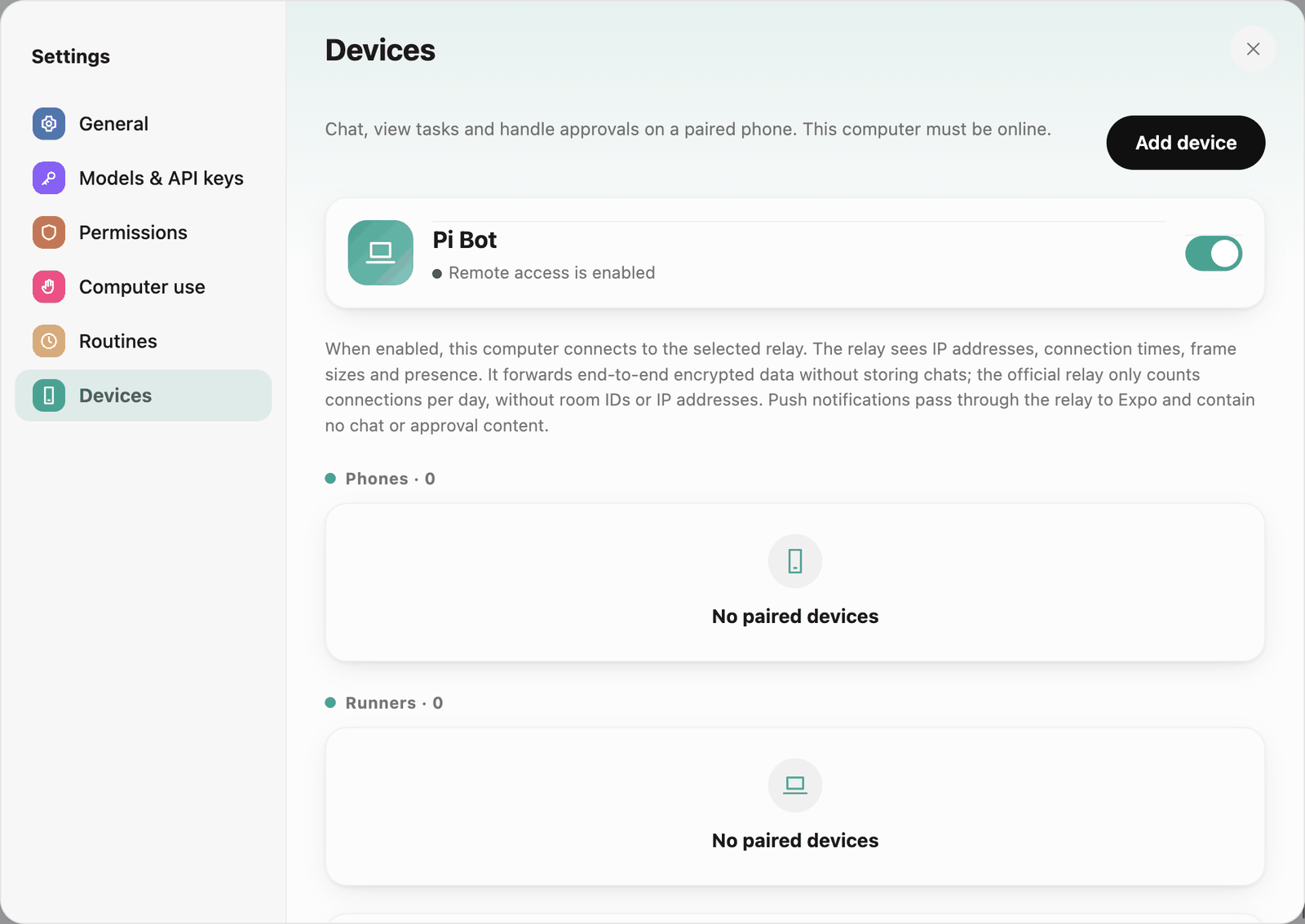 Devices
The text below the switch explains what the relay sees: IP addresses, connection times, frame sizes and presence. It only forwards end-to-end encrypted data and stores no chats; the official relay only counts connections per day, without room IDs or IP addresses. Push notifications pass through the relay to Expo and contain no chat or approval content.
Advanced lets you switch to a self-hosted relay, set the computer name, choose the direct connection mode (LAN only / Allow NAT traversal), keep the computer awake while remote access is on, and turn local network discovery on or off:
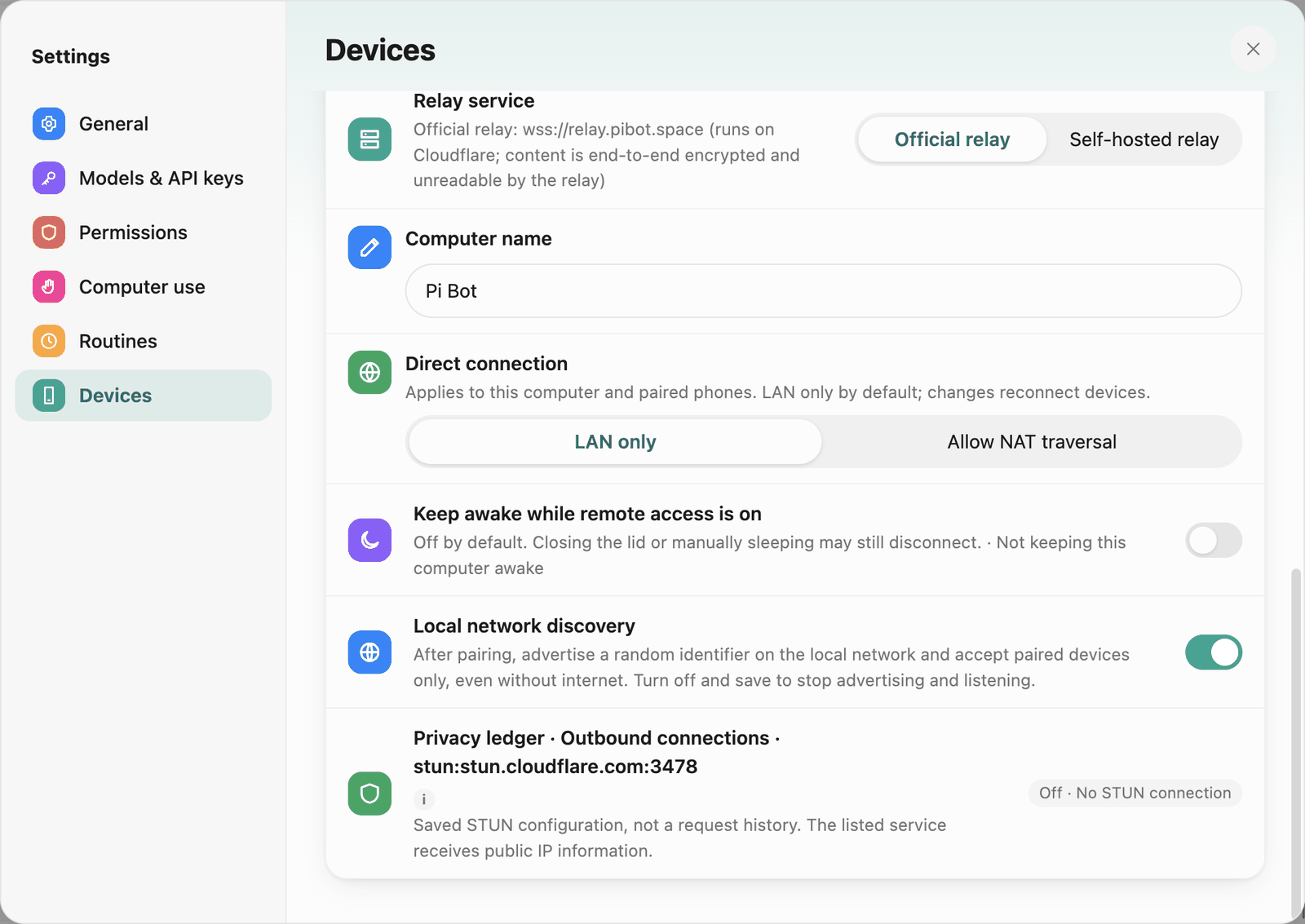 Devices · Advanced
Direct connection defaults to Allow NAT traversal: on the same local network the devices connect directly over the LAN; on different networks both ends ask a STUN service for their public address and try a direct connection through NAT; only when neither works does traffic go through the relay. STUN only sees the public IP and never handles data; chats and files stay end-to-end encrypted.
- Use another STUN service: Settings › Devices › Advanced › STUN address. Enter
stun:host[:port], for examplestun:stun.example.com:3478, without a user name, password, path or query; TURN is not supported. The default is Cloudflare'sstun:stun.cloudflare.com:3478. The Docker self-hosting image includes a coturn STUN endpoint; use itsstun:address. - Send no STUN requests at all: set Direct connection to LAN only. Devices then connect directly only on the same local network and use the relay otherwise.
- Runners (chapter 10) follow the same direct-connection rules.
Pair
-
On the computer: Settings › Devices › Add device › Phone (scan). A QR code appears, valid for 10 minutes.
-
On the phone, open Pi Bot to Connect your computer. Tap Allow camera to scan, grant access, and point the camera at the QR code on the computer. You can also copy the code on the computer and tap Paste pairing code on the phone.
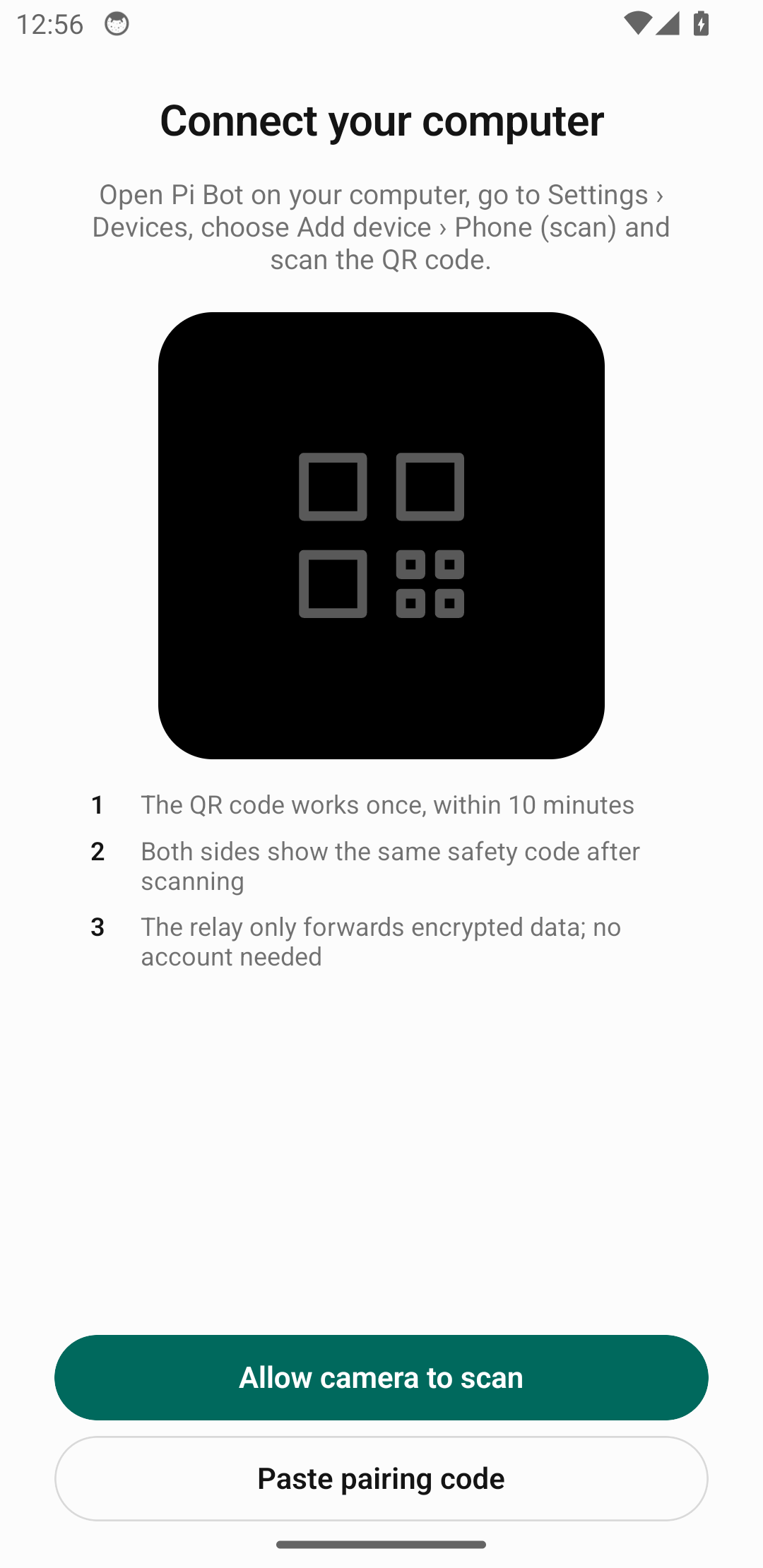 Android pairing screen with camera and paste options, captured in an isolated emulator using the v0.0.1 test build.
-
Both sides show the same safety code. If they match, nobody intercepted the connection: tap They match, finish pairing. If not, cancel and scan again.
One phone can pair with up to 16 computers.
Chats, tasks and approvals
The phone app has four tabs at the bottom:
-
Chats: chats with Bots and groups, the same history as on the computer. While the computer is offline you can keep writing; messages are queued and sent in order once it's back (Bots with offline replies turned on answer from the phone, see below).
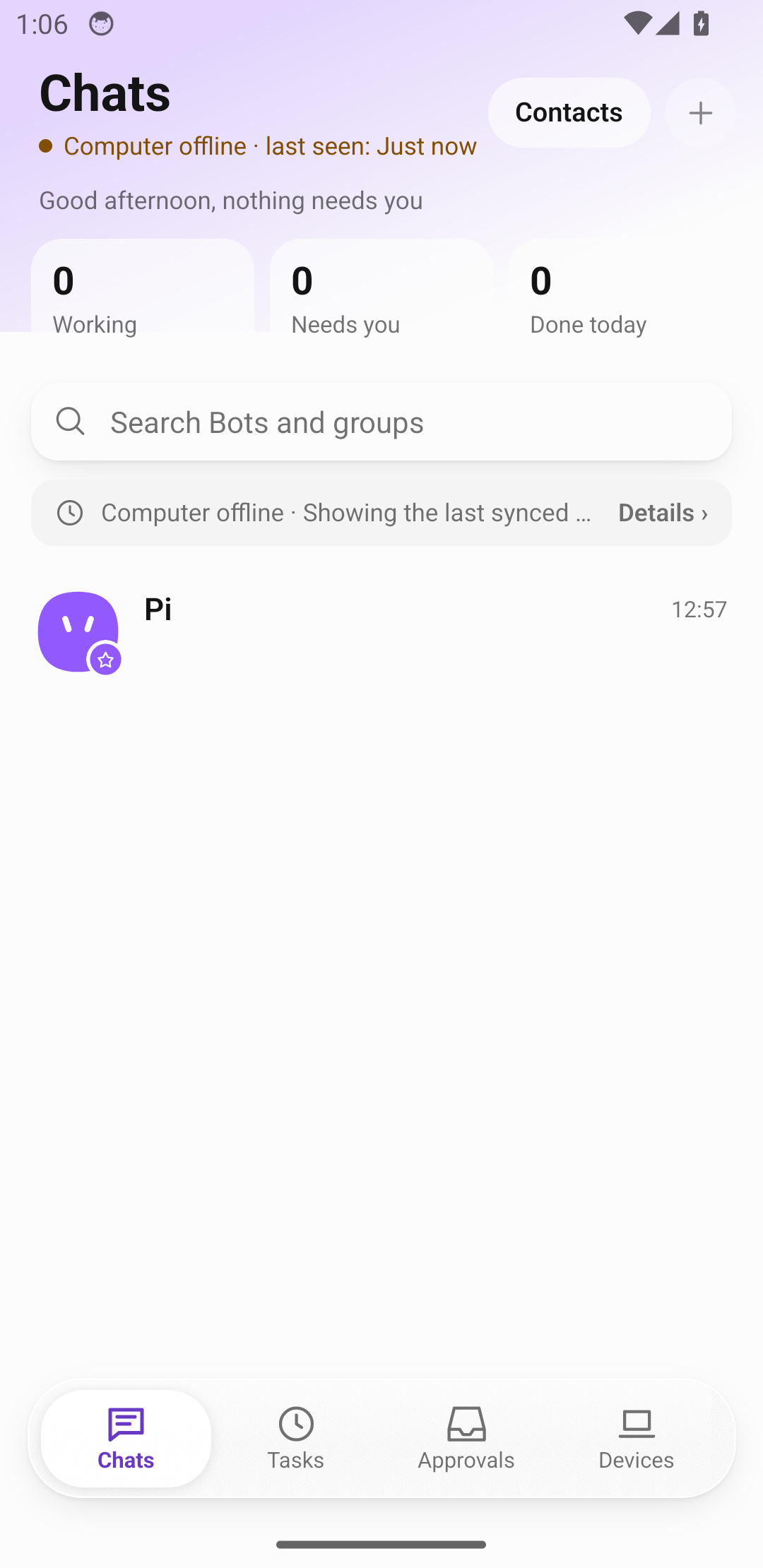 Chats lists Pi and shows when the test computer was last online.
-
Tasks: running tasks, group tasks and routine runs; you can stop or resume them.
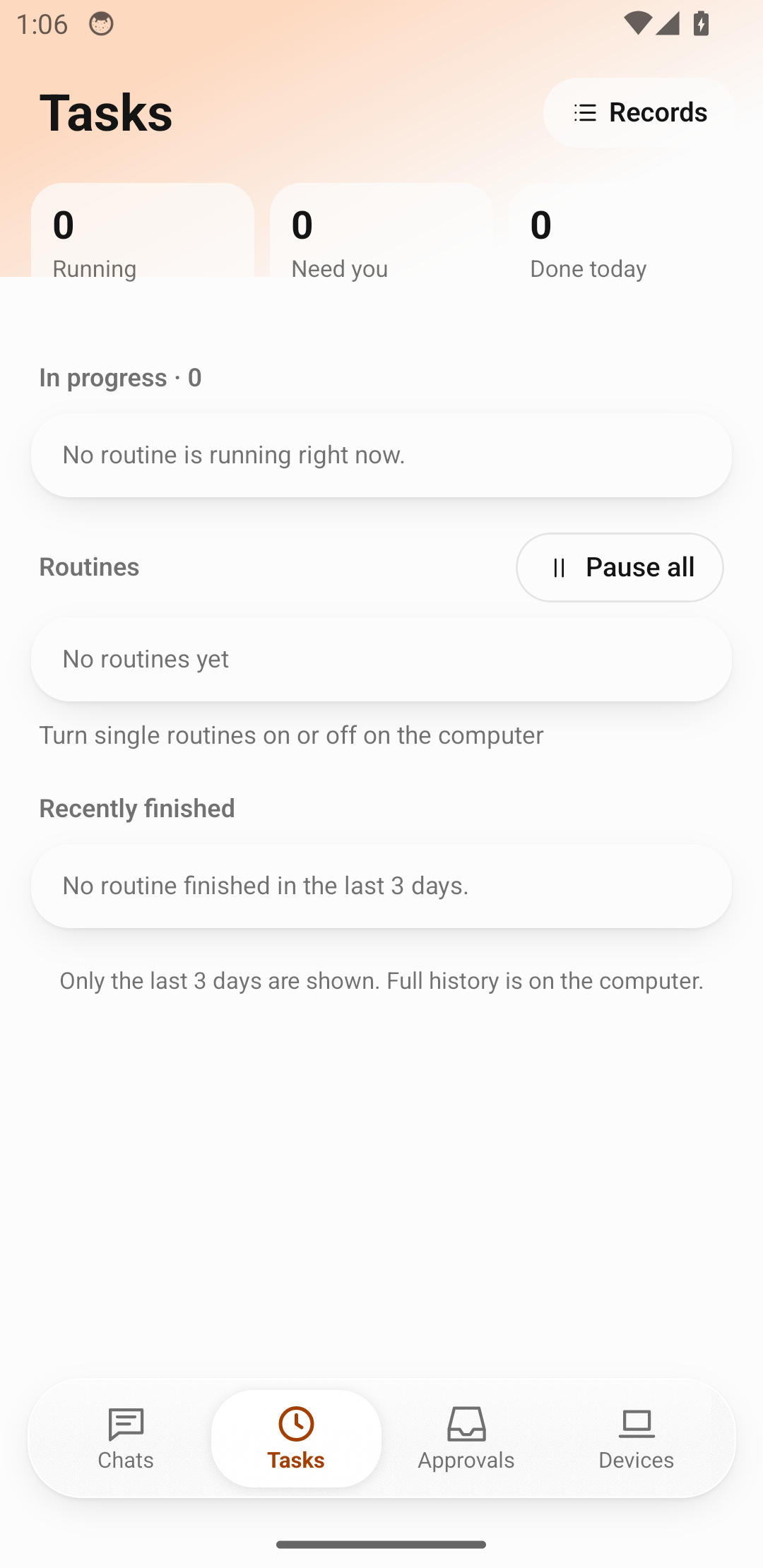 Tasks shows run counts, routines and recent results. No task has been started in this test environment.
-
Approvals: approval cards waiting for you, showing what will happen and why approval is needed, with Show decision steps. You can Allow this kind of action from now on; dangerous actions can't be remembered and need Face ID / fingerprint or the phone passcode before you allow them. A few approvals (such as computer sign-ins and outgoing drafts) can only be handled on the computer. Unanswered approvals are denied when time runs out, and the Bot tries another way.
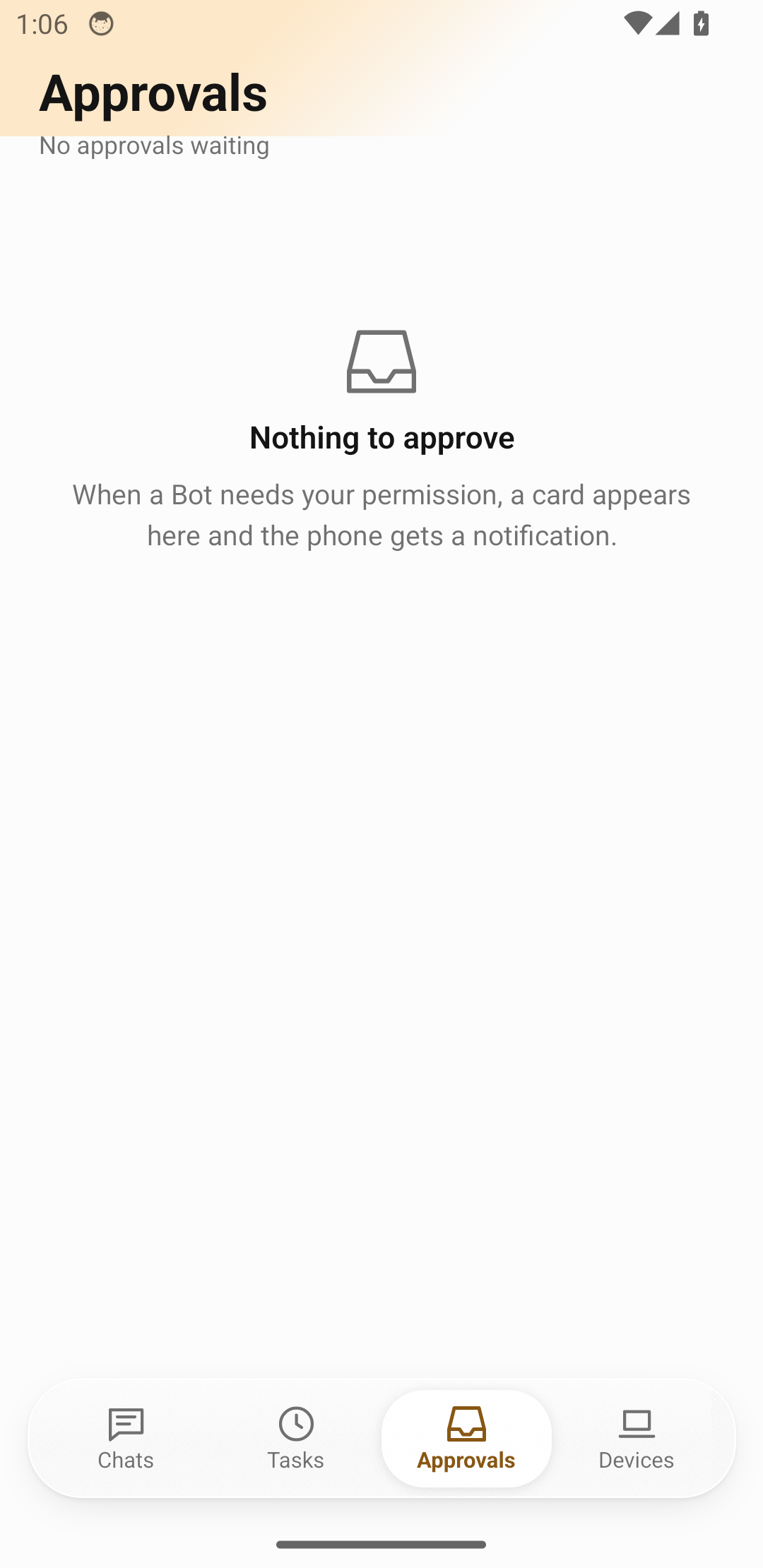 An empty Approvals tab. Approval cards appear here when a Bot requests permission.
-
Devices: paired computers and runners, the phone data you share with the computer, notifications, language and appearance.
Loosening a Bot's permissions, deleting memories and removing a Bot from a group also need you to unlock the phone.
When the computer is offline: the phone replies
When the computer is off, asleep or without network, the phone shows "Computer offline · last seen: …" and quietly reconnects in the background, switching back automatically when the computer returns.
The Chats screenshot above shows the Computer offline banner and the last synced list.
If you turned on offline replies for this phone on the computer, private chats with Bots are answered by the phone while the computer is offline: it calls the model directly with that Bot's persona from the computer and selected memories, using only the phone's capabilities. To set it up on the computer:
- Settings › Devices › click this phone › When this computer is offline tab.
- Check Models the phone uses directly: the config and keys of the models your Bots use sync to this phone automatically and follow changes made on the computer.
- Under Bots that can reply offline, switch each Bot on or off.
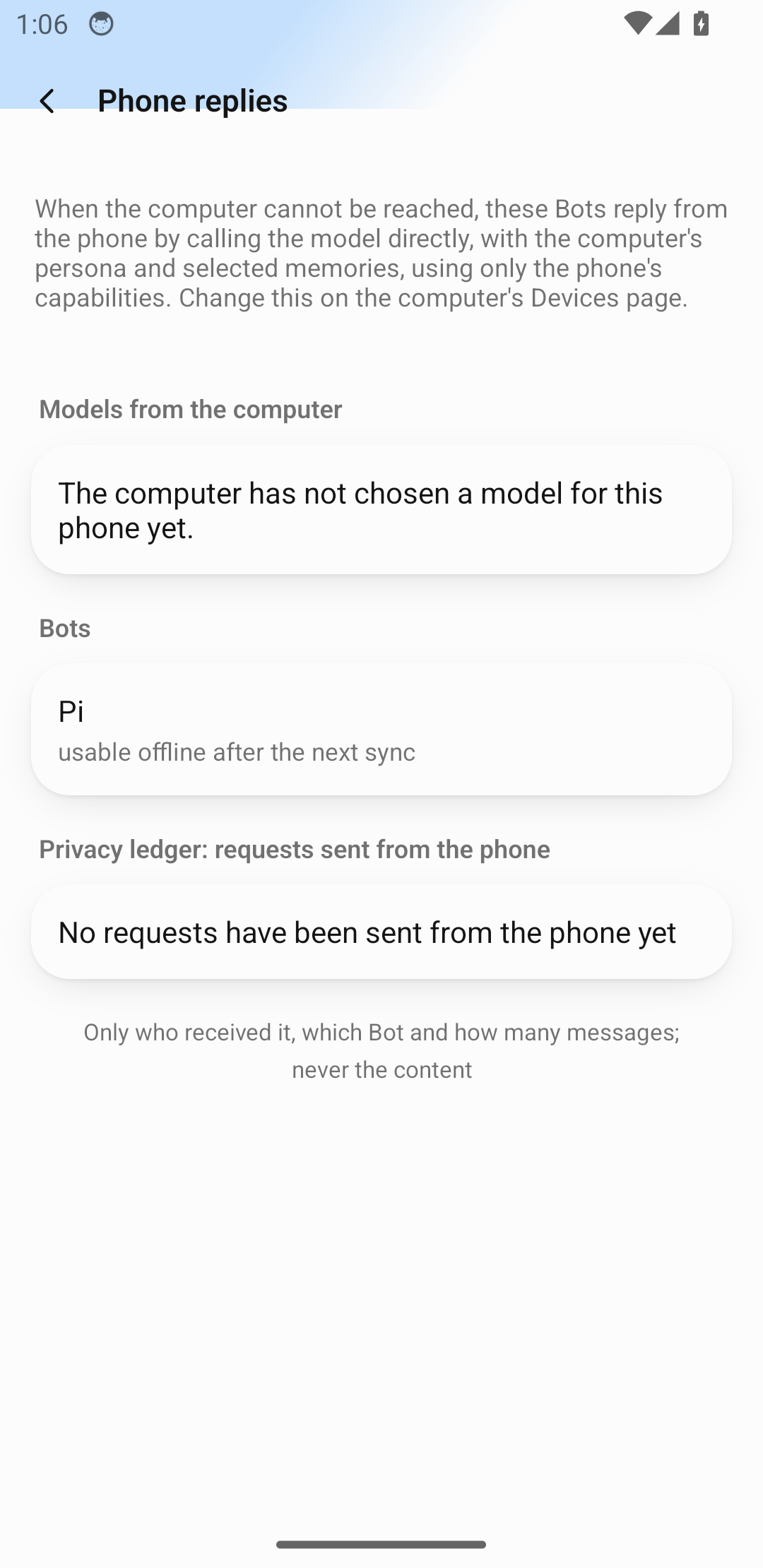 Phone replies shows the models and Bots synced from the computer and the privacy ledger. A model has yet to be configured in this test environment.
Limits:
- Subscription sign-ins (such as a ChatGPT plan), cloud provider credentials and custom request headers stay on the computer; Bots that use them can't reply offline on the phone.
- Groups, managed Git, computer use, the Bot browser, Office, connected apps, skills and web search still need the computer.
- An offline topic syncs back to the computer as a new topic once the computer is reachable.
- The phone's privacy ledger lists requests sent from the phone while offline: which provider, which model, how many messages, never the content.
- Revoking or unpairing clears the keys on the phone.
If the phone is authorized for a runner (Runners it can direct on the devices page), it can also direct that runner to run commands and read or write files while the computer is offline. Every operation is confirmed on the phone; YOLO and remembered approvals can't answer. The authorization lasts 24 hours and is renewed early while the computer is online.
Notifications, wake-up and staying connected
Wake and connection options on the desktop
- The phone gets a notification when a Bot needs your approval or a task finishes. Notifications contain only the Bot's name and a fixed short sentence, never chat or approval content; tapping one opens the app and reloads.
- When the computer needs one of the phone's capabilities, it can wake the phone app with a high-priority push.
- On Android you can turn on Stay connected to keep the connection with a foreground service (off by default; uses more battery).
Unpair
On the phone, open Devices and switch to the computer if you have more than one. Scroll to Connection, tap Unpair, then read the confirmation and tap Unpair again. This deletes the keys, cache and pending messages on the phone. Revoke the device record separately on the computer under Settings › Devices. When switching computers, scan the QR code from the new computer after unpairing.
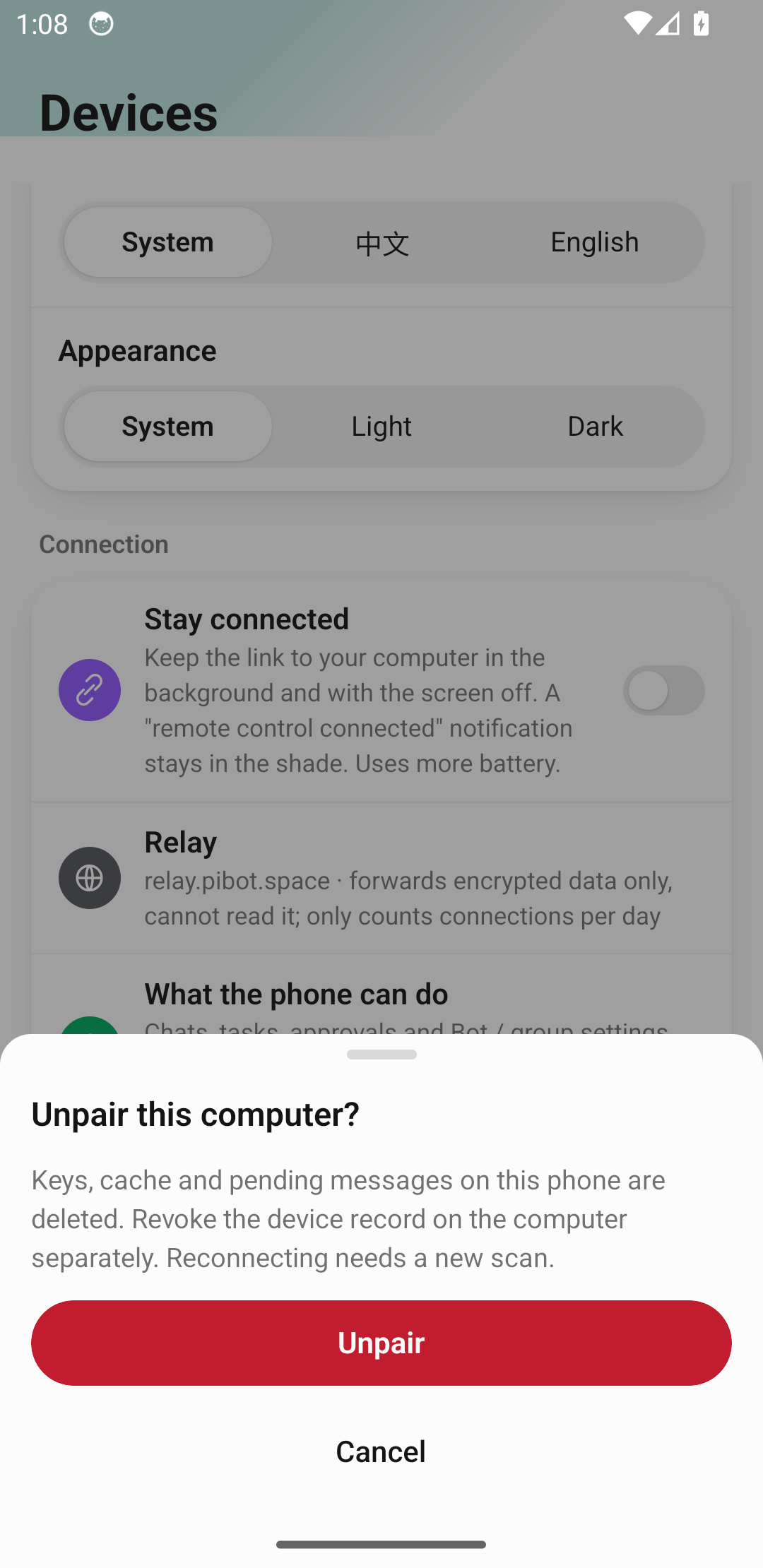 The Unpair confirmation in Devices explains which data will be removed from this phone.
Example: approve a desktop task from your phone
- After pairing, test on the same local network. Confirm the computer shows as online in Devices, then send Pi a short message.
- Start a task in a test folder. If approval is required, open Approvals and check the Bot, action, and folder before allowing or denying it. Use the computer for desktop-only requests.
- Follow progress under Tasks and open the result when done. Verify the same task appears in the desktop conversation.
- If the computer stays offline, check that Pi Bot is running and paired connections are enabled. Pair again if you switched relays. Ordinary messages queue while the computer is temporarily offline.