
The Connections page (bottom left) manages the outside capabilities your Bots can use, all installed on this computer:
- Apps: the local calendar, local contacts and so on.
- MCP: MCP servers (Model Context Protocol) that add tools.
- Skills: written step-by-step methods a Bot follows when they fit the task.
- Knowledge: an Obsidian vault or Notion, read only.
Apps
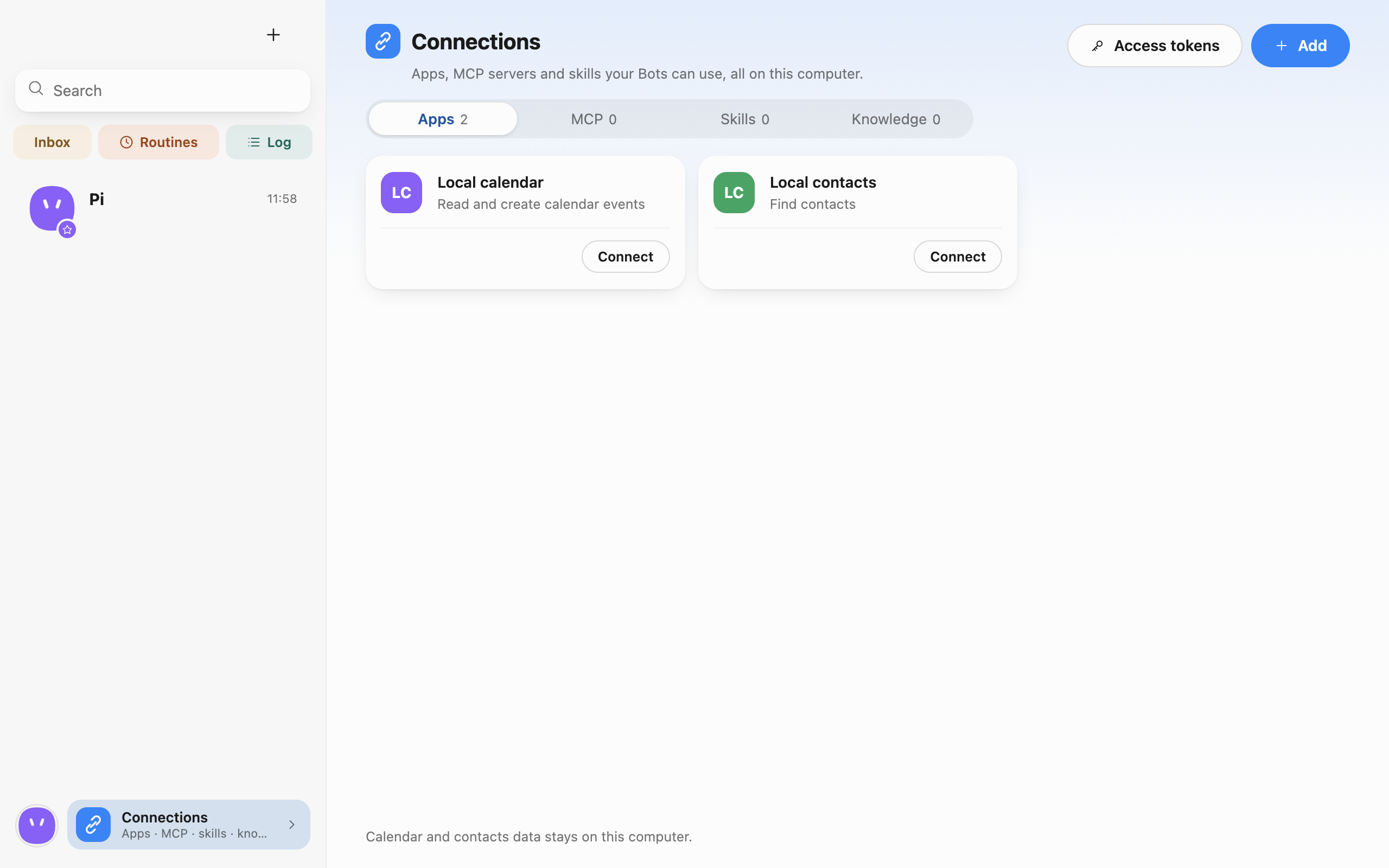 Connections · Apps · Captured in a separate macOS v0.0.1 test profile.
Click Connect on Local calendar (read and create events) or Local contacts (find contacts). The data stays on this computer. Once connected, Bots reading or writing events and contacts still go through your permissions, and the local calendar can trigger routines.
The Add menu
Click Add at the top right:
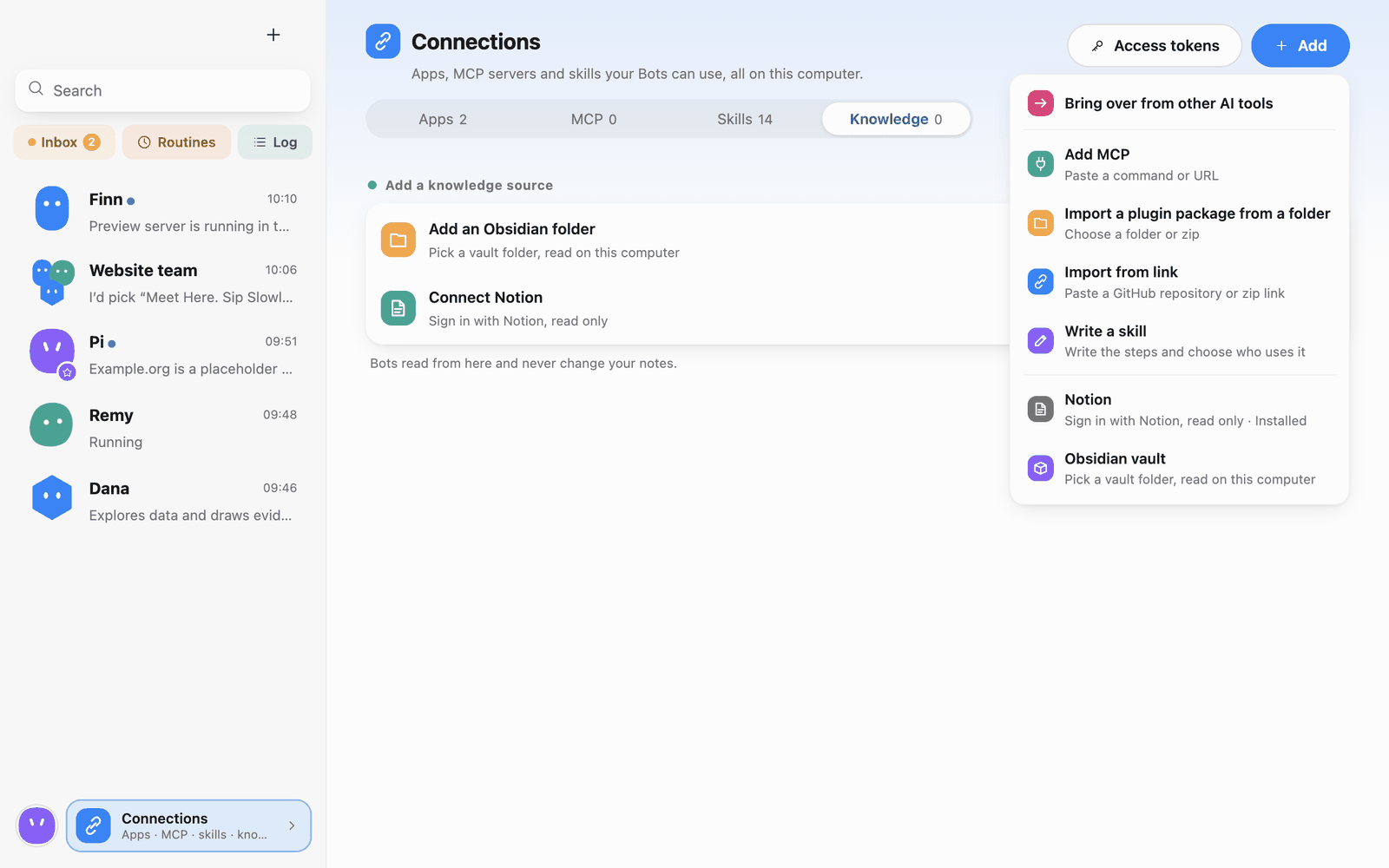 Add menu
- Bring over from other AI tools: Pi Bot looks at the MCP servers, skills and plugins set up in Claude Code, Codex, Cursor, pi and OpenCode on this computer. It reads only names and settings, never changes their files and uploads nothing.
- Add MCP: paste a command or URL.
- Import a plugin package from a folder: choose a folder or zip.
- Import from link: paste a GitHub repository or zip link.
- Write a skill: write the steps and choose who uses it.
- Notion, Obsidian vault: add a knowledge source.
MCP
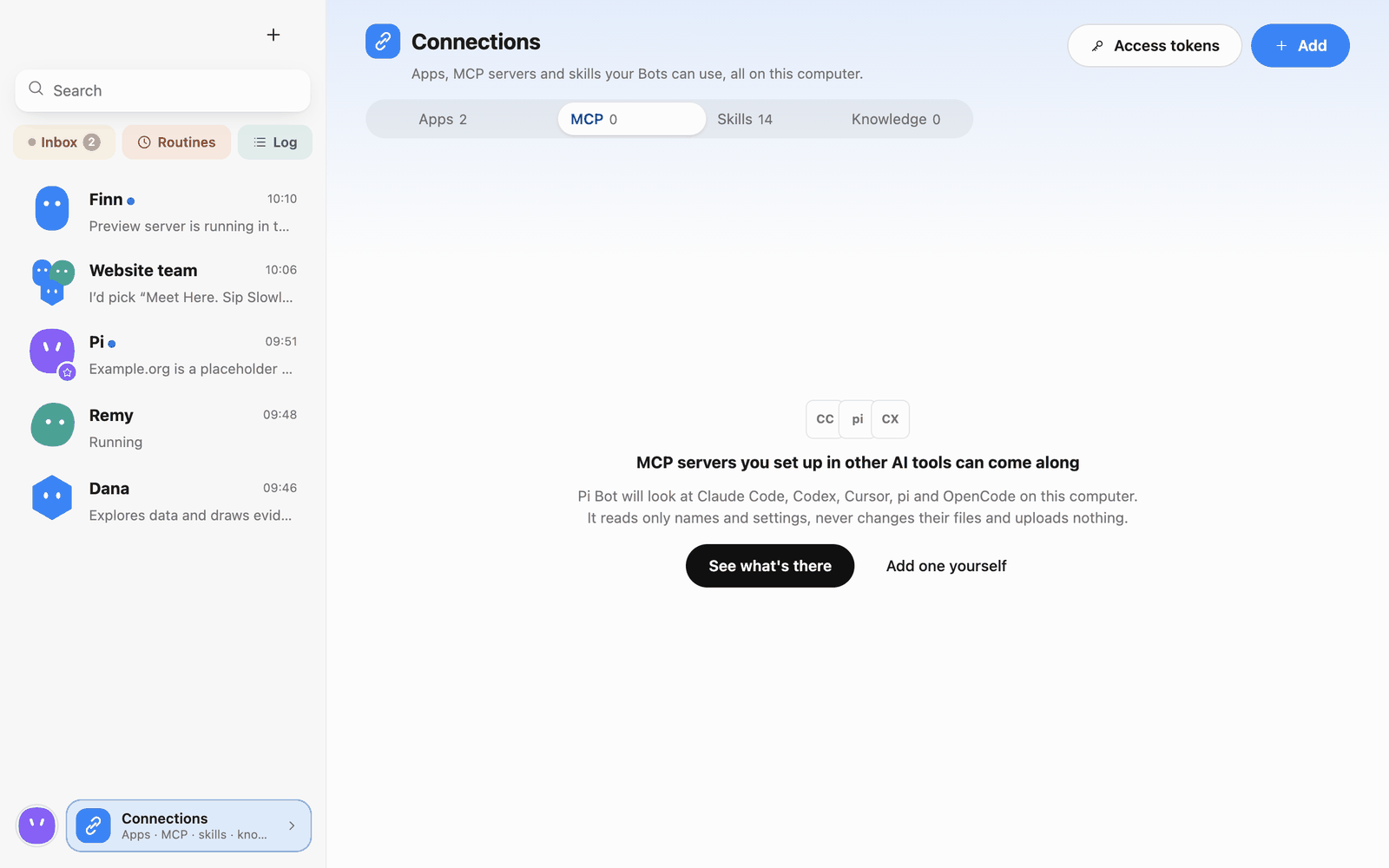 Connections · MCP
With no MCP servers yet, the page offers See what's there (bring over from other AI tools) or Add one yourself.
Before anything is brought over or added, you get a preview and nothing is imported until you confirm; the source tool's files stay read-only. If keys are needed, you're asked to fill them in. Imported items aren't given to any Bot yet: back in the list, click Give to a Bot to choose which Bots may use them.
If an MCP server's start command matches a high-risk rule, it's flagged as a dangerous command; check the source and command before deciding. Importing doesn't authorize running it: Bots using it still go through permission and isolation checks.
Skills
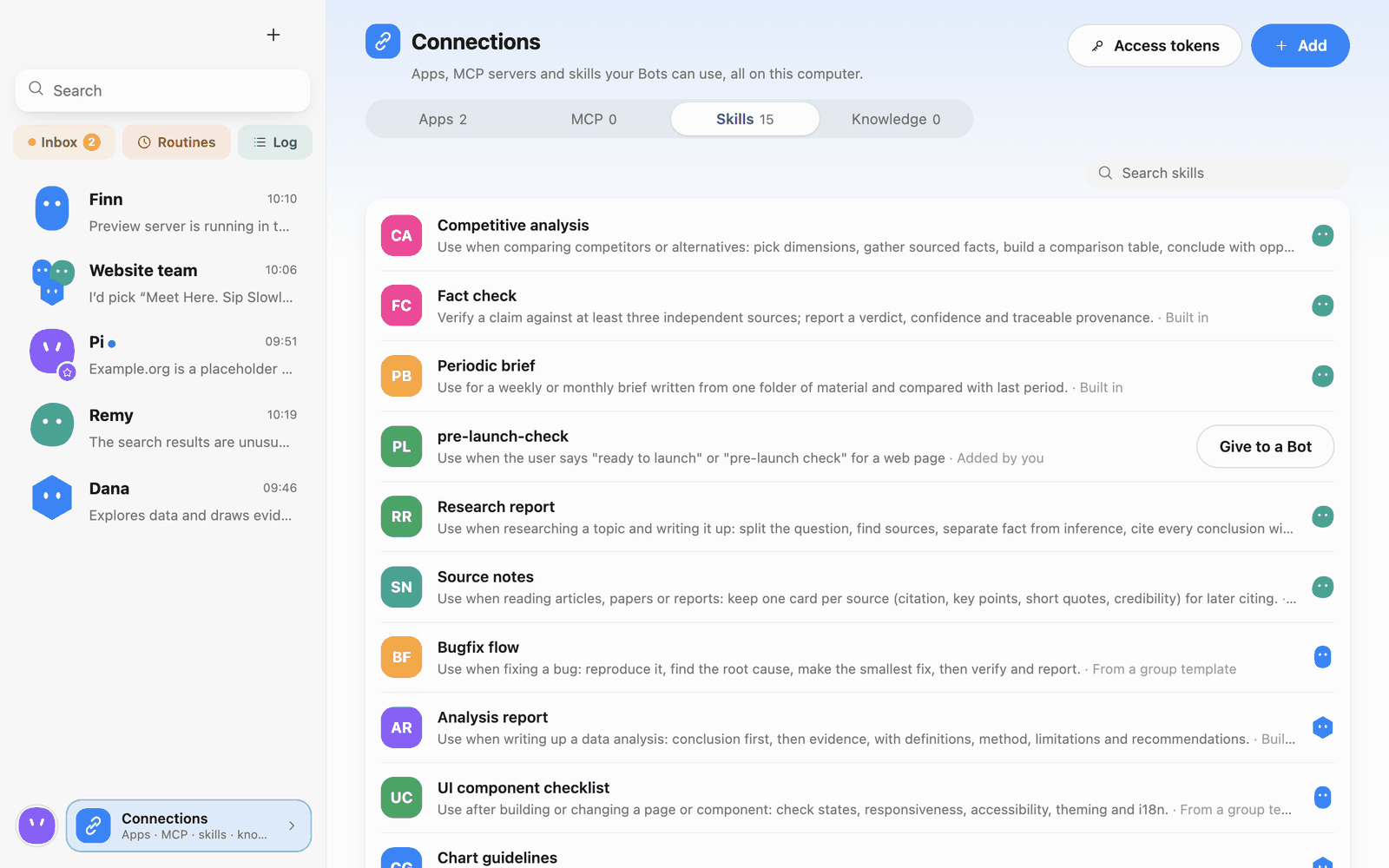 Connections · Skills
The list shows each skill's description and where it came from (Built in, From a group template, Added by you). Click a skill for details:
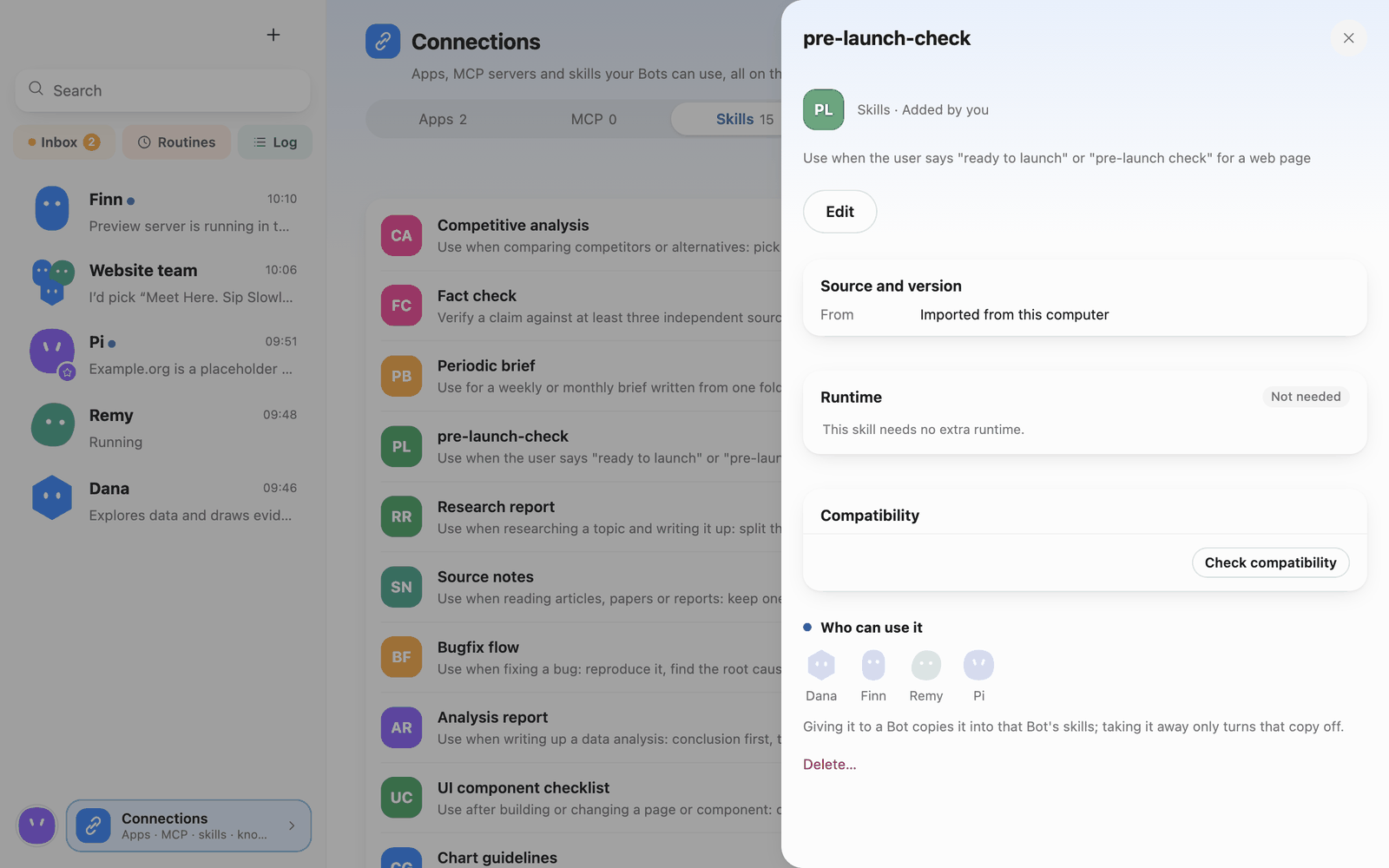 Skill details
- Edit: change the skill.
- Source and version.
- Runtime: some skills include scripts that need Python or Node. When needed, click Prepare runtime: Pi Bot builds a separate environment for the skill (for Python, a uv managed by Pi Bot is downloaded on demand and checksum-verified, only with your consent). Later you can Prepare again or Remove environment.
- Compatibility: Check compatibility to see whether the skill works properly in Pi Bot.
- Who can use it: click a Bot's avatar to give it the skill (a copy goes into that Bot's skills); taking it away only turns that copy off.
Write a skill
- Add › Write a skill.
- In
SKILL.md, putname(the skill name) anddescription(when to use it; the Bot decides from this) between the two---lines, and the steps below. Values that change each time are written as{parameter}; defaults go inpibot-paramsundermetadata. - Optionally add scripts or material with New file, Upload file or Upload folder.
- Choose Bots under Who can use it (you can leave it empty and give it to Bots later from the skill details).
- Click Save.
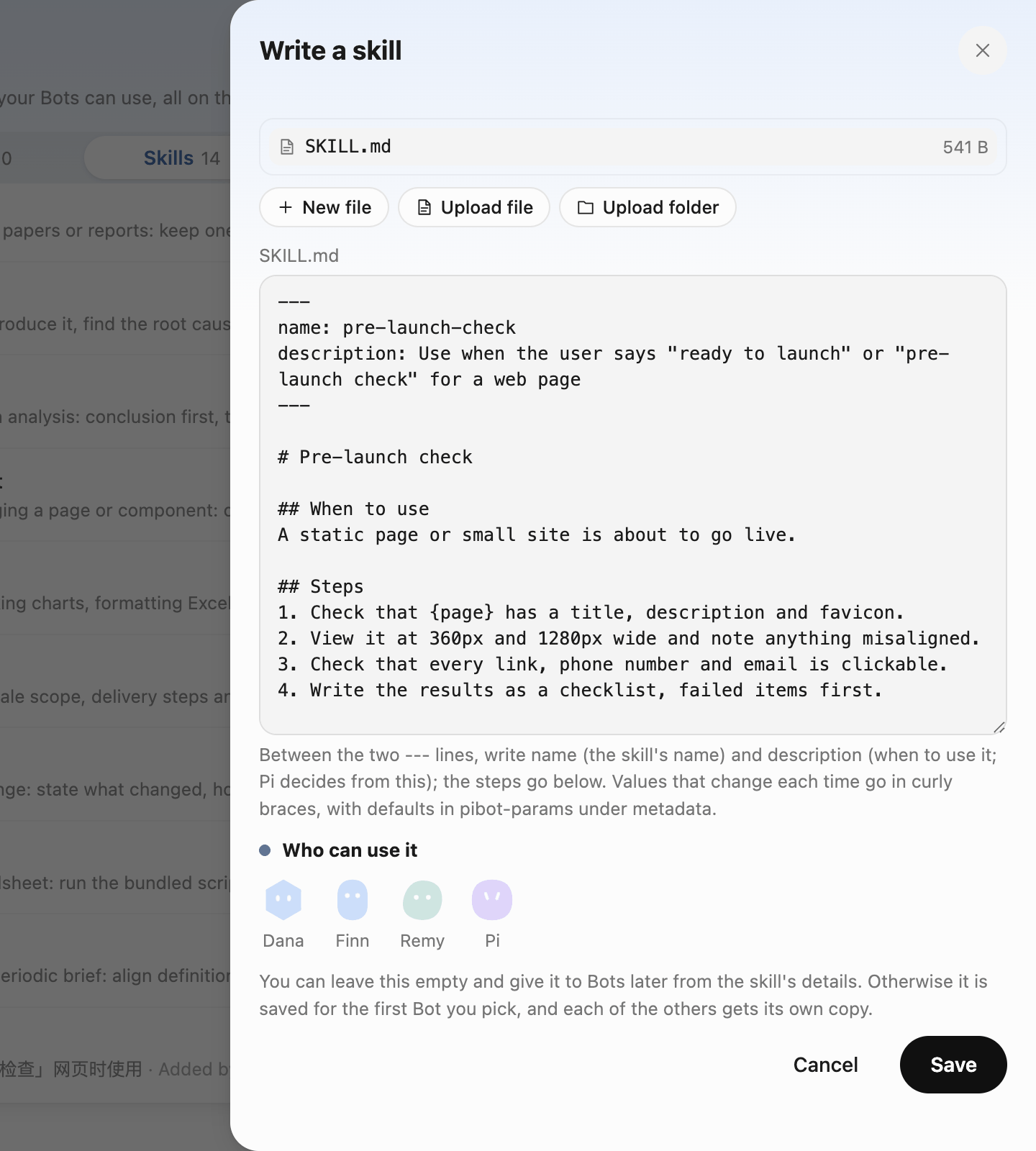 Write a skill
Example:
---
name: pre-launch-check
description: Use when the user says "ready to launch" or "pre-launch check" for a web page
---

# Pre-launch check

## Steps
1. Check that {page} has a title, description and favicon.
2. View it at 360px and 1280px wide and note anything misaligned.
3. Check that every link, phone number and email is clickable.
4. Write the results as a checklist, failed items first.

## Notes
- Only check and report; don't change files until the user confirms.
Then say "do a pre-launch check" in a chat and the Bot follows the skill. Each Bot's skills can be switched on and off on the Skills tab of its profile.
Import skills and plugin packages
Import from a folder or link using the Add menu in Connections
Import a plugin package from a folder and Import from link bring in ready-made skill packages (compatible with the Claude Code plugin format), including large skills with scripts and dependencies. You preview before importing; a package containing links or files that can't be imported for safety reasons is refused with the reason.
Knowledge
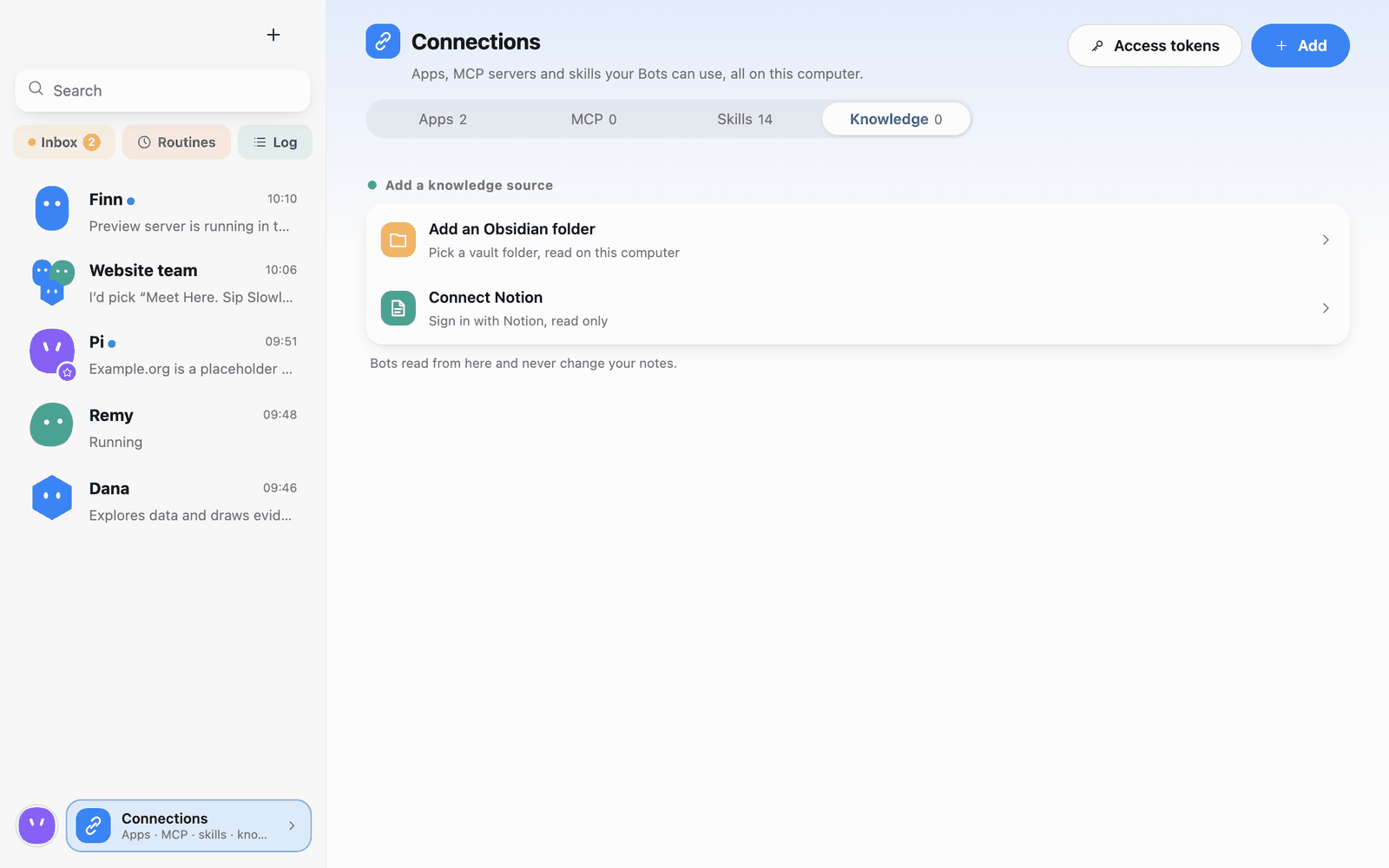 Connections · Knowledge
- Add an Obsidian folder: pick a vault folder; it's read on this computer only. If Obsidian is installed, the page lists the vaults it found (only the folder paths are read, not the notes) and you click Add.
- Connect Notion: sign in with Notion, read only.
Bots only read knowledge sources and never change your notes.
Access tokens
- Open Connections, then choose Access tokens at the top right. The dialog lists tokens used by connections and tokens you added yourself. A fresh profile shows No access tokens yet.
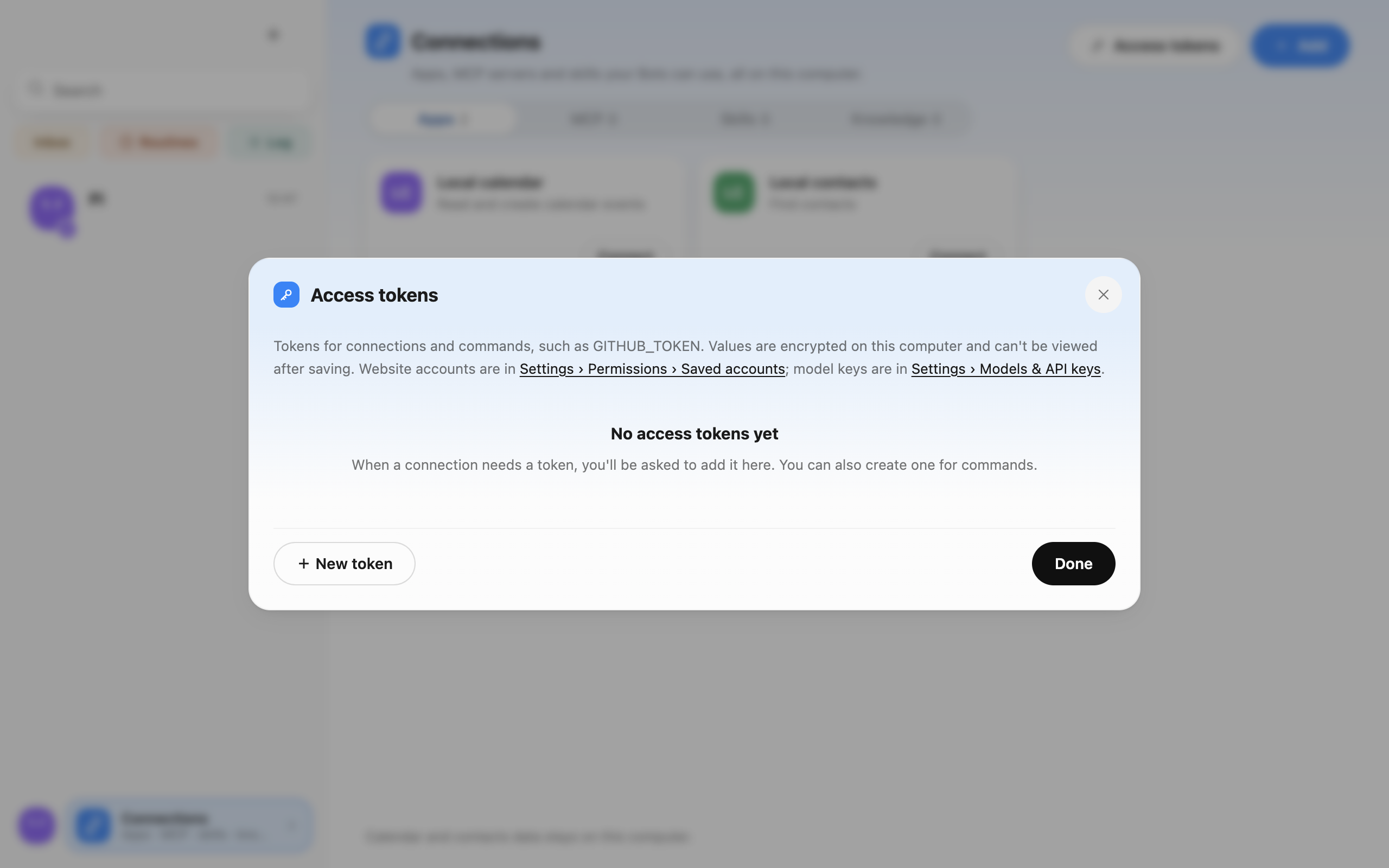 The Access tokens dialog in a fresh test profile
- To add or replace a connection's token, check which connection the entry belongs to and use the button on that entry. After you save the new value, Pi Bot attempts to reconnect with it.
- To add a separate token for commands, choose New token and enter a name and value. Saved values are encrypted on this computer. You can replace them later without revealing the original value.
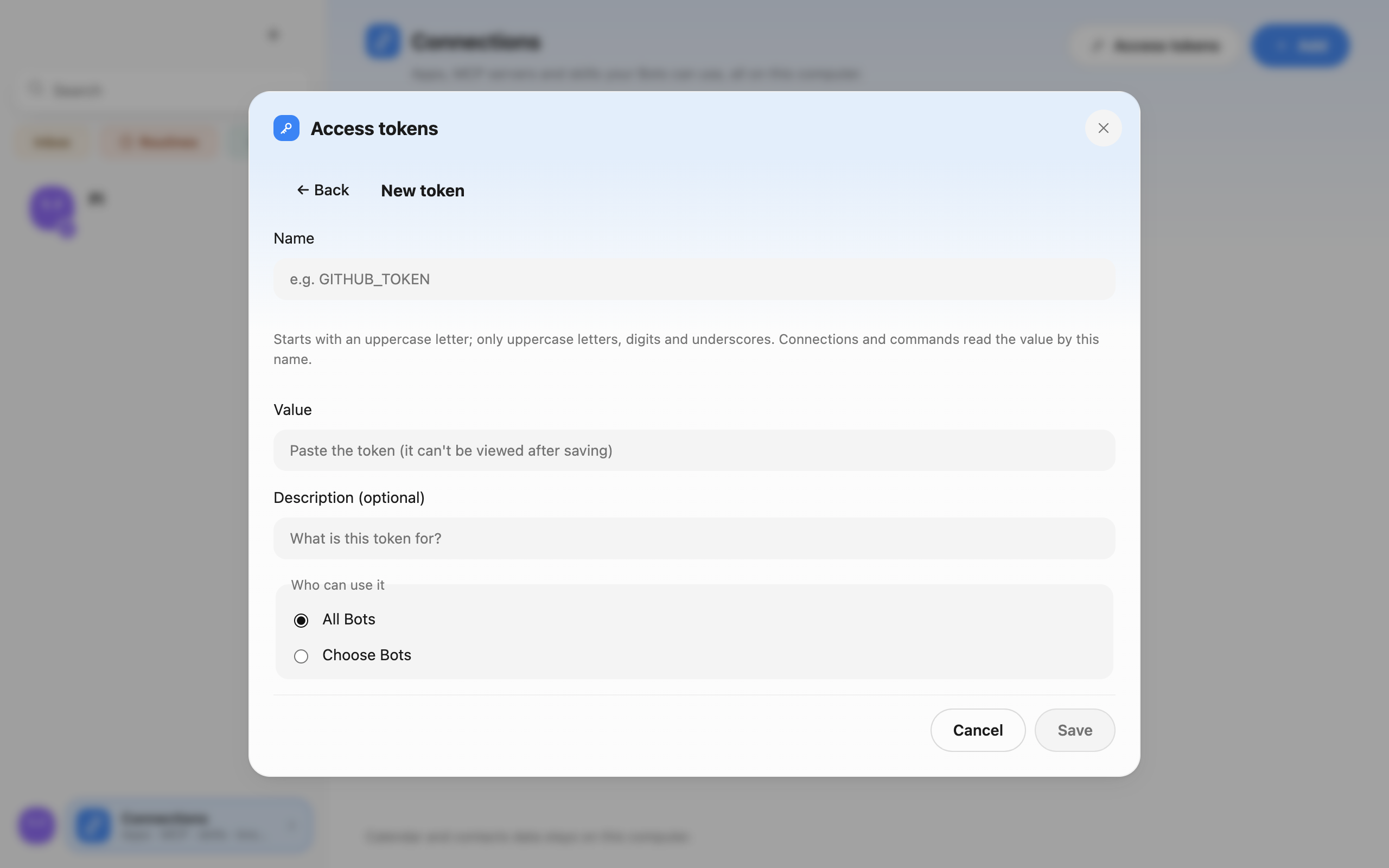 The New token form with all fields empty
Manage model API keys under Settings → Models & API keys and website credentials under Settings → Permissions → Saved accounts.
Gmail 插件 / Gmail plugin
Gmail supports app passwords and your own OAuth client. The tool returns an authorization URL; the user must open it and consent in a browser. The callback binds only to a random 127.0.0.1 port and uses PKCE. Refresh tokens stay in the plugin’s encrypted scope, and oauth_revoke revokes and clears them. Imported command: node plugins use Pi Bot’s bundled Node.